Active Directory System State Backup: Complete Guide
If you manage Active Directory, one of the most important things you can learn is how to create a reliable backup of a Domain Controller.
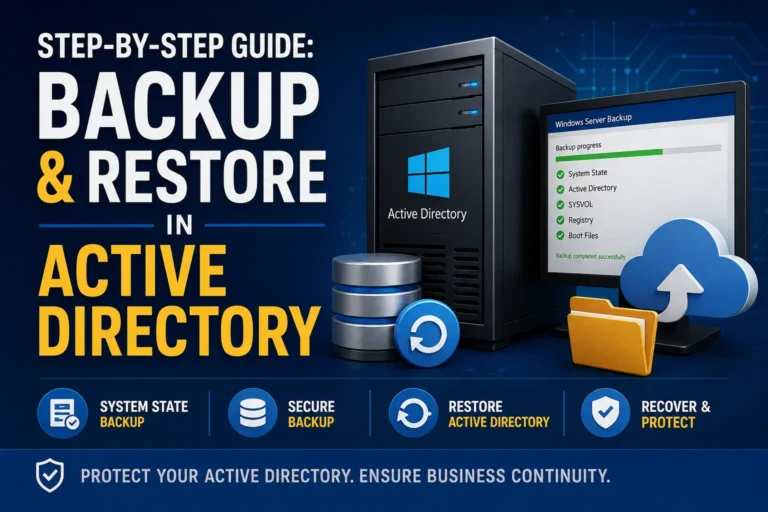
A System State backup protects important Domain Controller components such as Active Directory, SYSVOL, the Windows Registry, and other system components required for recovery.
This guide keeps things practical. You will learn what to check before starting, how to create the backup, how to verify it, and what you should consider before attempting a restore.
A System State backup is an important part of Active Directory disaster recovery, but it is not the same as a complete server backup.
What Does System State Backup Protect?
On a Domain Controller, System State backup protects the key components needed to support the server and Active Directory recovery process.
- Active Directory database (NTDS.DIT)
- SYSVOL
- Windows Registry
- Boot and system files
- Other components required for system-state recovery
Before You Start
Before taking the backup, check these items:
- Confirm you are connected to the correct Domain Controller.
- Check that the Domain Controller is healthy.
- Make sure you have the required administrative permissions.
- Confirm the backup destination is available.
- Check that there is enough storage space.
- Confirm where the backup will be stored after completion.
Do not keep your only backup on the same Domain Controller you are trying to protect. If the server and its storage fail together, you could lose both.
Step 1: Create the System State Backup
Windows Server includes WBADMIN, which can be used to create a System State backup.
Open Command Prompt as Administrator and run:
wbadmin start systemstatebackup -backupTarget:E:Replace E: with the actual backup destination approved for your environment.
Check the destination before running the command. Do not assume that E: is the correct backup drive on your server.
Step 2: Wait for the Backup to Finish
Let the backup process complete. Depending on the server and storage, this can take some time.
When the operation finishes, check the result carefully.
If the backup finishes with an error, do not treat it as a valid recovery point. Investigate and resolve the problem before relying on that backup.
Step 3: Verify the Backup
Creating a backup is only half the job. You also need to verify that Windows can see the backup version.
Run:
wbadmin get versionsIf the backup is stored on a network location, specify the backup target:
wbadmin get versions -backuptarget:\\BackupServer\ADBackupConfirm that you can identify:
- Backup date
- Backup time
- Backup version
- Backup location
- Server associated with the backup
Record the backup date, time, location, and retention period in your operational documentation. This saves time when you need the backup during an incident.
How Often Should You Back Up Active Directory?
There is no single schedule that works for every organization. Your backup frequency should match your business Recovery Point Objective (RPO).
For many production environments, a daily System State backup is a practical starting point, with additional backups before major Active Directory changes.
Consider an additional backup before:
- Major Group Policy changes
- Large Active Directory restructuring
- Domain Controller upgrades
- Major identity migrations
- Significant schema changes
Pros and Cons
Advantages
- Built into Windows Server.
- Protects important Domain Controller components.
- Useful for disaster recovery.
- Can be scheduled and automated.
- Provides a recovery point when serious problems occur.
Limitations
- It is not a complete server backup.
- It does not solve every Active Directory recovery scenario.
- Restoring Active Directory can be complex.
- Backup age matters during recovery.
- A backup that has never been tested creates a false sense of security.
What If the Domain Controller Fails?
This is where a junior administrator should slow down and assess the environment before restoring anything.
The first question is:
Are Other Domain Controllers Healthy?
If another healthy Domain Controller exists, rebuilding the failed DC may sometimes be safer and simpler than restoring the old DC from backup.
Do not immediately restore a failed Domain Controller just because you have a System State backup. First determine what other healthy Domain Controllers are available.
What If This Is the Last Domain Controller?
If no other Domain Controllers are available, the situation is much more serious. You may be dealing with a forest recovery scenario.
In that situation, follow your organization’s approved forest recovery plan and the appropriate Microsoft recovery procedures.
Non-Authoritative vs. Authoritative Restore
| Restore Type | Typical Purpose |
|---|---|
| Non-Authoritative | Used when other healthy Domain Controllers are available and the restored DC can receive current information through replication. |
| Authoritative | Used in specific recovery situations where restored Active Directory data must become the authoritative copy. |
Never perform an authoritative Active Directory restore simply because a System State backup is available. Understand the recovery scenario first.
The AD Architect’s Recovery Rule
When a Domain Controller has a serious problem, follow this simple sequence:
- Assess: Understand what actually failed.
- Protect: Identify healthy Domain Controllers and available backups.
- Decide: Choose rebuild, non-authoritative restore, or forest recovery.
- Recover: Follow the approved recovery procedure.
- Validate: Check AD replication, DNS, SYSVOL, Group Policy, authentication, and event logs.
Admin Quick Checklist
☐ Confirm the correct Domain Controller
☐ Check Domain Controller health
☐ Confirm backup permissions
☐ Confirm backup destination
☐ Run the System State backup
☐ Wait for successful completion
☐ Run wbadmin get versions
☐ Record the backup date and time
☐ Confirm the backup is accessible
☐ Follow your retention policy
☐ Test recovery periodically
Treat recovery testing as part of your backup process. A backup you have never tested is an assumption—not proof that you can recover.
Final Thoughts from an AD Architect
Active Directory backup is not simply about clicking a button or running one command.
A reliable recovery strategy connects four things:
Valid Backup → Protected Storage → Recovery Plan → Tested Recovery
If one of those pieces is missing, your recovery strategy has a weakness.
Never perform an Active Directory recovery procedure in production based only on a blog article. Follow your organization’s approved recovery plan and validate the procedure in a controlled environment whenever possible.
Microsoft Documentation
WBADMIN: Start System State Backup
Active Directory Forest Recovery Procedures
Active Directory Forest Recovery FAQ
Production Active Directory backup and recovery should always follow your organization’s
approved change, security, backup, and disaster-recovery procedures.