Repadmin Commands Every Active Directory Administrator Should Know
Repadmin is the primary command-line tool for checking Active Directory replication health. This guide explains the essential Repadmin commands every administrator should know, when to use them, and which commands require extra caution in production.
repadmin /replsummary to see replication health across your environment. Use repadmin /showrepl to find the exact source DC, destination DC, naming context, and error. Fix DNS, network, time, authentication, or topology issues first—then use repadmin /syncall /AdeP to validate the repair.Table of Contents
- What Is Repadmin?
- Before You Start
- 15 Essential Repadmin Commands
- Safe Troubleshooting Workflow
- Common Repadmin Errors
- Repadmin Cheat Sheet
- Frequently Asked Questions
What Is Repadmin?
Repadmin is a Microsoft command-line utility for viewing and managing Active Directory replication. It is available on domain controllers and through Remote Server Administration Tools (RSAT).
It helps administrators inspect replication partners, identify failed replication attempts, check queued requests, view object metadata, investigate topology, and validate directory synchronization. A healthy Repadmin result also provides confidence that important AD dependencies—such as DNS, Kerberos, Windows Time, RPC, and network connectivity—are functioning correctly.
Before You Start
- Run Command Prompt or PowerShell as Administrator.
- Use an account with appropriate Active Directory permissions.
- Record the error code, source DC, destination DC, and affected naming context before making changes.
- Review Directory Service event logs on both the source and destination DC.
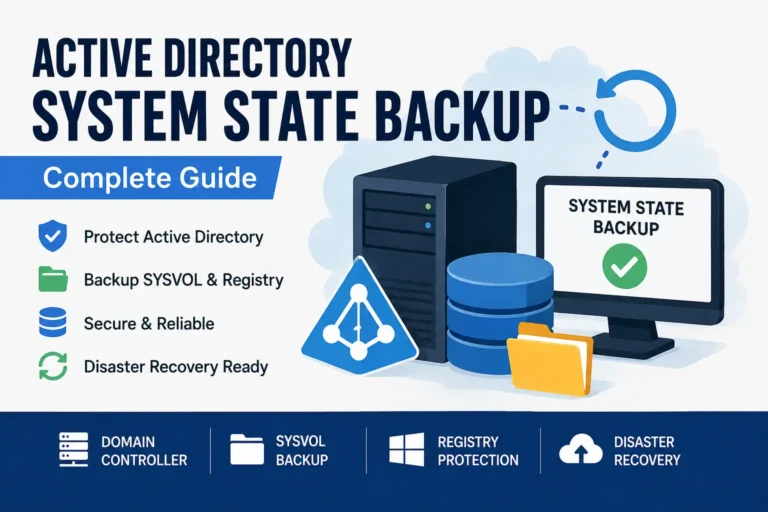
- Take a current System State backup before any high-risk recovery activity.
- Use a lab or approved change process before running commands that modify replication state.
15 Essential Repadmin Commands
1. Check Forest-Wide Replication Health
repadmin /replsummaryUse it for: A quick summary of replication failures across domain controllers.
Look for: Failed attempts, error percentage, and a high Largest Delta value.
2. View Detailed Inbound Replication Status
repadmin /showreplUse it for: Identifying replication partners, the last successful replication, naming contexts, and specific error codes.
3. Check One Specific Domain Controller
repadmin /showrepl DC01.contoso.comUse it for: Focusing on an affected DC instead of reviewing the whole forest.
4. Force Replication After a Fix
repadmin /syncall /AdePUse it for: Triggering replication across naming contexts after the real issue has been corrected.
Important: This command does not fix DNS, RPC, Kerberos, firewall, time, or topology problems. It only requests synchronization.
5. Check the Replication Queue
repadmin /queueUse it for: Viewing queued inbound replication requests on the local DC.
Watch for: A queue that grows continuously, which can suggest replication delays, connectivity problems, or performance pressure.
6. View Up-to-Dateness Vector Data
repadmin /showutdvec DC01 "DC=contoso,DC=com"Use it for: Checking whether a domain controller has received updates from its replication partners for a specific naming context.
7. Inspect Active Directory Object Metadata
repadmin /showobjmeta DC01 "CN=John Smith,OU=Users,DC=contoso,DC=com"Use it for: Finding when an attribute changed, which DC originated the change, and the attribute version number.
Best scenario: A group membership, account property, or password-related update differs between domain controllers.
8. View Current Object Attributes
repadmin /showattr DC01 "CN=John Smith,OU=Users,DC=contoso,DC=com"Use it for: Viewing the current attribute values for an object on a particular domain controller.
9. Review Cached Replication Failures
repadmin /failcacheUse it for: Reviewing cached replication failures and identifying DCs or partitions that need further investigation.
10. View Replication Connection Objects
repadmin /showconn DC01Use it for: Reviewing the connection objects that define replication relationships for a domain controller.
11. Trigger the Knowledge Consistency Checker
repadmin /kcc DC01Use it for: Asking the KCC to recalculate replication topology on a specific DC.
Caution: First validate AD Sites and Services, site links, subnets, and real WAN connectivity. Do not use KCC commands as a substitute for correct topology design.
12. Identify the Inter-Site Topology Generator
repadmin /istgUse it for: Identifying the domain controller responsible for generating intersite replication connections in each Active Directory site.
13. Check a Specific Naming Context
repadmin /showrepl DC01 "DC=contoso,DC=com"Use it for: Narrowing troubleshooting to the domain partition, Configuration partition, Schema partition, or another naming context.
14. Replicate One Specific Object
repadmin /replsingleobj DC02 DC01 "CN=John Smith,OU=Users,DC=contoso,DC=com"Use it for: Testing targeted replication of one user, group, computer, or other AD object from a known source DC to a destination DC.
15. Detect Lingering Objects — Advanced Recovery Only
repadmin /removelingeringobjects DC02 DC01_GUID "DC=contoso,DC=com" /advisory_modeUse it for: Detecting lingering objects in advisory mode before any removal action.
High-risk warning: Start with /advisory_mode only. Confirm the authoritative source DC, validate backups, and follow a tested recovery process before removing any objects.
Safe Repadmin Troubleshooting Workflow
- Run
repadmin /replsummaryto identify failed DCs. - Run
repadmin /showrepl DCNameto capture the exact failure. - Record the source DC, destination DC, partition, time, and error number.
- Review Directory Service event logs on both systems.
- Check DNS resolution, network/RPC connectivity, time synchronization, authentication, and AD services.
- Fix the root cause—not just the Repadmin symptom.
- Run
repadmin /syncall /AdeP. - Run
repadmin /replsummaryagain and confirm the error has cleared.
Common Repadmin Errors
- Error 1722 — The RPC server is unavailable: Check DNS, network connectivity, RPC services, and firewall rules.
- Error 8453 — Replication access was denied: Review authentication, permissions, secure channels, and DC machine-account health.
- Error 8524 — DNS lookup failure: Validate A, CNAME, and SRV records, including records in the
_msdcszone. - Error 8614 — Tombstone lifetime exceeded: The DC may have been disconnected too long; evaluate rebuilding it rather than forcing replication.
- Error 1988 — Lingering objects: Use an approved recovery process and advisory mode before considering cleanup.
Repadmin Quick Cheat Sheet
| Goal | Command |
|---|---|
| Check overall health | repadmin /replsummary |
| Find detailed errors | repadmin /showrepl |
| Force sync after a repair | repadmin /syncall /AdeP |
| Check pending replication | repadmin /queue |
| Check one DC | repadmin /showrepl DC01 |
| Inspect an object change | repadmin /showobjmeta DC01 "ObjectDN" |
Pros and Cons of Repadmin
Advantages
- Fast and detailed Active Directory replication diagnostics.
- Works across local, remote, site, and forest-wide scopes.
- Identifies the affected source, destination, partition, and error.
- Supports advanced object-metadata and topology analysis.
Limitations
- Output can be difficult to interpret in large environments.
- It identifies failures but may not reveal the complete root cause alone.
- Some commands require careful change control and recovery planning.
- It does not replace monitoring, tested backups, or correct AD design.
Frequently Asked Questions
What is the most useful Repadmin command?
repadmin /replsummary is the best starting point because it gives a concise overview of replication failures across your domain controllers.
How do I force Active Directory replication?
Run repadmin /syncall /AdeP from an elevated session. Always correct the underlying issue first because forcing sync does not repair DNS, network, authentication, or time problems.
What is the difference between Repadmin and DCDIAG?
Repadmin focuses on replication, topology, and AD object data. DCDIAG provides broader domain-controller health tests, including DNS, services, SYSVOL, connectivity, and event logs.
Is Repadmin safe in production?
Read-only commands such as /replsummary, /showrepl, and /queue are safe diagnostics. Use state-changing or recovery commands only with approved change control, backups, and a documented recovery plan.
Related Articles
- How to Troubleshoot Active Directory Replication
- DCDIAG Explained: 15 Active Directory Health Checks
- Active Directory DNS Best Practices for Domain Controllers
- How to Configure Active Directory Sites and Services
Sources
- Microsoft Learn: Troubleshooting Active Directory Replication Problems
- Microsoft Learn: Guidance for Troubleshooting AD Replication
- Microsoft Learn: Diagnose AD Replication Failures