How to Restore a Domain Controller Using DSRM
Restoring a Domain Controller is one of those jobs that you hope you never have to perform.
When a DC fails badly, however, knowing exactly what to do can make the difference between a controlled recovery and a much bigger Active Directory problem.
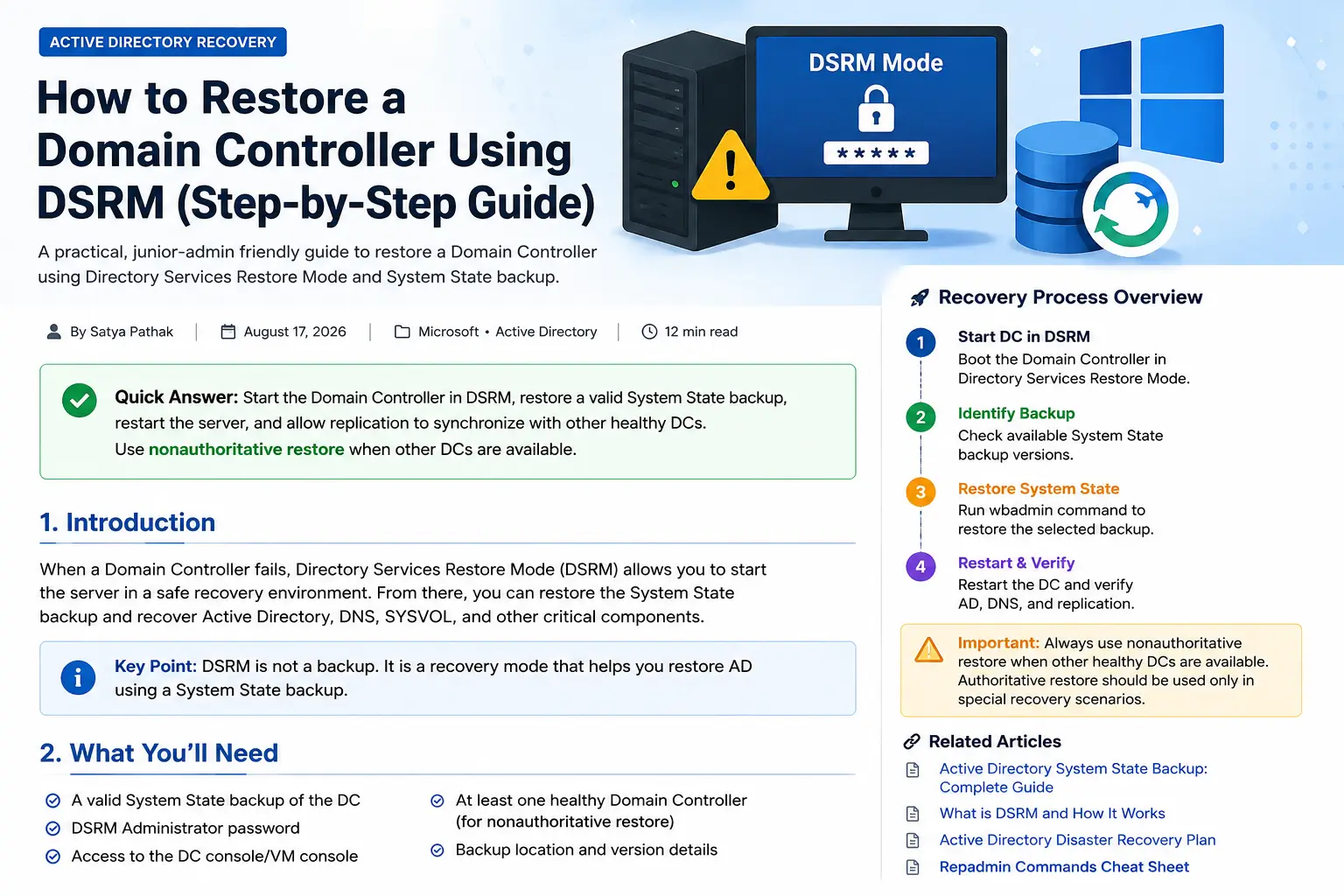
This guide explains the practical process of restoring a Domain Controller using DSRM and a System State backup.
It is written for junior administrators who need a procedure they can actually follow during a recovery.
What You’ll Need
- A valid System State backup of the Domain Controller.
- The DSRM Administrator password.
- Access to the Domain Controller console or VM console.
- Knowledge of the backup location and backup date.
- At least one healthy Domain Controller if you are performing a normal nonauthoritative recovery.
- Enough time to verify Active Directory, DNS and replication after recovery.
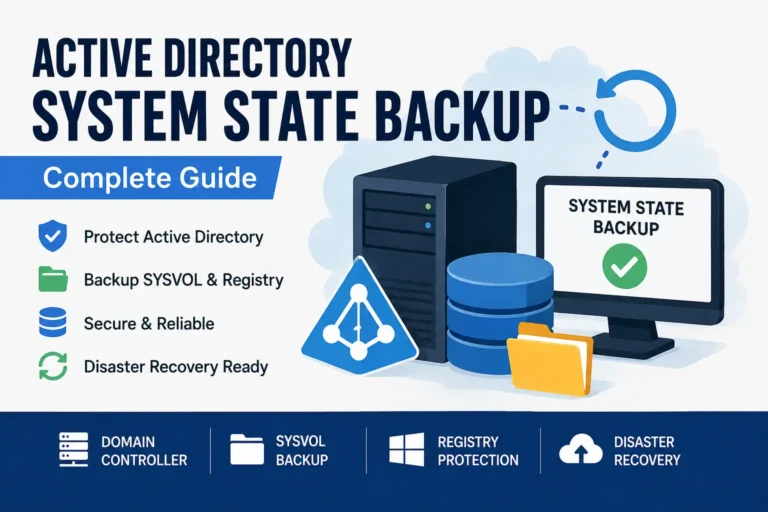
If you are still preparing your backup strategy, start with our
Active Directory System State Backup guide.
Before You Restore: Decide Which Recovery You Need
This is the most important decision in the entire procedure.
Nonauthoritative Restore
Use this when the Domain Controller has failed but other healthy Domain Controllers still contain the current Active Directory data.
After recovery, the restored DC receives updated directory information through normal replication.
Typical scenario:
One DC failed, but DC2 and DC3 are healthy.
Authoritative Restore
Use this only when you intentionally need the restored Active Directory data to become authoritative and replicate to the other Domain Controllers.
This is a much more sensitive recovery operation and should be planned carefully.
Typical scenario:
A forest-level recovery or recovery of specific deleted AD data.
For a normal failed-DC rebuild where another healthy DC exists, nonauthoritative recovery is generally the safer approach.
Step 1 — Start the Domain Controller in DSRM
STEP 1
Enter Directory Services Restore Mode
The Domain Controller must be started in Directory Services Restore Mode (DSRM) before performing a System State restore.
From the Windows recovery or boot options, select:
Advanced Boot Options → Directory Services Restore Mode
Then sign in using the local DSRM Administrator account and its password.
Step 2 — Identify the Correct System State Backup
STEP 2
Check the available backup versions
If the backup was created with Windows Server Backup, use an elevated Command Prompt and check the available versions.
wbadmin get versionsLook for the System State backup you intend to restore. Confirm the date and time before continuing.
Step 3 — Restore the System State
STEP 3
Start the System State recovery
From the DSRM command prompt, start the recovery using the appropriate backup version.
wbadmin start systemstaterecovery -version:MM/DD/YYYY-HH:MMIf the backup is stored on another location, specify the appropriate backup target according to your backup configuration.
wbadmin start systemstaterecovery -version:MM/DD/YYYY-HH:MM -backuptarget:\\BackupServer\ADBackupFollow the prompts and allow the System State recovery to complete.
wbadmin get versions first and use the exact backup version shown by Windows Server Backup.Step 4 — Restart and Verify Active Directory
STEP 4
Restart the Domain Controller
After the restore completes successfully, restart the Domain Controller and allow it to boot normally.
If this is a nonauthoritative restore and other Domain Controllers are healthy, the recovered DC should synchronize its Active Directory data through replication.
Do not immediately assume the recovery is complete just because Windows starts successfully. The important test is whether AD DS, DNS and replication are healthy.
Commands to Check After Recovery
Check Domain Controller health
dcdiag /vCheck replication
repadmin /replsummaryCheck detailed replication partners
repadmin /showreplCheck whether the DC is advertising correctly
dcdiag /test:advertisingCheck DNS health
dcdiag /test:dnsExample Recovery Scenario
Imagine you have three Domain Controllers:
- DC01 — failed
- DC02 — healthy
- DC03 — healthy
DC01 has a recent System State backup. Because DC02 and DC03 are still healthy, you normally want to rebuild DC01 using a nonauthoritative restore.
The simplified recovery flow is:
DC01 failure → Start DSRM → Select known-good System State backup → Restore → Restart → Replication → Validate AD/DNS
Common Errors
| Problem | What it usually means |
|---|---|
| System State backup cannot be found | The backup target, catalog or version information may be incorrect. |
| DSRM password does not work | The password being used is not the current DSRM password for that server. |
| Replication errors after recovery | Check DNS, network connectivity, AD replication and the event logs before making further changes. |
| DC does not advertise | Run DCDIAG and investigate AD DS, DNS and Netlogon-related errors. |
| DNS problems | Check DNS service health, AD-integrated DNS zones and the DC’s DNS configuration. |
Troubleshooting
1. Replication is failing
repadmin /replsummary
repadmin /showrepl
Start with the actual error code returned by Repadmin. Avoid randomly changing replication settings before understanding the failure.
2. DCDIAG reports errors
dcdiag /vLook for errors related to DNS, advertising, services, replication and SYSVOL.
3. The Domain Controller cannot authenticate users
Check:
- DNS resolution
- Netlogon service
- Replication status
- SYSVOL and NETLOGON availability
- System and Directory Service event logs
4. The DC was restored but the environment is still unstable
Stop and investigate before making additional changes. A Domain Controller restore can affect replication, DNS, SYSVOL and other AD-dependent services.
Best Practices
- Maintain regular System State backups of Domain Controllers.
- Keep backups in a location separate from the Domain Controller.
- Regularly test that backups can actually be restored.
- Document the DSRM password securely according to your organization’s password-management policy.
- Know which Domain Controllers hold FSMO roles before a disaster occurs.
- Monitor AD replication regularly instead of discovering problems during a disaster.
- Keep at least one healthy Domain Controller available when possible.
- Do not use an unnecessarily old backup when a newer known-good backup exists.
- Keep your recovery procedure documented and tested.
Related Articles
This guide is based on Microsoft documentation covering Active Directory recovery, System State restoration, DSRM and Windows Server Backup.
- Microsoft Learn — Active Directory Forest Recovery
- Microsoft Learn — Restore a virtual Domain Controller
- Microsoft Learn — wbadmin System State Recovery
- Microsoft Learn — Active Directory Backup and Restore