Active Directory Recycle Bin: Recover Deleted Users and Groups
Short answer:
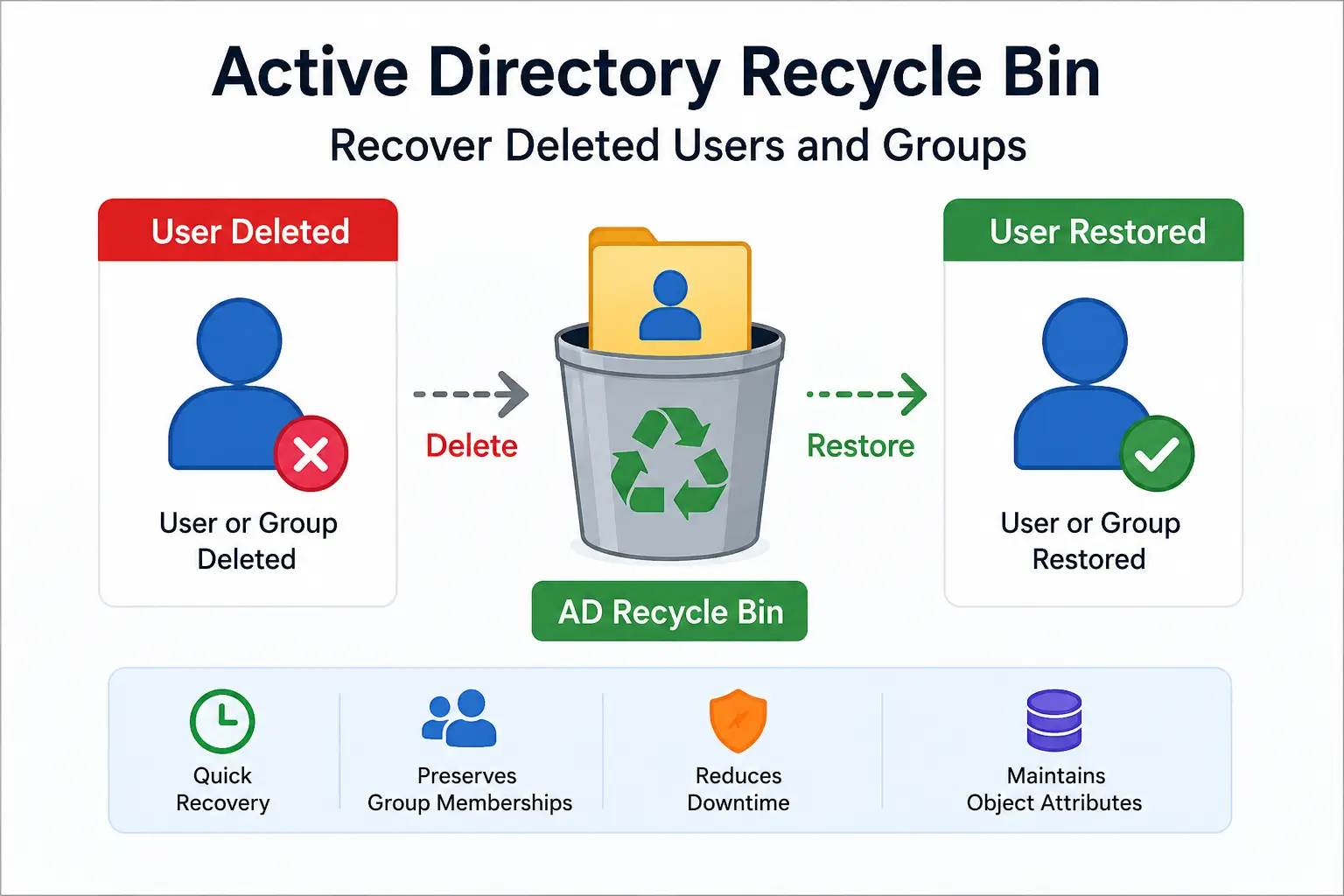
Active Directory Recycle Bin allows administrators to recover deleted Active Directory
users, groups, and other objects without having to rebuild them manually.
When it is enabled before the deletion occurs, it can preserve important information
about the deleted object and make recovery much easier.
Accidentally deleting an Active Directory account is one of those mistakes that can
happen even in a well-managed environment. The important thing is knowing what to do
next.
This guide walks through the recovery process from beginning to end. It is written
so that a junior administrator can follow the procedure while still understanding
what is happening behind the scenes.
Quick Answer
The basic Active Directory Recycle Bin recovery process is:
Find → Verify → Restore → Validate
- Confirm Active Directory Recycle Bin is enabled.
- Find the deleted user or group.
- Verify that you found the correct object.
- Restore the object and verify the recovery.
What You’ll Need
Before starting, make sure you have:
- Appropriate Active Directory administrative permissions.
- The Active Directory PowerShell module.
- Access to a Domain Controller or management workstation.
- The username or group name you want to recover.
- An approximate idea of when the object was deleted.
- Knowledge of the object’s previous OU, if possible.
Important:
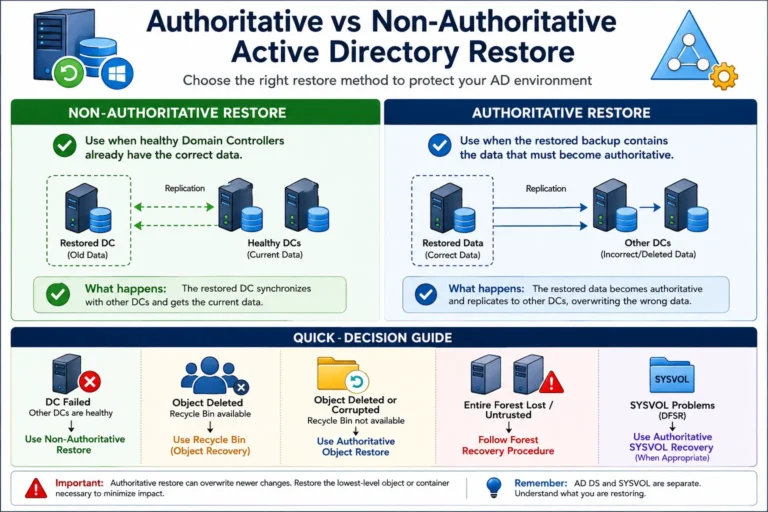
Active Directory Recycle Bin is not a replacement for System State backups.
It is an object-recovery feature and should be part of a larger AD recovery strategy.
Step 1 — Check Whether Active Directory Recycle Bin Is Enabled
Before searching for a deleted object, first confirm that the Recycle Bin feature
is enabled in your Active Directory forest.
Open PowerShell with appropriate administrative permissions and run:
Get-ADOptionalFeature -Identity 'Recycle Bin Feature' |
Select-Object Name, EnabledScopes
If EnabledScopes contains the appropriate forest information,
Recycle Bin is enabled.
Admin tip:
If Recycle Bin was not enabled when the object was deleted, you cannot use
Recycle Bin to recover that deletion. You may need another recovery method.
Step 2 — Find the Deleted User or Group
Once you know Recycle Bin is available, search for the deleted object.
To list deleted objects:
Get-ADObject `
-Filter 'isDeleted -eq $true' `
-IncludeDeletedObjects |
Select-Object Name,ObjectClass,ObjectGUID
If your environment contains many deleted objects, use a more specific search.
Find a Deleted User
Get-ADObject `
-Filter 'SamAccountName -eq "jdoe"' `
-IncludeDeletedObjects `
-Properties *
Replace jdoe with the actual username.
Find a Deleted Group
Get-ADObject `
-Filter 'Name -eq "Finance-Users"' `
-IncludeDeletedObjects `
-Properties *
Step 3 — Verify the Deleted Object
Do not skip this step.
In production, you should never restore an object simply because the name looks correct.
Confirm that it is the exact account or group you intended to recover.
Check details such as:
- Object name
- Object class
- SamAccountName
- Object GUID
- Last known parent OU
- Previous object information
For example:
$deletedUser = Get-ADObject `
-Filter 'SamAccountName -eq "jdoe"' `
-IncludeDeletedObjects `
-Properties *
Then inspect it:
$deletedUser | Format-List *
Step 4 — Restore and Validate the Object
Once you are confident that the object is correct, restore it.
Restore-ADObject -Identity $deletedUser
Recovery is not finished yet.
After restoration, verify the object, group membership, authentication,
application access and replication.
For a user, run:
Get-ADUser jdoe -Properties MemberOf
For replication:
repadmin /replsummary
Commands
Check Recycle Bin:
Get-ADOptionalFeature -Identity 'Recycle Bin Feature' |
Select Name,EnabledScopes
List deleted objects:
Get-ADObject `
-Filter 'isDeleted -eq $true' `
-IncludeDeletedObjects
Find a deleted user:
Get-ADObject `
-Filter 'SamAccountName -eq "jdoe"' `
-IncludeDeletedObjects `
-Properties *
Restore the object:
Restore-ADObject -Identity $deletedUser
Verify the user:
Get-ADUser jdoe -Properties MemberOf
Example
Imagine a junior administrator accidentally deletes a user called
John Doe.
Username:
First, find the deleted account:
$deletedUser = Get-ADObject `
-Filter 'SamAccountName -eq "jdoe"' `
-IncludeDeletedObjects `
-Properties *
Review the object:
$deletedUser |
Select-Object Name,ObjectClass,ObjectGUID,lastKnownParent
If the information is correct, restore it:
Restore-ADObject -Identity $deletedUser
Then verify the account:
Get-ADUser jdoe -Properties MemberOf
Common Errors
“No Object Found”
Possible causes:
- Incorrect username.
- Incorrect search filter.
- The object has already been permanently removed.
- Recycle Bin was not enabled when the deletion occurred.
- You are searching the wrong domain.
Start with a broader search:
Get-ADObject `
-Filter 'isDeleted -eq $true' `
-IncludeDeletedObjects
“Access Denied”
Your account may not have sufficient permissions.
Check your administrative access and follow your organization’s
least-privilege model.
User Restored but Access Is Broken
The account appearing in Active Directory does not necessarily mean every
dependent system is working correctly.
Check:
- Group membership
- Account status
- DNS
- File-share permissions
- Application access
- Active Directory replication
Troubleshooting
Check the Previous Location
$deletedUser.lastKnownParent
Check Object Type
$deletedUser.ObjectClass
Check Group Membership
Get-ADUser jdoe -Properties MemberOf |
Select-Object -ExpandProperty MemberOf
Check Replication
repadmin /replsummary
Best Practices
1. Enable Recycle Bin before you need it.
The worst time to discover that it isn’t enabled is after a critical account
has already been deleted.
2. Keep System State backups.
Recycle Bin is for object recovery. It does not replace a proper Active Directory
backup and disaster-recovery strategy.
3. Test your recovery process.
A recovery procedure that has never been tested may not behave the way you expect
during a real incident.
4. Protect privileged accounts and groups.
Be particularly careful with Domain Admins, Enterprise Admins, service accounts
and other privileged security groups.
Pros and Cons
| Advantages | Limitations |
|---|---|
| Fast recovery of deleted objects | Must be enabled before deletion |
| Reduces manual account rebuilding | Not a replacement for backups |
| Useful for users and groups | Requires appropriate permissions |
| Simple PowerShell recovery | Post-recovery validation is still required |
Related Articles
→ Active Directory System State Backup: Complete Guide
→ How to Restore a Domain Controller Using DSRM
→ Step-by-Step Guide: Backup and Restore in Active Directory
Final Takeaway
Active Directory Recycle Bin is one of those features you may not think about
until someone accidentally deletes something important.
When it is enabled beforehand, recovering a deleted user or group can be
much faster than rebuilding the object manually.
Remember:
Find → Verify → Restore → Validate
Recycle Bin handles object-level recovery. Keep tested System State backups
for larger Active Directory failures.