Microsoft Teams Direct Routing Sbc Configuration — Complete Step-by-Step Guide (Tested for 2026)
Why Microsoft Teams Direct Routing Sbc Configuration Early Saves Hours of Downtime
Microsoft Teams Direct Routing with SBC: From Tenant Setup to First Call
A practical guide to connecting Microsoft Teams™ Phone with an SBC, existing PBX or PSTN infrastructure — from the first DNS record to your first successful call.
Short Answer
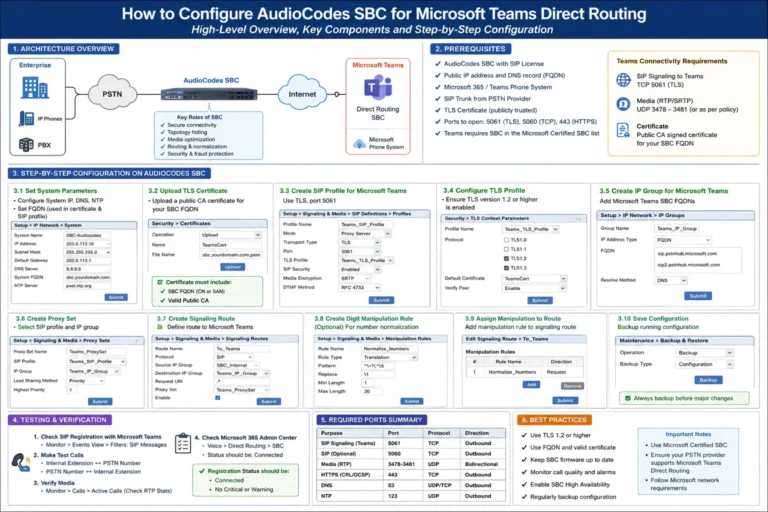
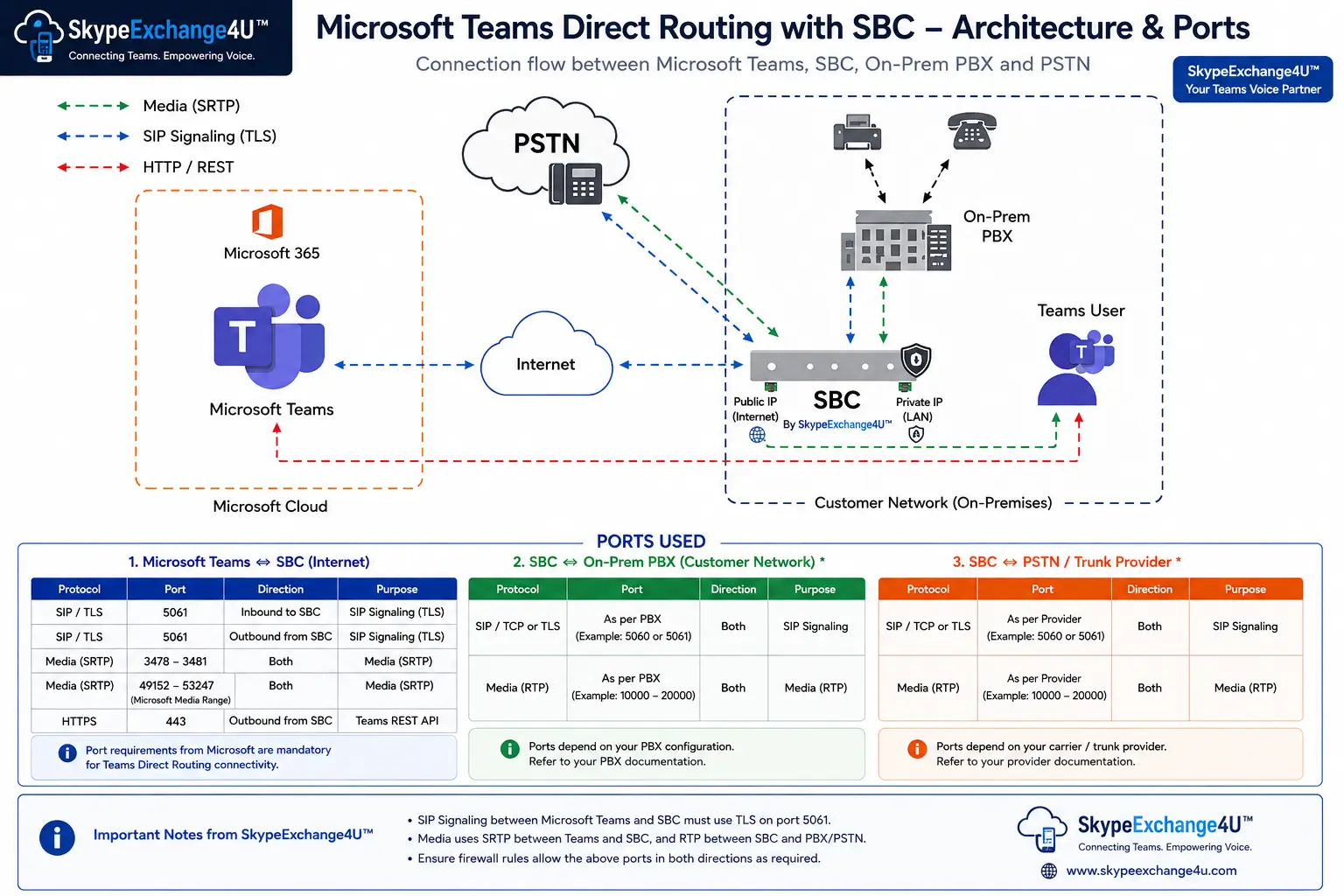
Microsoft Teams™ Direct Routing lets an organization connect Teams Phone to its own telephony environment through a supported Session Border Controller (SBC). The SBC can connect Teams with an existing PBX, SIP trunk or PSTN carrier, depending on the design.
The setup is easier to understand when it is divided into a few clear stages:
Tenant → Domain → DNS → Certificate → Certified SBC → Direct Routing → PSTN Usage → Voice Route → Voice Routing Policy → User → Dial Plan → Testing
Microsoft’s current Direct Routing documentation follows the same basic approach: connect the SBC, enable users, configure call routing and handle number translation where needed. :contentReference[oaicite:0]{index=0}
Introduction
Moving a business phone system to Microsoft Teams is not always a simple switch. Many companies already have a PBX, SIP trunks, telephone numbers and carrier agreements that still need to be used.
Replacing everything at once can also be impractical. In many environments, Teams needs to work alongside the existing voice system for months or even years.
This is where Direct Routing fits.
Instead of replacing the entire telephony environment, Teams Phone can connect to a supported SBC. The SBC then provides the connection to the organization’s existing voice infrastructure.
That sounds simple, but there are several moving parts behind a successful call. DNS, certificates, routing policies, number normalization, SIP signaling and media all have to line up.
This guide walks through the complete process in the order you would normally plan and troubleshoot it.
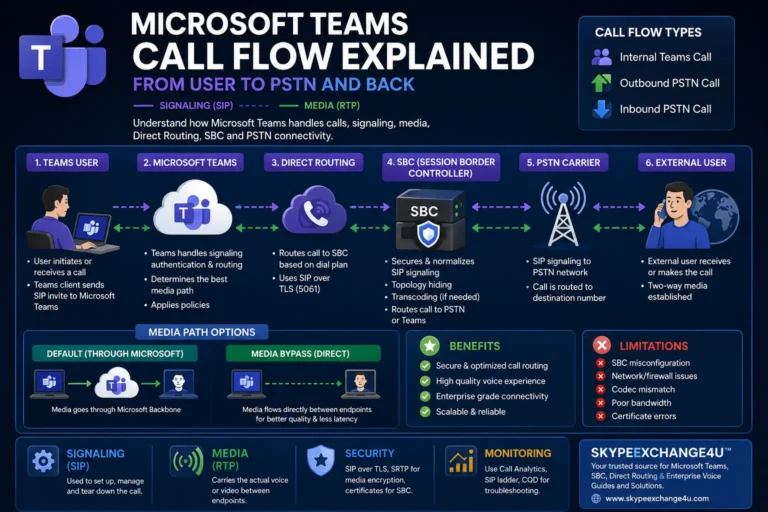
Quick Architecture Overview
                 Microsoft 365
                      |
                 Microsoft Teams
                      |
                  Teams Phone
                      |
                Direct Routing
                      |
                   SIP/TLS
                      |
                 +----------+
                 |   SBC    |
                 +----------+
                    /    \
                   /      \
                  v        v
             Legacy PBX    PSTN
                  |
                  v
             Extensions
Microsoft’s Direct Routing planning documentation describes the SBC as the connection point between Teams and existing telephony infrastructure such as PSTN carriers and PBXs. :contentReference[oaicite:1]{index=1}
What You’ll Need
- Microsoft 365 tenant.
- Teams Phone licensing for users who need PSTN calling.
- A verified Microsoft 365 domain.
- A Microsoft-certified SBC.
- Public DNS for the SBC FQDN.
- A trusted public certificate.
- A public IP address reachable by Teams.
- PSTN connectivity or an existing PBX/SIP trunk.
- Required firewall and media connectivity.
- Administrative access to Teams.
- A clear telephone-number and routing plan.
Microsoft’s current planning requirements include a certified SBC, verified domain, public DNS, public certificate, public IP connectivity and the required signaling and media network configuration. :contentReference[oaicite:2]{index=2}
Configure the SBC according to its manufacturer’s Microsoft Teams Direct Routing documentation before pairing it with Teams. Microsoft specifically recommends this as part of the deployment process. :contentReference[oaicite:3]{index=3}
Step 1 — Prepare the Microsoft 365 Tenant
Start with the tenant rather than the SBC. Decide which users will use Teams Phone and how their telephone numbers will be handled.
At this stage, document:
- User accounts.
- Telephone numbers.
- Country or region.
- Existing PBX numbers.
- PSTN carrier.
- Required outbound routes.
- Required inbound routes.
- Emergency calling requirements.
This planning work may seem basic, but it prevents many routing problems later.
Step 2 — Set Up the Verified Domain
The SBC needs an FQDN that belongs to a verified domain in the Microsoft 365 tenant.
For example:
sbc1.contoso.com
The default onmicrosoft.com domain cannot be used as the SBC FQDN. If you create a subdomain such as voice.contoso.com, that domain must be registered appropriately in Microsoft 365 before pairing the SBC. :contentReference[oaicite:4]{index=4}
Step 3 — Configure DNS
The SBC FQDN needs to resolve correctly from the public internet.
sbc1.contoso.com
       |
       v
   Public DNS
       |
       v
   SBC Public IP
The exact DNS record depends on the SBC and network design. Follow the SBC vendor’s deployment instructions and Microsoft’s current Direct Routing requirements.
Step 4 — Configure the TLS Certificate
Secure SIP signaling is a key part of Direct Routing, so certificate configuration deserves careful attention.
Microsoft’s current guidance says the SBC certificate should use the SBC FQDN as the Common Name (CN) or Subject Alternative Name (SAN), be issued by a Certificate Authority included in Microsoft’s Trusted Root Program, and include the Server Authentication EKU. :contentReference[oaicite:5]{index=5}
Certificate requirements are worth checking again before production changes because Microsoft has announced changes to the certificate authorities used by Direct Routing SIP endpoints during 2026. :contentReference[oaicite:6]{index=6}
A certificate being valid for a website does not automatically mean it is suitable for the SBC’s Teams SIP/TLS configuration. Check the FQDN, trust chain and required certificate usage.
Step 5 — Choose a Microsoft-Certified SBC
Microsoft does not treat every SBC as supported for Direct Routing. Microsoft maintains a certification program for SBC products and specific supported firmware versions. :contentReference[oaicite:7]{index=7}
For a production deployment, check the current Microsoft certification list before choosing the platform.
The SBC vendor remains the best source for model-specific configuration, including:
- SIP settings.
- TLS settings.
- Media settings.
- Codec preferences.
- Number manipulation.
- PBX integration.
- PSTN trunk configuration.
Do not assume that two SBC products behave exactly the same way just because both are certified.
Step 6 — Connect the SBC to Teams
Once the SBC is ready, create the Direct Routing gateway in Teams.
A simplified PowerShell example is:
Connect-MicrosoftTeams

New-CsOnlinePSTNGateway `
  -FQDN sbc1.contoso.com `
  -SIPSignalingPort 5061
Then enable the gateway:
Set-CsOnlinePSTNGateway `
  -Identity sbc1.contoso.com `
  -Enabled $true
Check the configuration:
Get-CsOnlinePSTNGateway `
  -Identity sbc1.contoso.com
The commands above are examples. Microsoft PowerShell syntax and parameters can change, so check the current Teams PowerShell documentation before using them in production.
Step 7 — Create a PSTN Usage
A PSTN usage groups voice routes that can be used by a routing policy.
For example:
India-PSTN
Example:
Set-CsOnlinePstnUsage `
  -Identity Global `
  -Usage @{Add="India-PSTN"}
Microsoft describes PSTN usages as collections of voice routes. They are then included in voice routing policies assigned to users. :contentReference[oaicite:8]{index=8}
Step 8 — Create the Voice Route
A voice route answers an important question:
Which SBC should handle this number?
For example, if an Indian number has already been normalized into E.164 format:
+912255501001
A simplified route pattern could be:
^\+91\d{10}$
Example:
New-CsOnlineVoiceRoute `
  -Identity "India-Route" `
  -NumberPattern '^\+91\d{10}$' `
  -OnlinePstnGatewayList "sbc1.contoso.com" `
  -OnlinePstnUsages "India-PSTN"
The pattern above is only an example. Your route should reflect the actual numbering plan used by your organization.
Microsoft’s routing documentation explains that voice routes use number patterns to determine the PSTN gateway used for a call. :contentReference[oaicite:9]{index=9}
Step 9 — Create the Voice Routing Policy
The voice routing policy tells Teams which PSTN usages are available to a user.
New-CsOnlineVoiceRoutingPolicy `
  -Identity "India-VoicePolicy" `
  -OnlinePstnUsages "India-PSTN"
Assign it to a user:
Grant-CsOnlineVoiceRoutingPolicy `
  -Identity "user1@contoso.com" `
  -PolicyName "India-VoicePolicy"
One detail is easy to miss: assigning a voice routing policy does not, by itself, make the user capable of PSTN calling. The user still needs the rest of the required Teams Phone and Direct Routing configuration. :contentReference[oaicite:10]{index=10}
Step 10 — Configure the Teams User
Assign the appropriate Teams Phone license and Direct Routing number to the user.
Set-CsPhoneNumberAssignment `
  -Identity "user1@contoso.com" `
  -PhoneNumber "+912255501001" `
  -PhoneNumberType DirectRouting
Check the assignment:
Get-CsPhoneNumberAssignment `
  -Identity "user1@contoso.com"
For production deployments, verify the current Microsoft licensing and user-provisioning requirements before making changes.
Step 11 — Configure the Dial Plan
This is where many voice-routing explanations become confusing.
A dial plan deals with number normalization. It changes the number entered by the user into a format that Teams can use for routing.
For example:
User enters:

02255501001

       ↓

Dial Plan

       ↓

+912255501001
That normalized number is then evaluated by Teams voice routing.
Dial Plan ≠ Voice Route.
The dial plan normalizes the number. The voice route decides which PSTN gateway or SBC should handle the normalized number.
Microsoft’s number-translation documentation describes the same flow: the user’s effective dial plan processes the number, Teams matches the normalized number to an approved PSTN usage, and the call is directed to a voice route associated with an SBC. :contentReference[oaicite:11]{index=11}
Commands for Basic Verification
Check the SBC
Get-CsOnlinePSTNGateway |
Format-List Identity,Fqdn,Enabled,SipSignalingPort
Check PSTN Usage
Get-CsOnlinePstnUsage
Check Voice Routes
Get-CsOnlineVoiceRoute
Check Voice Routing Policies
Get-CsOnlineVoiceRoutingPolicy
Example: What Happens When a User Makes a Call?
Suppose the user enters:
02255501001
The simplified call flow is:
Teams User
    |
    | 02255501001
    v
Effective Dial Plan
    |
    | +912255501001
    v
PSTN Usage
    |
    v
Voice Route
    |
    v
SBC
    |
    v
PBX / PSTN Carrier
    |
    v
Telephone Network
If the call fails, this diagram gives you a useful starting point. Instead of changing settings at random, check each stage.
Step 12 — Test the First Outbound Call
Start with one test user and one known destination.
- Confirm the user is licensed and configured.
- Confirm the telephone number.
- Check the effective dial plan.
- Confirm number normalization.
- Confirm the PSTN usage.
- Confirm the voice route.
- Confirm the selected SBC.
- Check whether the SBC receives the SIP request.
- Check whether the PBX or carrier receives the call.
- Confirm that the call has two-way audio.
Step 13 — Test an Inbound Call
Inbound calling follows the opposite direction.
PSTN / Carrier
      |
      v
     SBC
      |
      v
Microsoft Teams
      |
      v
Teams User
Test the complete path:
- Carrier sends the call.
- SBC receives it.
- SBC applies the required routing or translation.
- Teams receives the call.
- The correct user is identified.
- The user answers.
- Two-way audio is confirmed.
Step 14 — Check the Media Path
A call can connect successfully and still have an audio problem. Signaling and media are different parts of the call.
Check:
- Firewall rules.
- NAT behavior.
- Media ports.
- Codec negotiation.
- Media bypass settings, if used.
- SBC media interfaces.
- One-way audio.
- No-audio conditions.
Microsoft documents the media side of Direct Routing separately from SIP signaling. Direct Routing media uses SRTP and SRTCP, so a successful SIP setup does not by itself prove that the media path is healthy. :contentReference[oaicite:12]{index=12}
Common Errors
| Symptom | Check First |
|---|---|
| SBC does not connect | FQDN, DNS, certificate, TLS and network connectivity |
| Call never routes | Normalized number, PSTN usage and voice route |
| Wrong SBC receives call | Voice-route pattern and gateway association |
| User cannot make PSTN calls | License, number assignment and routing policy |
| Call connects but no audio | Media path, firewall, NAT and codec |
| One-way audio | Media direction at each network boundary |
Troubleshooting: Follow the Call
The simplest way to troubleshoot Direct Routing is to follow the call in the same order that it is processed.
What number did the user dial?
             ↓
What number did Teams normalize?
             ↓
Which PSTN usage applies?
             ↓
Which voice route matches?
             ↓
Which SBC was selected?
             ↓
Did the SBC receive the SIP request?
             ↓
Did the PBX or carrier receive it?
             ↓
Was the call answered?
             ↓
Is media flowing?
This approach is much faster than changing several policies and SBC settings at the same time.
Best Practices
- Use a Microsoft-certified SBC for production Direct Routing.
- Keep the SBC FQDN, DNS and certificate information documented.
- Build the number plan before creating route patterns.
- Use consistent E.164 normalization where appropriate.
- Keep PSTN usages simple and clearly named.
- Use meaningful names for voice routes and policies.
- Test with a small number of users before a wider rollout.
- Test inbound and outbound calling separately.
- Troubleshoot signaling and media as separate problems.
- Keep SBC firmware within Microsoft’s supported certification range.
- Review current Microsoft documentation before major production changes.
- Keep vendor-specific SBC documentation alongside the Teams configuration.
Microsoft also recommends redundant SIP connectivity as part of good Direct Routing planning. :contentReference[oaicite:13]{index=13}
Pros and Cons
Advantages
- Can keep existing PBX infrastructure.
- Can continue using an existing PSTN carrier.
- Provides detailed control over call routing.
- Supports gradual migration to Teams Phone.
- Can connect Teams with established enterprise voice systems.
Limitations
- There are more components to manage.
- SBC configuration can require specialist knowledge.
- Certificates need regular attention.
- Complex numbering plans can make routing harder to maintain.
- Media problems may involve several network boundaries.
- Support depends on the certified SBC and supported firmware.
Related Articles
If you are building a Teams voice environment, these topics make useful follow-up reading:
Sources
Frequently Asked Questions
What is Microsoft Teams Direct Routing?
Direct Routing connects Teams Phone to an organization’s telephony infrastructure through a supported Session Border Controller.
Do I need an SBC for Direct Routing?
Yes. Direct Routing uses an SBC as the connection point between Teams Phone and the organization’s telephony environment. Microsoft supports Direct Routing with certified SBC devices.
What does a Teams dial plan do?
A dial plan applies number normalization rules to numbers entered by users so that the resulting number can be evaluated by Teams voice routing.
What is a PSTN usage?
A PSTN usage is a collection of voice routes used by Teams voice routing policies.
What is the difference between a dial plan and a voice route?
The dial plan normalizes the number. The voice route matches the resulting number and identifies the appropriate PSTN gateway or SBC.
Can Teams Direct Routing work with a legacy PBX?
Yes. A suitable SBC can provide the connection between Teams and an existing PBX. The exact design depends on the SBC, PBX, signaling, numbering and media requirements.
Why can a Teams call connect without audio?
Call signaling and media are separate parts of the connection. A successful call setup does not guarantee that the media path is working.
Stop waiting for users to report dropped calls or expired Port 5061 certificates. Deploy our production Teams Direct Routing & SBC Automation Runbook (SIP OPTIONS Ping & TLS Expiry Watchdog) and Microsoft 365 & Entra ID PowerShell Automation Runbook.
Conclusion
A good Teams Direct Routing deployment starts with planning, not PowerShell.
Before creating routes, make sure the tenant, domain, DNS, certificate, SBC and network are ready. Then build the Teams routing layer: PSTN usage, voice route and voice routing policy. After that, configure the user and dial plan and test one call at a time.
When something goes wrong, follow the call instead of guessing. Check the number, normalization, routing policy, PSTN usage, voice route, SBC signaling and finally the media path.
Tenant → Domain → DNS → Certificate → SBC → Routing → User → Dial Plan → Call → Media
Once those pieces are understood, Direct Routing becomes much easier to design, configure and troubleshoot — even when Teams needs to coexist with an older PBX or an existing PSTN environment.
Microsoft®, Microsoft 365®, Microsoft Teams™ and Microsoft Entra® are trademarks of Microsoft Corporation. SkypeExchange4U™ is an independent publication and is not affiliated with or endorsed by Microsoft.
Microsoft Teams features, certified SBC models, supported firmware, certificate requirements and network requirements can change. Always verify production deployments against current Microsoft documentation and applicable SBC-vendor documentation.