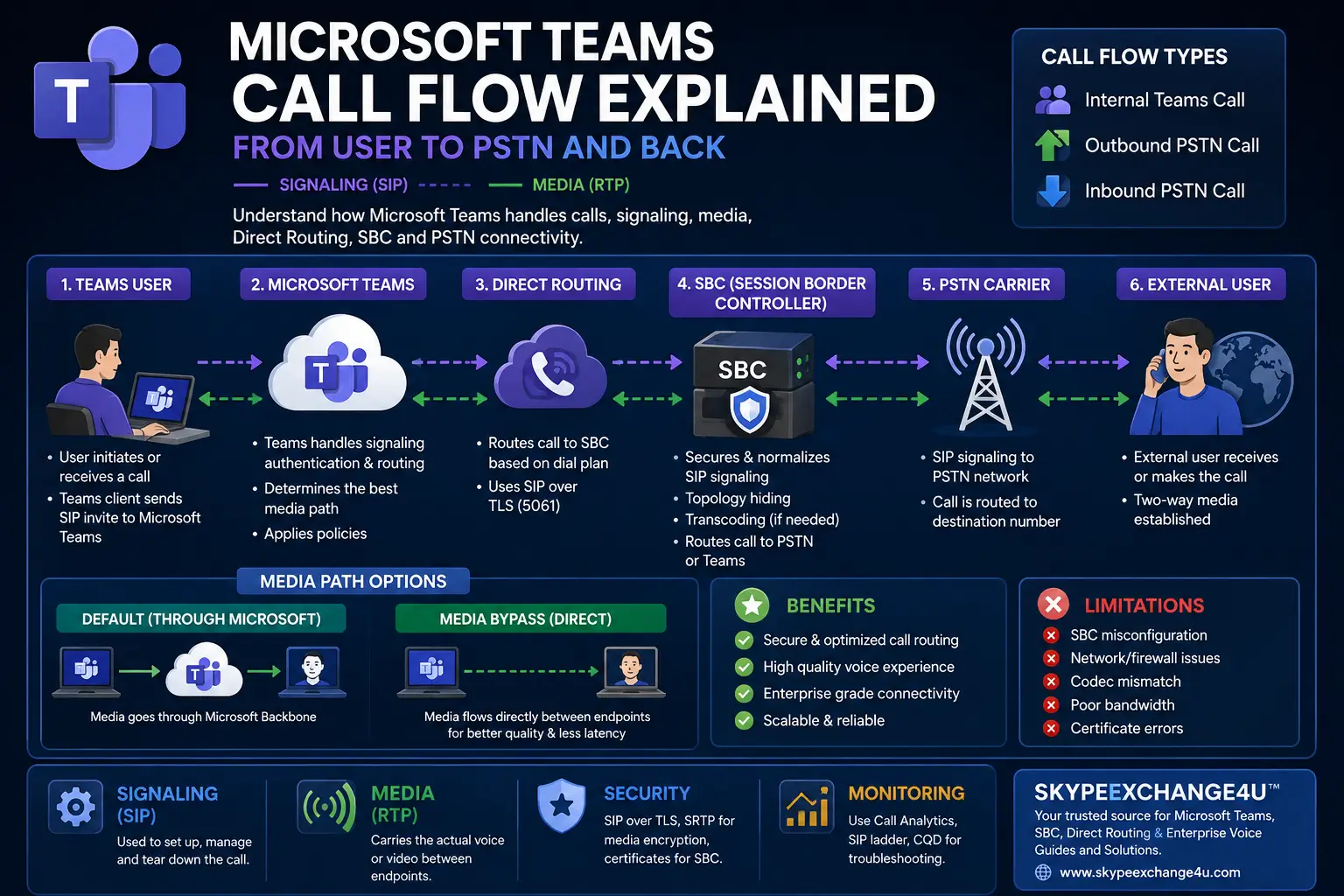
Microsoft Teams Call Flow Explained | Direct Routing & SBC
Microsoft Teams Call Flow Explained: Signaling, Media, Direct Routing & SBC
A practical guide to understanding what happens when a Teams call starts, how SIP signaling and media move, and where Direct Routing, SBCs and the PSTN fit in.
Updated: August 24, 2026 • Reading time: 12–15 minutes
Microsoft Teams Call Flow can look complicated because one voice call may involve the Teams client, Microsoft 365 services, voice-routing policies, a Session Border Controller (SBC), a PSTN carrier and several network paths. The easiest way to understand it is to follow the call in stages rather than trying to memorize every SIP message.
This SkypeExchange4U™ guide explains internal Teams calling, outbound and inbound PSTN calls, Direct Routing, media bypass, SIP flow, troubleshooting, PowerShell checks and common failure points in practical language.
🚀 Quick Answer: How Does a Teams Call Flow Work?
For a simplified outbound Direct Routing call, Teams applies the relevant voice-routing configuration, signaling reaches the Direct Routing service and the organization’s SBC, and the SBC routes the call toward the PSTN carrier. The media path depends on the architecture.
🧰 What You’ll Need
- Teams admin center access
- Knowledge of the organization’s voice-routing design
- Direct Routing/SBC access when required
- Teams PowerShell for targeted checks
- Caller and destination information
- Exact call timestamp and timezone
- Network, firewall and VPN information
- Call-quality/session telemetry
- CQD access for wider quality patterns
Microsoft documents per-user call analytics for investigating devices, networks, connectivity and call quality, while the Teams admin center provides session-level details.
1️⃣ Step 1 — Identify the Call Type
| Call type | Main flow to understand |
|---|---|
| Teams → Teams | Teams service, client signaling and media |
| Teams → PSTN | Voice routing → Direct Routing → SBC → carrier |
| PSTN → Teams | Carrier → SBC → Direct Routing → Teams |
| Remote Direct Routing | Internet path and supported media design |
| Internal Direct Routing | SBC signaling plus selected media path |
2️⃣ Step 2 — Understand Signaling vs. Media
📨 Signaling
- Starts and controls the call
- Exchanges session information
- Handles call-state changes
- Uses SIP in Direct Routing scenarios
🎙️ Media
- Carries voice
- Is sensitive to network conditions
- Can follow different paths
- Can fail even when signaling succeeds
Microsoft states that SIP traffic flows through the SIP proxy, while media behavior changes depending on whether Direct Routing media bypass is enabled.
3️⃣ Step 3 — Follow an Outbound PSTN Call
↓
Teams Phone / Microsoft 365
↓
Voice Routing
↓
Direct Routing / Microsoft SIP Infrastructure
↓
Organization SBC
↓
PSTN Carrier
↓
External Number
- The user selects an external number.
- Teams processes the call and applies the user’s applicable voice-routing configuration.
- Direct Routing signaling reaches the Microsoft SIP infrastructure and SBC path.
- The SBC applies routing, normalization and interoperability rules.
- The SBC sends the call toward the carrier or connected telephony system.
- The destination network establishes the call.
- Media follows the supported architecture.
The exact flow varies by topology, media bypass, user location and other deployment factors. Microsoft’s official call-flow documentation provides separate diagrams for several scenarios.
4️⃣ Step 4 — Follow an Inbound PSTN Call
The carrier delivers the call to the SBC. The SBC applies inbound routing and number handling, then the Direct Routing service delivers signaling toward the Teams user. Number normalization, SBC routing and media-bypass behavior can affect the final path. Microsoft documents dedicated inbound Direct Routing call-flow scenarios.
5️⃣ Step 5 — Understand Media Bypass
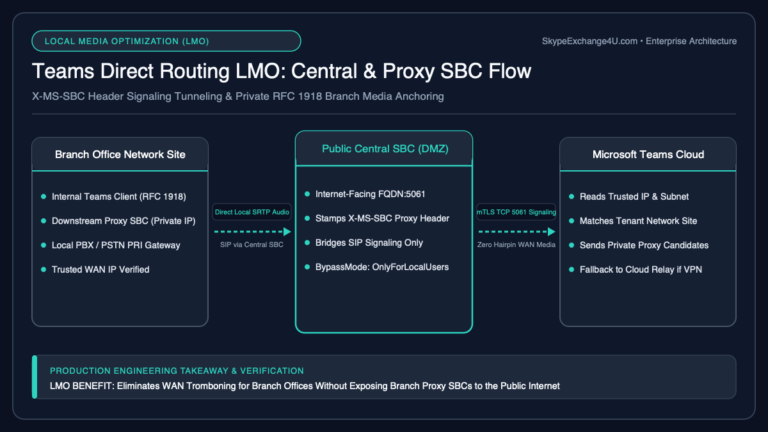
Media bypass is one of the most misunderstood parts of a Microsoft Teams call flow. In supported Direct Routing designs, media can use a shorter path between the Teams endpoint and SBC instead of the non-bypass media path. Microsoft’s guidance says media bypass can reduce unnecessary media hops, while signaling still uses the Microsoft cloud/SIP infrastructure.
Potential benefits
- Shorter media path in supported designs
- Fewer unnecessary media hops
- Useful for carefully designed enterprise networks
Trade-offs
- More firewall/network planning
- SBC compatibility requirements
- ICE/ICE Lite considerations
- More variables during troubleshooting
Microsoft documents supported SBC, port and media requirements for media bypass.
6️⃣ Step 6 — Internal vs. Remote Users
| User location | Investigate |
|---|---|
| Corporate network | LAN, SBC reachability, firewall and media-bypass conditions |
| Home / Internet | Internet, VPN, NAT, firewall and supported media routing |
| Branch office | Site routing, local SBC, WAN and media optimization |
Microsoft’s documented call flows distinguish internal and remote users and show different media behavior for bypass and non-bypass scenarios.
💻 Commands
Use PowerShell to confirm configuration and architecture. Avoid making production changes during diagnosis without a controlled change plan.
Get-CsOnlineUser -Identity user@contoso.com |
Format-List DisplayName,UserPrincipalName,LineURI,TeamsUpgradeEffectiveMode
Get-CsOnlinePSTNGateway |
Format-List Identity,Fqdn,SipSignalingPort,MaxConcurrentSessions,Enabled,MediaBypassGet-CsOnlinePSTNGateway -Identity "sbc1.contoso.com" |
Format-List Identity,Fqdn,SipSignalingPort,MaxConcurrentSessions,Enabled,MediaBypassTest-NetConnection sbc1.contoso.com -Port 5061🧪 Example — Call Connects but There Is No Audio
Scenario: The Teams user calls an external number. The remote party answers, but neither side hears audio.
Wrong approach
Restart Teams → reinstall headset → change voice policy → restart SBC.
Better approach
- Confirm signaling established.
- Determine whether the media problem is one-way or two-way.
- Review the affected session’s quality information.
- Determine whether one user or many are affected.
- Check VPN versus non-VPN behavior.
- Identify the expected media path.
- Check firewall/NAT and SBC media interfaces.
- Compare with a known-good call.
🚨 Common Errors
| Symptom | Likely layer | First check |
|---|---|---|
| Call never connects | Routing / signaling | Policy, route, gateway and SIP flow |
| No audio | Media | Media path, firewall, NAT, VPN, SBC |
| One-way audio | Media | Direction of missing media |
| Outbound PSTN fails | Routing / SBC / carrier | Voice route and SBC trace |
| Inbound PSTN fails | Carrier / SBC / routing | Inbound number and SBC routing |
| Robotic audio | Network / media | Packet loss, jitter, latency |
📨 SIP Call Flow: What Engineers Look At
│
│ INVITE
↓
Organization SBC
│
│ INVITE / routing
↓
PSTN / Carrier
│
│ response / progress
↓
Call establishment
Microsoft provides a SIP call-flow view for Direct Routing in the Teams admin center. It presents SIP messages as a chronological ladder and allows administrators to inspect protocol details for individual events. Microsoft notes that SIP call data can take time to appear in reporting.
🔧 Troubleshooting
User cannot make PSTN calls
- Check Teams Phone capability/licensing.
- Check number assignment.
- Check voice-routing policy.
- Check PSTN usage and route selection.
- Check Direct Routing gateway.
- Check SBC SIP signaling.
- Check carrier routing and response.
Inbound calls do not ring
- Confirm carrier delivery to the SBC.
- Inspect inbound SIP.
- Verify called-number format and normalization.
- Check SBC inbound routing.
- Verify Teams number assignment.
Call quality is poor
- Determine whether one user or a site is affected.
- Review session quality information.
- Check packet loss, jitter and latency indicators.
- Compare Wi-Fi, wired and VPN behavior.
- Identify the actual media path.
- Check firewall/NAT and SBC media configuration.
- Use CQD for wider patterns.
Microsoft’s call analytics guidance explains that per-user information includes device, network, connectivity and quality data useful for investigating individual calls.
⚖️ Pros and Cons
✅ Pros of Direct Routing
- Integrates Teams with enterprise telephony
- Provides SBC and carrier control
- Supports complex voice architectures
- Can support media optimization scenarios
- Useful for existing PSTN investments
❌ Cons / Trade-offs
- More components mean more failure points
- SBC and carrier expertise may be required
- Certificates and firewall design add work
- Media bypass needs additional planning
- Carrier behavior can complicate diagnosis
⏱️ 30-Second Microsoft Teams Call-Flow Checklist
When a call fails, check these in order:
- What type of call is it? Teams-to-Teams, outbound PSTN, inbound PSTN, transfer or conference?
- Did signaling start? If not, investigate user configuration, routing or connectivity.
- What was the last successful hop? Teams → Microsoft cloud → SBC → carrier?
- Did media establish? If signaling succeeds but audio fails, investigate the media path.
- Is the issue isolated or widespread? One user points toward endpoint/configuration; many users can indicate site, SBC, carrier or service impact.
- What evidence do you have? Use Call Analytics, SIP ladder data, SBC logs and the exact call timestamp.
🏆 Best Practices
- Document signaling and media separately.
- Draw the call flow. A diagram can expose missing dependencies.
- Document every SBC and carrier hop.
- Record number-normalization rules.
- Keep a known-good test user.
- Capture exact timestamps.
- Use Teams admin center session evidence.
- Use SIP ladder data for Direct Routing signaling.
- Use CQD for wider quality patterns.
- Change one production variable at a time.
- Validate firewall and media requirements before bypass changes.
- Keep documentation aligned with current Microsoft guidance.
🌳 Simple Call-Flow Troubleshooting Decision Tree
Did the call start? → No: investigate configuration, routing and signaling.
Did it reach the expected next hop? → No: investigate the last successful component.
Did media establish? → No: follow media path, firewall/NAT, VPN and SBC media configuration.
Is media quality poor? → Investigate packet loss, jitter, latency, Wi-Fi, WAN and congestion.
🔗 Related Articles
SBC architecture, Direct Routing, SIP, media and routing.
Microsoft Teams Voice Troubleshooting Guide
Diagnose call failures, poor audio, Direct Routing and SBC problems.
Latest AI News
Explore AI and technology coverage from SkypeExchange4U™.
🔍 Evidence Before Configuration Changes
For production troubleshooting, avoid changing several settings at once. First capture the caller, destination, timestamp, call direction, affected site, SBC, SIP response and media symptom. Then make the smallest controlled change that tests your hypothesis.
Microsoft’s current Direct Routing guidance also provides built-in diagnostic tests in the Microsoft 365 admin center and a SIP call-flow view for examining SIP requests, responses and SDP exchanged between the Teams proxy and SBC.
❓ Microsoft Teams Call Flow FAQs
What is a Microsoft Teams call flow?
It is the sequence of signaling, routing and media interactions that occur when a Teams user makes or receives a call. The exact path depends on the architecture.
How does Teams Direct Routing call flow work?
Teams applies voice routing, signaling reaches the Direct Routing service and organization’s SBC, and the SBC routes the call toward the PSTN carrier. Media follows the supported architecture.
What is the difference between signaling and media?
Signaling controls call setup and session information. Media carries the actual audio. Successful signaling does not guarantee healthy media.
What does an SBC do in Teams Direct Routing?
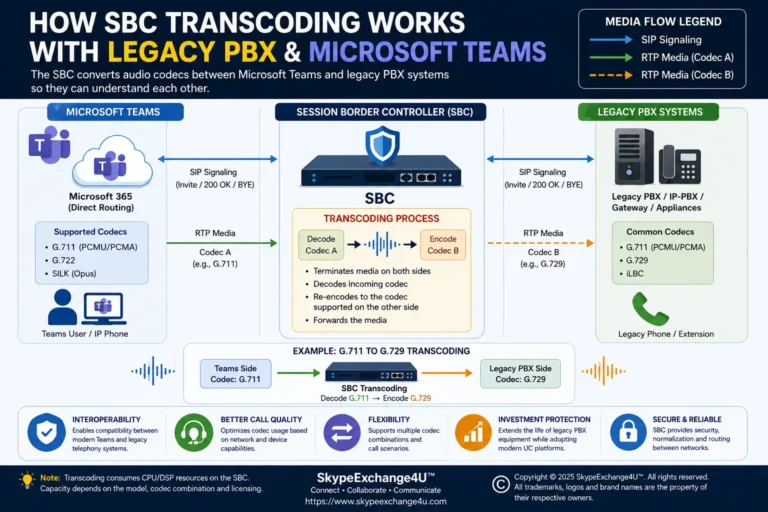
The SBC provides the controlled voice boundary between Direct Routing and the organization’s PSTN or telephony environment, handling routing and interoperability functions.
What is media bypass?
Media bypass is a Direct Routing design in which supported media can travel directly between the Teams endpoint and SBC instead of following the non-bypass media path. Signaling still uses Microsoft SIP infrastructure.
How do I troubleshoot a Teams call flow?
Identify the call type, separate signaling from media, determine where the call stopped, inspect session and SIP evidence, then follow the network and SBC path to the last successful component.
How quickly does SIP call-flow data appear in Teams admin center?
Microsoft says to allow up to 30 minutes for SIP call-flow data to be processed and uploaded for reporting, and call records older than 30 days are not available in the SIP call-flow view.
Where can I see the Direct Routing SIP call flow?
Microsoft provides a SIP call-flow view in the Teams admin center for Direct Routing. It presents SIP messages as a chronological ladder.
🎯 The Bottom Line
The easiest way to understand Microsoft Teams Call Flow is to follow the call in layers.
Identify the call type. Separate signaling from media. Follow routing, SBC and carrier paths. Then identify exactly where the call stopped or where quality degraded.
Don’t ask only “Why did the call fail?” Ask “Where did the call stop, and what proves it?”
📚 Sources & Further Reading
Technical details in this guide are based primarily on Microsoft Learn documentation. Always verify production changes against the current Microsoft and SBC-vendor documentation.
- Microsoft Learn — Microsoft Teams call flows
- Microsoft Learn — Teams Phone Direct Routing protocols
- Microsoft Learn — Configure media bypass with Direct Routing
- Microsoft Learn — SIP call flow for Direct Routing
- Microsoft Learn — Monitor Direct Routing
- Microsoft Learn — Diagnose Direct Routing issues
- Microsoft Learn — SBC connectivity, SIP OPTIONS and TLS certificate issues
- Microsoft Learn — Certified SBCs for Direct Routing