Microsoft Teams Media Bypass Explained: Call Flow, Benefits & Troubleshooting
Microsoft Teams Media Bypass Explained: Call Flow, Benefits, Requirements & Troubleshooting
A practical guide to Teams media bypass, Direct Routing, SBC connectivity, network planning, configuration, real-world call flows and troubleshooting.
Updated: August 2026 • Reading time: 10–12 minutes
Teams media bypass is a Microsoft Teams Phone Direct Routing feature that can allow voice media to travel more directly between a supported Teams client and an enterprise Session Border Controller (SBC), instead of using the Microsoft media processor for that media path.
If you work with Microsoft Teams Direct Routing, you have probably heard the term
media bypass.
But what does it actually bypass?
Does it bypass Microsoft completely?
Does it remove the SBC?
Does every Teams call use direct media once the feature is enabled?
No.
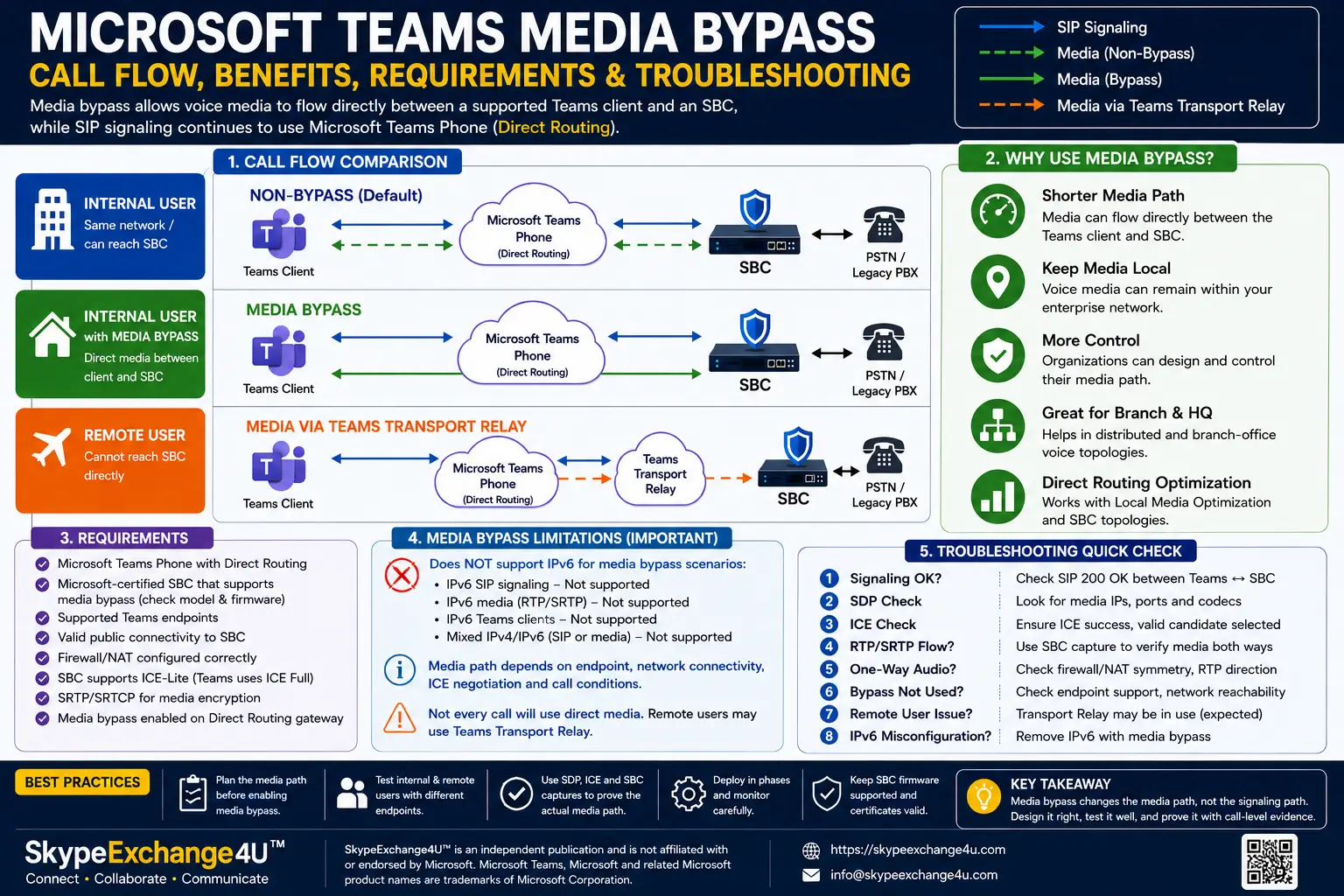
Media bypass changes the media path. It does not remove Microsoft Teams Phone or Direct Routing from the signaling architecture.
Signaling: Teams Client → Microsoft Teams Phone → SBC
Media with bypass: Teams Client ↔ SBC, when the required conditions are met
🔎 What Is Teams Media Bypass?
Teams media bypass is a Direct Routing capability that allows media to bypass Microsoft’s media infrastructure in supported scenarios.
Instead of sending voice media through a Microsoft media processor, a supported Teams endpoint can establish media connectivity toward the SBC.
The important word is supported.
The actual media path depends on the endpoint, network location, SBC configuration and connectivity.
Microsoft documents multiple Direct Routing media-bypass call flows, including direct media between an internal Teams client and SBC and scenarios where remote users use Teams Transport Relay. :contentReference[oaicite:2]{index=2}
🧠 Media Bypass vs Normal Direct Routing
| Area | Non-bypass | Media bypass |
|---|---|---|
| Signaling | Microsoft Teams Phone / Direct Routing | Microsoft Teams Phone / Direct Routing |
| Media | Microsoft media infrastructure | Can flow directly between client and SBC |
| SBC | Enterprise voice boundary | Enterprise voice and media endpoint |
| Network complexity | Lower direct client-to-SBC media dependency | Requires careful firewall, NAT and media planning |
Microsoft’s Direct Routing documentation states that media normally uses Microsoft Media Processors unless media bypass is enabled. :contentReference[oaicite:3]{index=3}
📞 How Teams Media Bypass Works
The critical concept is that signaling and media are different paths.
A Teams call can still use Microsoft’s cloud for call signaling while the actual voice media travels between the Teams client and SBC.
Internal User
For an internal user who can reach the SBC appropriately, Microsoft documents a call flow where media can travel directly between the Teams client and SBC. Microsoft describes this as useful when the user and SBC are in the same building or network and the organization wants to remove Microsoft cloud media components from the media path. :contentReference[oaicite:4]{index=4}
Teams Client
     │
     │ SIP signaling
     ▼
Microsoft Teams Phone
     │
     │ SIP signaling
     ▼
    SBC
     ▲
     │
     │ RTP/SRTP media
     │
Teams Client ───────────────► SBC
Remote User
A remote user does not automatically get direct media simply because the trunk has media bypass enabled.
Microsoft documents remote scenarios where media may be relayed through a Teams Transport Relay if the client cannot directly reach the SBC. :contentReference[oaicite:5]{index=5}
“Media bypass enabled” does not mean “every call always uses direct media.”
🎯 Why Use Media Bypass?
- Shorter media path: Suitable internal users may send media directly to the SBC.
- Local media: Voice media can remain closer to the enterprise network.
- Network control: Organizations can deliberately design the media path.
- Branch-office scenarios: It can be useful in distributed enterprise voice architectures.
- Direct Routing optimization: Media bypass can form part of broader Direct Routing media designs.
Microsoft’s Local Media Optimization documentation describes architectures designed to keep media local within corporate network boundaries and support distributed SBC topologies. :contentReference[oaicite:6]{index=6}
🧰 What You’ll Need
- Microsoft Teams Phone with Direct Routing.
- A Microsoft-certified SBC that supports media bypass.
- Supported SBC firmware.
- Appropriate public SBC connectivity.
- Valid SBC certificate and FQDN.
- Firewall and NAT configuration.
- Supported Teams endpoints.
- SBC logging and diagnostics.
- A test user and test number.
Microsoft’s certification list identifies SBC products and firmware versions that support media bypass. Certification is specific to documented devices and software versions, so do not assume that every SBC behaves identically. :contentReference[oaicite:7]{index=7}
⚙️ How to Configure Teams Media Bypass
Step 1 — Verify SBC Support
Before changing Teams configuration, check Microsoft’s current certified-SBC list and your SBC vendor’s documentation.
Confirm:
- Exact SBC model
- Firmware version
- Media-bypass support
- Required licenses
- Required media resources
Step 2 — Plan the Network
Determine how Teams clients will reach the SBC.
For internal users, Microsoft documents scenarios where the Teams client needs access to the SBC’s public IP address. NAT hairpinning may be used in appropriate designs so traffic can remain within enterprise network equipment. :contentReference[oaicite:8]{index=8}
Step 3 — Configure the SBC
The exact configuration is vendor-specific.
Do not copy a media-bypass configuration from one SBC vendor to another. Codec policies, ICE configuration, media interfaces, NAT handling and firewall requirements can differ.
Step 4 — Enable Media Bypass
Microsoft documents this PowerShell command:
Set-CsOnlinePSTNGateway `
-Identity <sbc_FQDN> `
-MediaBypass $true
This enables media bypass on the Direct Routing gateway. It does not replace the required SBC and network configuration. Microsoft explicitly lists SBC support and required ports as prerequisites. :contentReference[oaicite:9]{index=9}
Step 5 — Test Before Production
Microsoft recommends a phased migration when moving from a non-bypass trunk to a bypass-enabled trunk. :contentReference[oaicite:10]{index=10}
A sensible test sequence is:
- Internal Teams desktop user
- Teams Phone device
- Mobile user
- Remote user
- Inbound PSTN call
- Outbound PSTN call
- Transfer
- Call forwarding
💻 Useful PowerShell Checks
Get-CsOnlinePSTNGateway |
Format-List Identity,Enabled,MediaBypass

Get-CsOnlinePSTNGateway `
-Identity "sbc1.contoso.com" |
Format-List *
Remember: seeing MediaBypass : True proves the gateway configuration, not that every individual call actually used direct media.
🔬 How to Verify the Actual Media Path
This is one of the most important parts of a real deployment.
Do not assume bypass is working just because the PowerShell setting is enabled.
- Make a controlled test call.
- Confirm SIP signaling.
- Inspect SDP.
- Inspect ICE candidates.
- Identify the selected media path.
- Check RTP/SRTP on the SBC.
- Verify the source and destination addresses.
- Confirm two-way audio.
- Repeat from different network locations.
Microsoft documents ICE requirements for media bypass and specifies that the SBC must support ICE-Lite while the Teams media endpoint uses ICE Full Form. :contentReference[oaicite:11]{index=11}
🏢 Real-World Enterprise Example
Imagine a company with 500 Teams users in a headquarters building and an SBC connected to the organization’s existing PSTN infrastructure.
Most users are physically inside the corporate network.
With an appropriately designed media-bypass deployment, those users may establish media directly with the SBC instead of sending their voice media through Microsoft’s media processor.
A remote employee, however, may use a different path because the endpoint cannot directly reach the SBC.
Teams Client ↔ SBC → PSTN
Remote user:
Teams Client ↔ Teams Transport Relay ↔ SBC → PSTN
The important lesson is that one Direct Routing deployment can have different media paths depending on the user and network conditions.
⚖️ Pros and Cons
✅ Advantages
- Can create a shorter media path.
- Can keep media closer to enterprise infrastructure.
- Useful for internal enterprise voice deployments.
- Provides additional Direct Routing flexibility.
- Can complement Local Media Optimization.
❌ Limitations
- Requires careful network planning.
- Firewall and NAT become especially important.
- Not every endpoint uses bypass.
- Remote calls can use different media paths.
- Troubleshooting may require ICE, SDP and RTP analysis.
🚨 Common Media Bypass Problems
| Problem | Likely area | First check |
|---|---|---|
| Call connects but no audio | RTP/firewall/NAT | SBC media ports and packet capture |
| One-way audio | Asymmetric media path | RTP in both directions |
| Internal works, remote fails | Remote connectivity | ICE and Transport Relay behavior |
| Bypass falls back | Endpoint/network condition | Endpoint support and call flow |
| Calls fail after activation | SBC/firewall configuration | Microsoft requirements + SBC logs |
🔧 Troubleshooting Decision Tree
1. Is MediaBypass enabled?
→ Check the Direct Routing gateway.
2. Is the SBC certified and bypass-capable?
→ Check Microsoft certification and vendor documentation.
3. Is the endpoint supported?
→ Verify Teams client/device type.
4. Can the client reach the SBC?
→ Check NAT, firewall and routing.
5. Does ICE negotiation succeed?
→ Inspect SDP and ICE candidates.
6. Is RTP/SRTP flowing?
→ Verify packets at the SBC.
7. Is audio working in both directions?
→ Trace each direction separately.
🔐 Security and Network Considerations
Media bypass does not make network security less important.
In fact, because the Teams client can communicate directly with the SBC for media, the enterprise must carefully control the exposed media path.
- Use a supported and certified SBC.
- Restrict unnecessary firewall exposure.
- Validate NAT behavior.
- Monitor SBC media resources.
- Keep SBC firmware supported.
- Maintain valid certificates.
- Document internal and external media paths.
Microsoft documents SRTP/SRTCP requirements for Direct Routing and additional ICE requirements for media bypass. :contentReference[oaicite:12]{index=12}
🏆 Best Practices
- Start with a single test user.
- Verify the exact SBC model and firmware.
- Design the media path before enabling bypass.
- Test internal and remote users independently.
- Test different supported endpoint types.
- Inspect SDP and ICE when troubleshooting.
- Use SBC packet captures when audio fails.
- Do not assume every call uses bypass.
- Use phased deployment.
- Document the expected media path for each major scenario.
Design the media path first, enable bypass second, and prove the actual media path with call-level evidence.
🔗 Related SkypeExchange4U™ Articles
Microsoft Teams Call Flow Explained
Follow Teams signaling, media, SBC and PSTN call paths.
Microsoft Teams Voice Troubleshooting Guide
Diagnose Teams voice and Direct Routing problems.
❓ Frequently Asked Questions
What is Teams media bypass?
Teams media bypass is a Direct Routing capability that can allow media to flow directly between a supported Teams endpoint and an SBC instead of using Microsoft’s media processor for that media path.
Does media bypass remove Microsoft Teams from the call?
No. Media bypass changes the media path. SIP signaling continues to use Microsoft Teams Phone and Direct Routing.
Does every call use direct media when bypass is enabled?
No. Endpoint support, network connectivity and call conditions determine the actual media path.
How do I enable Teams media bypass?
You need a supported SBC, correct network and firewall configuration, SBC-side configuration and MediaBypass enabled on the Direct Routing gateway.
What PowerShell command enables media bypass?
Microsoft documents:Set-CsOnlinePSTNGateway -Identity <sbc_FQDN> -MediaBypass $true
Can media bypass improve call quality?
It can create a shorter media path in suitable designs, but it is not a guaranteed quality improvement. Network loss, jitter, latency, NAT, firewall behavior and SBC performance still matter.
What is the difference between media bypass and Local Media Optimization?
Media bypass is a Direct Routing media-path capability. Local Media Optimization is a broader architecture for optimizing media across network sites and SBC topologies. Media bypass is required for Local Media Optimization.
🎯 Conclusion
Teams media bypass is a media-path optimization feature, not a replacement for Microsoft Teams Phone or Direct Routing.
When the endpoint, SBC and network meet the required conditions, media can travel more directly between the Teams client and SBC.
That can be valuable for enterprise environments where local media paths are desirable.
But the right question is not:
The better question is:
Design the path first. Configure the SBC and network correctly. Test internal and remote scenarios. Then prove the actual media path using SDP, ICE, SBC diagnostics and RTP/SRTP evidence.
📚 Authoritative Sources
Microsoft Learn — Plan for media bypass with Direct Routing
Microsoft Learn — Configure media bypass with Direct Routing
Microsoft Learn — Microsoft Teams call flows
Microsoft Learn — SBCs certified for Direct Routing
Microsoft Learn — Teams Phone Direct Routing: definitions and RFC standards
Microsoft Learn — Local Media Optimization for Direct Routing
Disclaimer
Microsoft Teams™ and Microsoft® are trademarks of Microsoft Corporation. SkypeExchange4U™ is an independent publication and is not affiliated with or endorsed by Microsoft. Always verify technical information with the latest Microsoft and SBC vendor documentation.