Microsoft Teams Voice Troubleshooting Guide
Microsoft Teams Voice Troubleshooting Guide
A practical guide to fixing Teams calling failures, poor audio, Direct Routing, SBC, PSTN, network and voice-quality problems.
Updated: August 24, 2026 • Reading time: 12–15 minutes
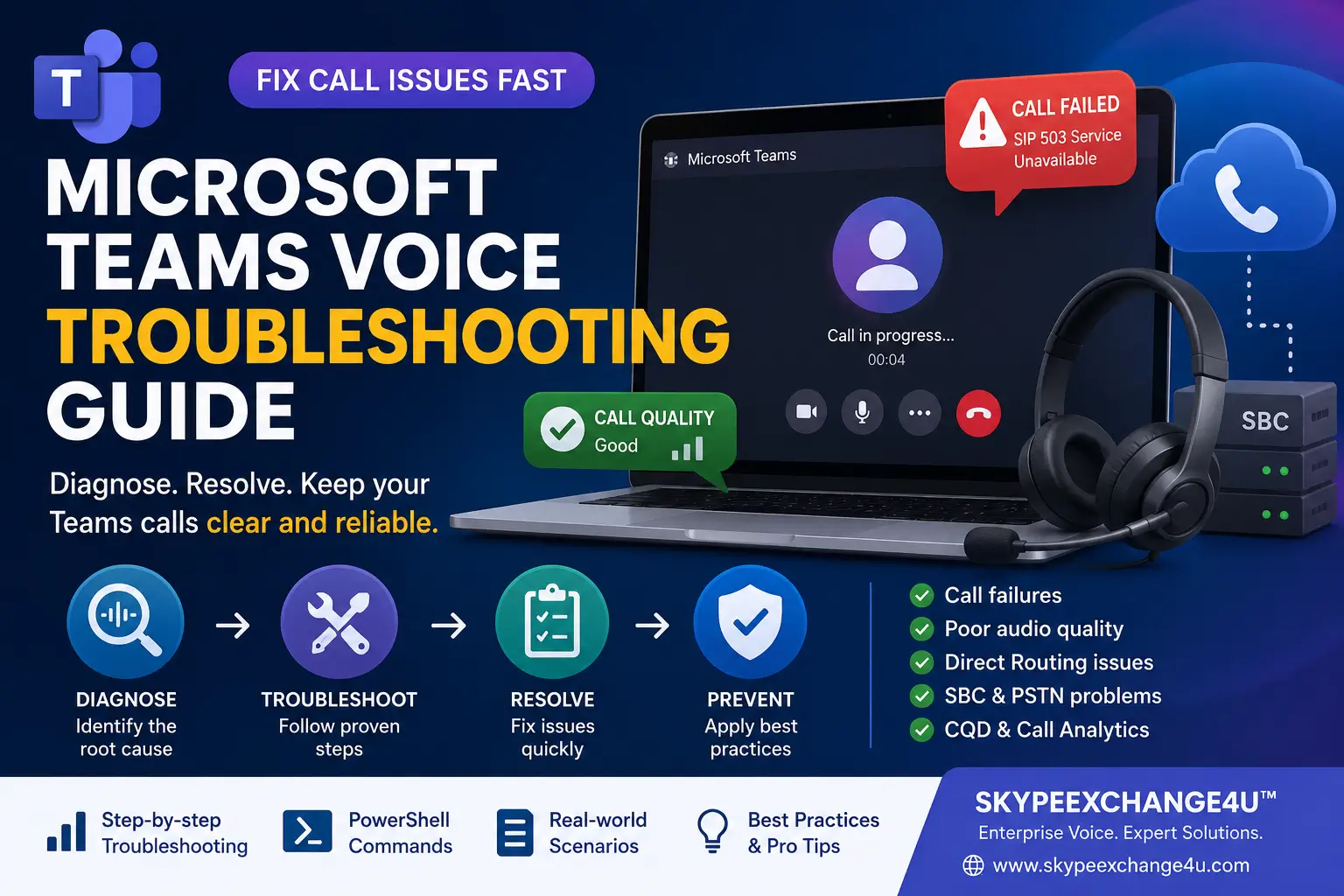
Microsoft Teams Voice Troubleshooting becomes much easier when you stop treating every call failure as the same problem. A call that never connects has a different root cause from a call that connects but has one-way audio. Likewise, one affected user points in a different direction from an entire office having poor audio.
This SkypeExchange4U™ guide gives administrators, voice engineers, helpdesk teams and enterprise architects a repeatable troubleshooting method for Teams Phone, Direct Routing, SBC and PSTN environments.
🚀 Quick Answer: Where Should You Start?
| Symptom | First place to investigate |
|---|---|
| No calls | User configuration, number, voice policy, routing and gateway |
| No audio | Media path, firewall/NAT, VPN and SBC media configuration |
| Choppy audio | Packet loss, jitter, latency, Wi-Fi and QoS |
| External calls fail | PSTN routing, gateway, SBC and carrier |
| One site affected | LAN, Wi-Fi, WAN, firewall, VPN and CQD |
🧰 What You’ll Need
- Teams admin center access or appropriate support permissions
- Teams Phone and voice configuration information
- Per-user call/meeting quality data
- Call Quality Dashboard (CQD) access for wider trends
- Teams PowerShell for targeted configuration checks
- SBC/carrier access in Direct Routing environments
- A known-good user for comparison
- Exact call time, caller, destination and timezone
- Device, location, Wi-Fi/VPN and network information
1️⃣ Step 1 — Define the Exact Symptom
Never start with “Teams calling is broken.” Ask exactly what failed.
- Can the user make an internal Teams call?
- Can the user receive an internal call?
- Can the user make an external PSTN call?
- Can the user receive an external PSTN call?
- Does the call connect?
- Is there one-way audio or no audio?
- Is the audio robotic, delayed or intermittent?
- Does the problem occur on Wi-Fi, wired and mobile networks?
- Does another headset or device behave differently?
2️⃣ Step 2 — Determine the Scope
| Scope | Likely direction |
|---|---|
| One user | Account, policy, device, client or user network |
| One building | LAN, Wi-Fi, WAN, VPN, firewall or site configuration |
| All PSTN calls | Routing, gateway, SBC or carrier |
| Multiple regions | Shared service, policy, network or service-side issue |
3️⃣ Step 3 — Check the User Configuration
Before troubleshooting the SBC, confirm the user is configured correctly.
- Verify the user has the required Teams Phone capability/licensing.
- Verify the telephone number and assignment.
- Check voice-routing policy for Direct Routing users.
- Check PSTN usage and voice routes.
- Compare the affected user with a known-good user.
4️⃣ Step 4 — Use Teams Admin Center and Call Analytics
Microsoft provides detailed per-user information about calls and meetings, including device, network, connectivity and quality information. Use the Teams admin center to locate the affected user and inspect the relevant call or meeting session.
- Open the Teams admin center.
- Find the affected user.
- Open the user’s meetings and calls information.
- Select the failed or poor-quality session.
- Review network, device and quality information.
- Look for significant abnormal indicators.
Microsoft notes that yellow indicators can represent conditions outside normal ranges, while red indicators represent more significant problems. Use them as evidence alongside the complete call path.
5️⃣ Step 5 — Use CQD for Site-Wide Problems
Call Quality Dashboard (CQD) is useful when the question changes from “Why did this user’s call fail?” to “Why are users in this building or network experiencing the same problem?”
CQD provides organization-wide call and meeting quality analysis and helps identify patterns across locations and networks. Call records typically become available within about 30 minutes after a call ends.
6️⃣ Step 6 — Troubleshoot Network and Media Quality
Common symptoms
- Choppy or robotic voice
- Audio cutting in and out
- One-way audio
- Long delay
- Unexpected disconnects
- Problems only when VPN is enabled
- Problems only on Wi-Fi
Investigate
- Packet loss
- Jitter
- Latency/round-trip time
- Wi-Fi congestion
- VPN routing
- Firewall and NAT
- WAN congestion
- QoS
Microsoft identifies Teams admin center and CQD as key tools for call-quality troubleshooting and documents QoS as a way to prioritize delay-sensitive real-time traffic when appropriate.
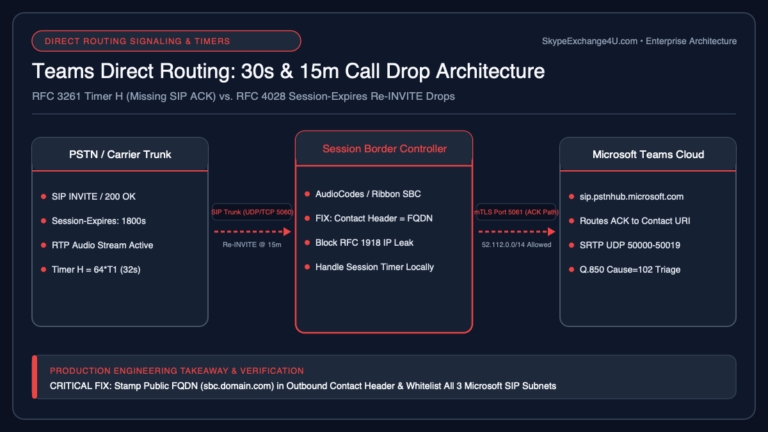
7️⃣ Step 7 — Troubleshoot Direct Routing and the SBC
If internal Teams calls work but PSTN calls fail, investigate the external voice path.
- Is the PSTN gateway enabled?
- Is the SBC FQDN correct?
- Is SIP signaling healthy?
- Are SIP OPTIONS messages working?
- Are required firewall paths allowed?
- Are certificates valid?
- Does the SBC receive the call?
- Does the SBC send it to the carrier?
- Does the carrier accept it?
💻 Microsoft Teams Voice Troubleshooting Commands
Use commands for evidence and targeted checks. Do not change production configuration simply because a command can change it.
Check a Teams user
Get-CsOnlineUser -Identity user@contoso.com | Format-List DisplayName,UserPrincipalName,LineURI,TeamsUpgradeEffectiveModeCheck Direct Routing gateways
Get-CsOnlinePSTNGateway |
Format-List Identity,Fqdn,SipSignalingPort,MaxConcurrentSessions,Enabled
Check one gateway
Get-CsOnlinePSTNGateway -Identity "sbc1.contoso.com" |
Format-List Identity,Fqdn,SipSignalingPort,MaxConcurrentSessions,Enabled
Basic TCP connectivity test
Test-NetConnection sbc1.contoso.com -Port 5061🧪 Example — Outbound PSTN Call Fails
Scenario: A Teams user can call coworkers internally, but external PSTN calls fail.
- Test another user on the same route.
- If only one user fails, compare voice-routing configuration.
- If everyone fails, inspect the PSTN gateway and SBC path.
- Check gateway enabled state and health.
- Check SIP OPTIONS/connectivity.
- Determine whether the SBC receives the INVITE.
- If it does, inspect SBC next-hop routing.
- Check carrier response.
- Verify number normalization and caller-ID presentation.
🚨 Common Errors and Symptoms
| Symptom | Likely areas | First check |
|---|---|---|
| No external calls | Gateway, routing, SBC, carrier | Gateway and call path |
| One-way audio | Media, firewall/NAT, VPN | Media/network telemetry |
| Choppy audio | Loss, jitter, congestion | Call-quality metrics |
| Inbound only fails | Carrier, number mapping, SBC | Inbound SIP path |
| Outbound only fails | Route, gateway, SBC | Voice routing |
🛠️ Real-World Troubleshooting Scenarios
The fastest way to become better at Microsoft Teams Voice Troubleshooting is to think in terms of call paths rather than isolated error messages. Here are five common enterprise scenarios and the evidence to collect before making a change.
Scenario 1 — Outbound PSTN Calls Fail
Symptom: Internal Teams calls work, but external numbers cannot be reached.
Check first: User voice-routing policy → PSTN usage → voice route → PSTN gateway → SBC → carrier.
Useful evidence: exact timestamp, destination number, selected route, gateway state, SIP response and whether the SBC received the INVITE.
Common mistake: Changing the user’s policy before confirming whether other users using the same route are also failing.
Scenario 2 — Inbound Calls Reach the SBC but Not Teams
Symptom: The carrier sends the call toward the SBC, but the Teams user never rings.
Check first: Carrier number presentation → SBC inbound routing → number normalization/manipulation → Teams Direct Routing target → user number assignment.
Useful evidence: SBC SIP trace, called number, From/To headers, response code and the exact destination identity.
Common mistake: Assuming that because the carrier can reach the SBC, the Teams-side routing must also be correct.
Scenario 3 — One-Way Audio Through Direct Routing
Symptom: The call connects, but one participant cannot hear the other.
Check first: Media path → firewall/NAT → VPN → SBC media interfaces → network routing → media negotiation.
Useful evidence: Which direction is missing, whether the issue affects internal calls, whether it changes on another network, and whether VPN changes the result.
Common mistake: Treating a successful SIP connection as proof that the media path is healthy. Signaling and media are related, but they are not the same troubleshooting layer.
Scenario 4 — SIP Failure Response
Symptom: A call fails during setup and the SBC or carrier returns a SIP response such as 403, 404 or 488.
Check first: Do not interpret the number alone. Correlate the response with the SIP message, direction, destination, routing decision, number format and the component that generated the response.
Useful evidence: SIP ladder/trace, timestamp, calling number, called number, route and the exact response reason text where available.
Common mistake: Assuming every 4xx response has the same root cause. The same class of response can arise from different systems or configuration conditions.
Scenario 5 — Calls Work Without VPN but Fail With VPN
Symptom: Voice works on a direct network path but becomes unreliable or fails when the user connects through VPN.
Check first: Routing changes, media path, firewall policy, VPN split-tunnel/full-tunnel design, latency, packet loss and whether the VPN forces traffic through a different security stack.
Useful evidence: Same user, same device, same destination and comparable calls with VPN enabled and disabled.
Common mistake: Blaming the Teams client before proving that the network path changed the behavior.
⚖️ Pros and Cons of a Structured Approach
✅ Pros
- Reduces random changes
- Creates repeatable helpdesk procedures
- Separates signaling from media
- Makes escalation easier
- Finds site-wide patterns
- Creates evidence for carriers or Microsoft
❌ Cons / Limitations
- Telemetry may be incomplete
- Some data needs elevated permissions
- CQD is not always immediate
- Complex SBC environments need specialist skills
- One symptom can have several causes
- Changing multiple components can hide the root cause
🌳 Troubleshooting Decision Tree
Can the user make an internal Teams call?
↳ No → Check client, user configuration, Teams Phone capability and service status.
↳ Yes → Continue.
Can the user make an external PSTN call?
↳ No → Check voice routing → PSTN gateway → SBC → carrier.
↳ Yes → Continue.
Does the call connect but audio is poor?
↳ Yes → Check media → network → Wi-Fi/VPN → firewall/NAT → QoS → SBC media configuration.
↳ No → Investigate call setup and signaling.
🏆 Best Practices
- Capture the exact call time and timezone.
- Use a known-good user for comparison.
- Separate signaling from media.
- Determine scope before changing configuration.
- Use CQD for patterns, not as proof from one call.
- Change one thing at a time.
- Document SBC and carrier dependencies.
- Don’t treat ping success as proof of voice health.
- Compare VPN and non-VPN behavior when appropriate.
- Check current Microsoft documentation because Teams capabilities and admin experiences evolve.
📈 When Should You Escalate?
- Network team: evidence of packet loss, jitter, routing or site congestion.
- SBC team: SIP reaches the SBC but fails during processing or routing.
- Carrier: the carrier rejects or mishandles the call after the SBC sends it.
- Microsoft: customer-side configuration and network paths are healthy but service-side behavior remains abnormal.
🔗 Related SkypeExchange4U™ Articles
Build your Microsoft Teams voice knowledge from architecture to troubleshooting. These related guides form a practical enterprise-voice topic cluster.
How an SBC Works with Microsoft Teams
Understand SBC architecture, Direct Routing, SIP, media flow and call routing.
Latest AI News
Explore the site’s latest AI and technology coverage.
❓ Microsoft Teams Voice Troubleshooting FAQs
Why can a Teams call connect but have no audio?
This usually points toward the media path. Investigate firewall/NAT, VPN, ports, network connectivity, media routing and SBC media configuration.
Why do Teams calls sound robotic or choppy?
Common causes include packet loss, jitter, congestion, Wi-Fi problems, VPN routing and other network conditions affecting real-time media.
Why is Microsoft Teams calling not working?
First determine whether the problem affects one user, one site or many users. Then check Teams Phone configuration, number assignment, voice routing, service health and the relevant network or PSTN path.
How do I troubleshoot Teams Direct Routing?
Start with user and voice-routing configuration, then follow the call path through the PSTN gateway, SBC, SIP signaling, number manipulation, carrier and media path.
How do I troubleshoot an SBC in Microsoft Teams?
Check gateway state, FQDN, SIP signaling, certificates, firewall connectivity, SIP OPTIONS, routing decisions, number manipulation and media behavior. Correlate Teams-side evidence with the SBC trace.
How do I check Teams call quality?
Use the Teams admin center for individual sessions and Call Quality Dashboard (CQD) for organization-, site- and network-level patterns. Look at packet loss, jitter, latency and other available quality indicators.
What is CQD in Microsoft Teams?
Call Quality Dashboard is Microsoft’s organization-wide call and meeting quality analysis tool for identifying patterns across users, locations and networks.
When should I use Teams admin center versus CQD?
Use the Teams admin center for individual users and sessions. Use CQD when you need broader organization, site or network patterns.
Can VPN cause Microsoft Teams voice problems?
Yes. VPN routing can change the media path and network behavior. Compare VPN and non-VPN calls using the same user, device and destination when possible.
What should I collect before escalating a Teams voice problem?
Collect the affected user, caller and destination, exact timestamp and timezone, call direction, symptom, location, device/network details, call-quality evidence, routing information and relevant SBC or carrier observations.
🎯 The Bottom Line
Good Microsoft Teams Voice Troubleshooting is a process, not a guessing game.
Start with the symptom. Determine the scope. Check the user. Follow the call path. Separate signaling from media. Use the Teams admin center for individual sessions and CQD for wider patterns. In Direct Routing environments, move methodically through routing, gateway, SBC, carrier and media.
The goal is not merely to make one call work. The goal is to find the root cause so the same failure does not return tomorrow.