Teams Direct Routing One-Way Audio: Fixing Media Bypass, NAT Traversal & SRTP Port Blocks
In Microsoft Teams Direct Routing deployments, few helpdesk escalations are more frustrating to diagnose than one-way audio (dead air). Unlike complete call setup failures where Session Border Controllers (SBCs) return clear SIP rejection codes such as SIP 403 Forbidden or SIP 488 Not Acceptable Here, a one-way audio call signals cleanly. The phone rings, the call connects, the SIP dialog reaches 200 OK, yet one party hears total silence.
Typically, the external PSTN caller can hear the internal Teams user, but the Teams user hears nothing (or vice versa). In other scenarios, audio functions perfectly for 15 to 30 seconds before dropping abruptly into silence. Because SIP signaling operates over a completely separate network path from Real-Time Transport Protocol (RTP) audio media, voice administrators must isolate why the media plane failed while the control plane succeeded.
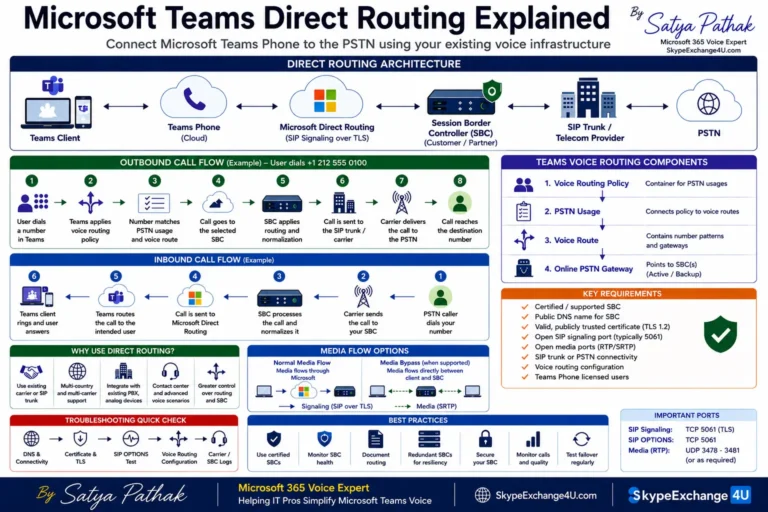
SIP signaling (port 5061) establishes the session through Microsoft’s Direct Routing SIP proxies (
sip.pstnhub.microsoft.com). However, RTP audio media NEVER flows through SIP proxies. Media flows directly between the customer SBC and Microsoft’s regional Media Processors (or directly between the Teams client and the SBC when Media Bypass is enabled) using Secure RTP (SRTP) over dynamic UDP ports. If signaling succeeds but audio fails, the breakdown is 100% located within your firewall NAT rules, SBC IP routing tables, or SRTP cryptographic negotiation.
Decoding the Media Stream: Signaling vs Media Flow
To troubleshoot one-way audio systematically, analyze what occurs inside the Session Description Protocol (SDP) payload exchanged during the SIP INVITE and 200 OK handshake:
| Symptom | Flow Direction | Primary Architectural Culprit |
|---|---|---|
| Teams user hears caller; Caller hears silence | Outbound SRTP blocked (Teams → SBC) | SBC advertised private IP address in SDP c=IN IP4 line instead of its public WAN IP; or firewall blocked inbound UDP to the SBC media port range. |
| Caller hears Teams user; Teams user hears silence | Inbound SRTP blocked (SBC → Teams) | SBC routing table sent media out the wrong default gateway (asymmetric routing); or corporate firewall blocked outbound UDP traffic to Microsoft cloud subnets. |
| Audio works for 15-30 seconds, then drops to silence | Stateful NAT timeout or RTCP tear-down | Firewall closed UDP session due to aggressive UDP idle timeout (<30s); or RTCP packet loss exceeded threshold, prompting SBC to terminate media stream. |
| One-way audio occurs ONLY when users work from home (VPN/Split Tunnel) | ICE / STUN Candidate failure | Media Bypass is enabled tenant-wide without proper internal network subnet matching, forcing home users to route media directly to private SBC LAN IPs. |
Root Cause 1: Media Bypass & Internal/External Subnet Misconfigurations
When you enable Media Bypass on your Teams Direct Routing trunk, Microsoft Teams attempts to route media directly between the Teams client endpoint and your Session Border Controller, bypassing Microsoft’s cloud Media Processors. This reduces latency, conserves bandwidth, and improves voice quality.
However, Media Bypass introduces a fatal trap: Interactive Connectivity Establishment (ICE) candidate selection.
If Media Bypass is enabled globally, but your network sites and trusted IP subnets are not precisely registered in the Teams Admin Center (TAC), Teams will provide private internal IP addresses to remote workers. When a remote employee working from a home broadband connection attempts to connect to the SBC’s private RFC 1918 address (e.g., 10.10.20.50), the packets are dropped, resulting in total one-way audio.
If your Session Border Controller sits in Microsoft Azure (e.g., AudioCodes Mediant Cloud Edition) or behind a NAT device, ensure your PSTN Gateway configuration uses
-MediaBypass $false until all corporate subnets are mapped under Network Topology, or verify that your SBC is configured to respond to public ICE candidates.
Verifying Media Bypass Configuration via PowerShell
# Connect to Microsoft Teams PowerShell
Connect-MicrosoftTeams

# Check current Media Bypass status on your SBC gateway
Get-CsOnlinePSTNGateway -Identity "sbc.yourdomain.com" |
    Select-Object Identity, MediaBypass, FailoverTimeSeconds, Enabled

# If one-way audio is widespread for remote workers, temporarily disable Media Bypass
# to force all media through Microsoft's reliable cloud Media Processors:
Set-CsOnlinePSTNGateway -Identity "sbc.yourdomain.com" -MediaBypass $false
Root Cause 2: Asymmetric Routing on Multi-Homed SBCs (AudioCodes / Ribbon)
Enterprise Session Border Controllers typically utilize a multi-homed network architecture:
- LAN Interface (Internal / OAMP): Connects to internal PBXs, SIP trunks, or enterprise LAN subnets.
- WAN Interface (DMZ / External): Connects to Microsoft Teams Direct Routing proxies and public carrier trunks.
In this architecture, the SBC has multiple network interfaces, but standard IP routing only permits one default system gateway (typically pointing out the external WAN interface to the Internet). If an internal PBX or SIP endpoint sends traffic to the SBC’s internal IP, but the SBC’s internal routing table is missing a static route for the internal corporate subnets, the SBC will attempt to return the RTP media stream out its default WAN gateway!
The corporate firewall immediately drops the return packet as spoofed or invalid state, creating an instantaneous one-way audio stream: the internal user hears nothing, while the external user hears them loud and clear.
AudioCodes Routing Table Check
On an AudioCodes Mediant SBC, navigate to IP Network → Routing → IP Routing Table. Verify that specific static routes exist for every internal corporate subnet pointing to your internal core switch gateway:
Destination: 10.0.0.0 | Netmask: 255.0.0.0 | Gateway: 10.10.20.1 | Interface: LAN
Destination: 172.16.0.0 | Netmask: 255.240.0.0 | Gateway: 10.10.20.1 | Interface: LAN
Destination: 192.168.0.0 | Netmask: 255.255.0.0 | Gateway: 10.10.20.1 | Interface: LAN
Destination: 0.0.0.0 | Netmask: 0.0.0.0 | Gateway: 203.0.113.1 | Interface: WAN (Default Route)
Root Cause 3: UDP Firewall Port Starvation & NAT Timeouts
Microsoft Teams Direct Routing requires bi-directional UDP traffic across two critical port ranges:
- Microsoft Cloud Media Processors: UDP ports
3478,3479,3480, and3481(STUN/TURN signaling). - Microsoft Cloud Media Port Range: UDP ports
49152 to 53247(and specifically50000 to 50019for dedicated voice traffic). - Customer SBC Media Port Range: Typically UDP
6000 to 6999(AudioCodes default) or UDP16384 to 32767(Ribbon default).
If your enterprise firewall (Palo Alto, Fortinet, Check Point, Cisco Firepower) performs Symmetric NAT or inspects RTP traffic with an intrusive SIP ALG (Application Layer Gateway), it will dynamically re-write the source UDP port. When the Microsoft Media Processor attempts to stream return SRTP audio to the negotiated port, the firewall discards the packets.
Always disable SIP ALG / SIP Inspection / SIP Fixup on the firewall rules handling SBC traffic. Furthermore, configure the stateful UDP session timeout for Microsoft’s media IP subnets (
52.112.0.0/14 and 52.122.0.0/15) to at least 180 seconds to prevent silent drops during active call holds or transfers.
Root Cause 4: SRTP Cryptographic Key & MKI Negotiation Mismatches
Microsoft Teams Direct Routing strictly enforces encrypted audio media using Secure Real-Time Transport Protocol (SRTP) with AES-CM-128 or AES-GCM-256 ciphers. In your Session Border Controller IP Profiles, the media encryption parameters must match Microsoft’s strict specifications:
# AudioCodes Mediant IP Profile for Teams Direct Routing:
SBC → IP Profiles → Teams_IP_Profile:
  - Media Security: "SRTP"
  - Master Key Identifier (MKI) Size: "1" (or "0" depending on carrier interworking)
  - SRTP Operation Mode: "Mandatory"
  - Symmetric RTP: "Enable"
  - Reset SRTP upon Re-INVITE: "Enable"
If an internal PBX or carrier SIP trunk does not support SRTP and sends unencrypted RTP, and your SBC is not configured with DSP transcoding licenses or trans-encryption profiles, the SBC will negotiate the call in signaling, but fails to bridge the unencrypted RTP stream to Microsoft’s mandatory SRTP stream, causing instant one-way dead air.
Automated Network Diagnostic Script: `Test-DirectRoutingMediaPorts.ps1`
To identify port blocks, NAT misalignments, and STUN connectivity issues before escalating to carrier support, run our open-source diagnostic utility from the TeamsVoice-PowerShell-Toolbox GitHub Repository:
function Test-DirectRoutingMediaPorts {
    [CmdletBinding()]
    param(
        [Parameter(Mandatory=$false)]
        [string]$SbcFqdn = "sbc.yourdomain.com",
        [Parameter(Mandatory=$false)]
        [int]$SbcSipPort = 5061
    )

    Write-Host "`n=== Microsoft Teams Direct Routing Media Plane Diagnostic ===" -ForegroundColor Cyan

    # 1. Test Microsoft SIP Signaling Endpoints (TLS 5061)
    $Endpoints = @("sip.pstnhub.microsoft.com", "sip2.pstnhub.microsoft.com", "sip3.pstnhub.microsoft.com")
    foreach ($Ep in $Endpoints) {
        $TcpTest = Test-NetConnection -ComputerName $Ep -Port 5061 -WarningAction SilentlyContinue
        if ($TcpTest.TcpTestSucceeded) {
            Write-Host "  [PASS] SIP Signaling Proxy Reachable: $Ep:5061" -ForegroundColor Green
        } else {
            Write-Host "  [FAIL] Cannot connect to SIP Signaling Proxy: $Ep:5061" -ForegroundColor Red
        }
    }

    # 2. Test Microsoft Regional Media Processors (STUN / TURN UDP 3478-3481)
    Write-Host "`n[*] Auditing Microsoft Cloud Media Processor STUN/TURN Ports..." -ForegroundColor Yellow
    $MediaEndpoints = @("worldaz.turn.teams.microsoft.com")
    foreach ($MEp in $MediaEndpoints) {
        $UdpTest = Test-NetConnection -ComputerName $MEp -Port 3478 -WarningAction SilentlyContinue
        if ($UdpTest.TcpTestSucceeded) {
            Write-Host "  [PASS] Cloud Media STUN Endpoint: $MEp:3478" -ForegroundColor Green
        } else {
            Write-Host "  [WARN] STUN Port 3478 unreachable via TCP fallback. Ensure UDP 3478-3481 is permitted on perimeter firewall." -ForegroundColor Yellow
        }
    }

    # 3. Customer SBC Socket Test
    Write-Host "`n[*] Validating Customer SBC Listener ($SbcFqdn)..." -ForegroundColor Yellow
    $SbcTest = Test-NetConnection -ComputerName $SbcFqdn -Port $SbcSipPort -WarningAction SilentlyContinue
    if ($SbcTest.TcpTestSucceeded) {
        Write-Host "  [PASS] Customer SBC Signaling Listener Active: $SbcFqdn:$SbcSipPort" -ForegroundColor Green
    } else {
        Write-Host "  [FAIL] Customer SBC is NOT listening on $SbcFqdn:$SbcSipPort" -ForegroundColor Red
    }

    Write-Host "`n==============================================================" -ForegroundColor Cyan
}

# Run execution
Test-DirectRoutingMediaPorts -SbcFqdn "sbc.contoso.com"
5-Step Troubleshooting Checklist for Immediate Resolution
- Capture Wireshark Trace on SBC WAN & LAN Interfaces: Filter on
sip || rtp. Locate thec=IN IP4lines in the SDP offer/answer. Verify that the SBC advertises its public routable WAN IP address to Microsoft, not its internal10.x.x.xaddress. - Temporarily Toggle Media Bypass: Run
Set-CsOnlinePSTNGateway -Identity "sbc.domain.com" -MediaBypass $false. If one-way audio immediately resolves, your network sites or internal subnets in the Teams Admin Center are incomplete. - Audit Firewall Application Inspection: Confirm that SIP ALG, SIP Fixup, and Deep Packet Inspection (DPI) are completely disabled on firewall rules governing traffic to and from the SBC.
- Inspect SBC IP Routing Table: Ensure dedicated static routes direct traffic destined for corporate subnets out the LAN gateway, leaving the default route (
0.0.0.0/0) dedicated to the WAN gateway. - Verify Symmetric RTP Settings: In the SBC IP Profile, ensure Symmetric RTP and Symmetric SRTP are enabled so the SBC anchors return media to the exact IP and port from which the incoming audio packets originated.
If you are resolving certificate issues, review our AudioCodes Mediant SBC TLS Handshake Failure Fix. For front-line shift worker deployments, check our Teams Shared Calling Outbound Drops Troubleshooting Guide.
Frequently Asked Questions (FAQ)
Why can the external caller hear me, but I cannot hear them in Microsoft Teams?
This indicates inbound SRTP audio packets from the SBC or Microsoft Media Processor are being blocked before reaching the internal endpoint. The primary culprits are an SBC advertising a private IP in its SDP payload, an enterprise firewall blocking inbound UDP ports in the 50000-50019 range, or asymmetric routing on multi-homed SBCs.
Does disabling Media Bypass fix one-way audio in Direct Routing?
Yes, in many production environments disabling Media Bypass immediately resolves one-way audio. When Media Bypass is disabled, Teams routes media through Microsoft’s cloud Media Processors via well-known public IP subnets and STUN ports, preventing internal NAT and private IP traversal failures on remote worker devices.
What UDP ports are required for Microsoft Teams Direct Routing audio?
Microsoft Teams requires outbound UDP ports 3478 through 3481 (STUN/TURN signaling) and UDP ports 49152 to 53247 (specifically 50000 to 50019 for prioritized voice). Your Session Border Controller typically listens on UDP ports 6000 to 6999 (AudioCodes) or 16384 to 32767 (Ribbon).
About the Author: Satya Pathak
Satya Pathak is an Enterprise Unified Communications & Identity Solutions Architect with 15+ years of production experience designing, deploying, and troubleshooting Microsoft Teams Direct Routing, AudioCodes & Ribbon Session Border Controllers, and Entra ID cloud voice infrastructure.
Connect directly on the Author Profile or access verified PowerShell tools in the TeamsVoice GitHub Repository.