Ribbon SBC 1000/2000 Configuration for Teams Direct Routing: Step-by-Step Guide
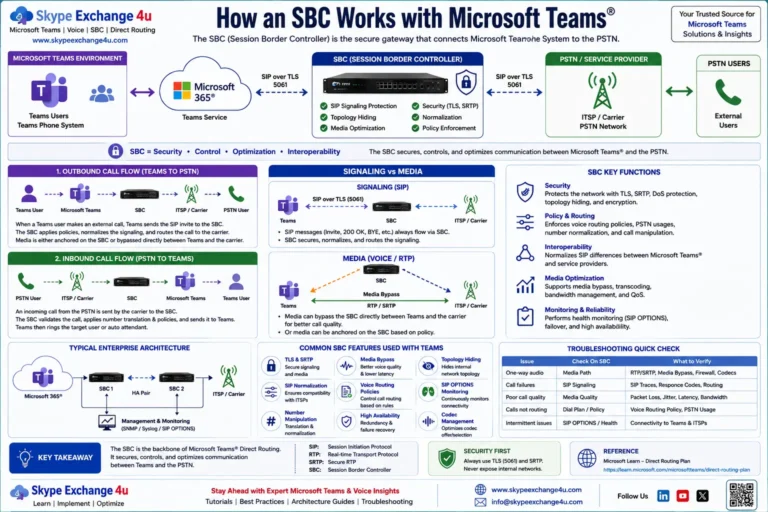
Along with AudioCodes, Ribbon Communications (formerly Sonus Networks) represents the gold standard in certified enterprise Session Border Controllers for Microsoft Teams Direct Routing. Whether deploying an appliance-based Ribbon SBC 1000 or SBC 2000 or a virtualized Ribbon SBC SWe Lite (in Azure, AWS, VMware, or Hyper-V), setting up Direct Routing requires strict adherence to Microsoft’s mutual TLS (mTLS), ICE Lite, and SIP normalization standards.
While Ribbon provides an “Easy Configuration Wizard” for standard setups, enterprise voice deployments with multi-carrier failover, analog integration, or custom Caller ID policies require manual object configuration.
This technical guide details the complete manual configuration blueprint: network interfaces, public TLS certificates, SIP Profiles, Signaling Groups, Transformation Tables, Microsoft Teams PowerShell integration, and debugging via the Ribbon LX diagnostic tool.
Signaling: Port 5061 (TLS 1.2 Mutual Auth) | Media: SRTP Required (AES_CM_128_HMAC_SHA1_80) | Contact Header: FQDN Enforced | NAT Traversal: ICE Lite & STUN
Ribbon SBC Architecture for Direct Routing
Phase 1: Ribbon TLS Profile & Certificate Setup
Direct Routing strictly mandates mutual TLS (mTLS). Microsoft validates the SBC’s certificate against public CAs, and the SBC must validate Microsoft’s certificate against Microsoft’s root CA chain.
1. Generate the Certificate Signing Request (CSR)
In the Ribbon WebUI:
- Navigate to Settings → Security → Node Interfaces → Certificates → Generate Certificate Signing Request.
- Fill in the cryptographic parameters:
- Common Name (CN):
sbc01.contoso.com - Subject Alternative Name (SAN):
DNS:sbc01.contoso.com(Mandatory: Microsoft rejects certificates where the FQDN is only in the CN). - Key Length:
2048bit (RSA).
- Common Name (CN):
- Click Generate CSR. Copy the text block and submit it to a Microsoft-approved public CA (DigiCert, Sectigo, GlobalSign, or Entrust).
2. Import Trusted Root & Intermediate Certificates
Before installing your device certificate, you must import the Microsoft CA chain into Ribbon:
- Go to Settings → Security → Node Interfaces → Certificates → Trusted Root Certificates.
- Click Import and upload:
- Baltimore CyberTrust Root
- DigiCert Global Root G2
- Your public CA’s Intermediate and Root certificates.
- Go to Import Certificate and upload your public
.ceror.pemdevice certificate.
3. Create the Teams TLS Profile
Navigate to Settings → Security → TLS Profiles. Click + (Create TLS Profile):
| Parameter | Value | Engineering Rationale |
|---|---|---|
| Profile Name | TLS_Teams_Profile |
Descriptive tag for the profile. |
| TLS Protocol Version | TLS 1.2 Only |
TLS 1.0 and 1.1 are deprecated by Microsoft 365. |
| Validate Peer Certificate | Validate Required |
Enforces mutual TLS validation on Microsoft’s proxy. |
| Certificate | Default Certificate |
Binds the public SAN device certificate. |
Phase 2: Ribbon Core SIP & Media Profiles
1. Create the Teams SIP Profile
Navigate to Settings → SIP → SIP Profiles. Click + (Create SIP Profile):
- Profile Name:
SIP_Teams_Profile - Contact Header FQDN: Select Custom FQDN and enter
sbc01.contoso.com. (Crucial: If left on default IP, Microsoft drops calls with SIP 403 Forbidden (Gateway Not Found)). - Support ICE: Set to Enabled. (Required for Media Bypass).
- Send Quality-of-Experience: Set to Enabled.
2. Configure the Media List & SRTP
Navigate to Settings → Media → Media Profiles:
- Verify that G.711u, G.711a, and SILK are active.
- Under Settings → Media → Media List, create
Teams_Media_List:- Set Media Security to
SRTP Required. - Add Crypto Suite:
AES_CM_128_HMAC_SHA1_80.
- Set Media Security to
Phase 3: Signaling Groups & Call Routing
1. Create the Teams Signaling Group
Navigate to Settings → Signaling Groups. Click + (Create Signaling Group):
- Name:
SG_Microsoft_Teams - Signaling Protocol:
SIP - SIP Profile:
SIP_Teams_Profile - TLS Profile:
TLS_Teams_Profile - Port:
5061 - Call Routing Table:
From_Teams_Routing_Table - Federated / FQDN: Under Federated IP / FQDN, add Microsoft’s three regional endpoints:
sip.pstnhub.microsoft.com(Port 5061)sip2.pstnhub.microsoft.com(Port 5061)sip3.pstnhub.microsoft.com(Port 5061)
- Admin State: Set to Enabled.
2. Create Transformation Tables (E.164 Normalization & PAI)
Navigate to Settings → Call Routing → Transformation. Create two key tables:
A. Inbound Normalization (PSTN → Teams)
Translates 10-digit national dials into full E.164 (+1) before routing to Microsoft:
Input Field: Called Address
Match Regex: ^(\d{10})$
Output Translation: +1\1
B. Outbound PAI / Caller ID Normalization (Teams → PSTN)
Ensures outbound calls present an authorized DID on the carrier SIP trunk to avoid carrier anti-spoofing rejections:
Input Field: Calling Address / PAI
Match Regex: ^\+1(\d{10})$
Output Translation: +1\1
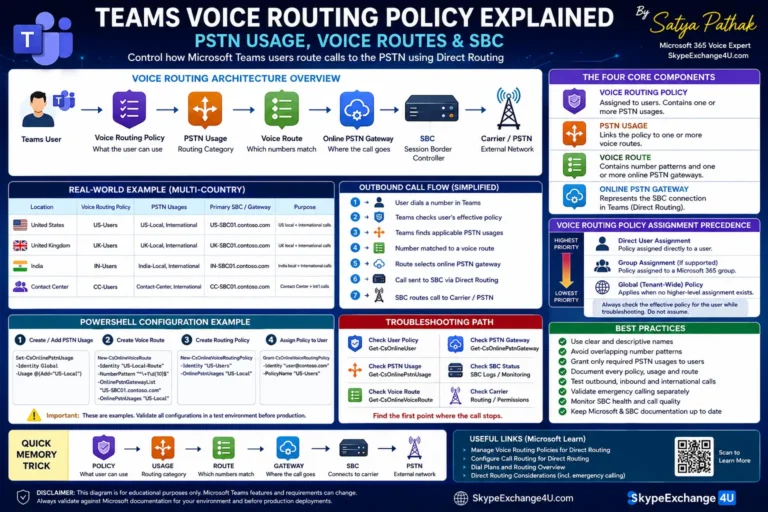
Phase 4: Microsoft Teams Tenant Provisioning in PowerShell
With the Ribbon SBC listening on port 5061, register the gateway in Microsoft Teams PowerShell:
# 1. Connect to Microsoft Teams
Connect-MicrosoftTeams

# 2. Register the Ribbon SBC Gateway
New-CsOnlinePSTNGateway `
  -Identity "sbc01.contoso.com" `
  -SipSignalingPort 5061 `
  -SendSipOptions $true `
  -MaxConcurrentSessions 150 `
  -Enabled $true

# 3. Create PSTN Usage & Voice Route
Set-CsOnlinePstnUsage -Identity Global -Usage @{Add="US-National"}

New-CsOnlineVoiceRoute `
  -Identity "VR-Ribbon-National" `
  -NumberPattern "^\+1(\d{10})$" `
  -OnlinePstnGatewayList "sbc01.contoso.com" `
  -Priority 1 `
  -OnlinePstnUsages "US-National"

# 4. Assign Voice Routing Policy to User
New-CsOnlineVoiceRoutingPolicy -Identity "VRP-Ribbon-Users" -OnlinePstnUsages "US-National"
Grant-CsOnlineVoiceRoutingPolicy -Identity "telecom.engineer@contoso.com" -PolicyName "VRP-Ribbon-Users"

# 5. Assign Phone Number & Enable Enterprise Voice
Set-CsPhoneNumberAssignment `
  -Identity "telecom.engineer@contoso.com" `
  -PhoneNumber "+14155550188" `
  -PhoneNumberType DirectRouting

Set-CsPhoneNumberAssignment `
  -Identity "telecom.engineer@contoso.com" `
  -EnterpriseVoiceEnabled $true
Phase 5: Real-Time Debugging with Ribbon LX
The Ribbon LX Logging Tool is the primary diagnostic suite for Ribbon SBCs. Rather than guessing why a call failed, stream live traces from Diagnostics → Capture Log.
| Ribbon Error Symptom | Root Cause in Trace | Immediate Resolution |
|---|---|---|
| Signaling Group Shows “Down” | TLS handshake failure or certificate expiration. | Verify Trusted Root Certificates have Baltimore/DigiCert CA installed. Inspect our SIP 503 Troubleshooting Guide. |
| Inbound Call Returns 403 | Ribbon sending IP in Contact header. | Change SIP Profile → Contact Header FQDN from Default IP to Custom FQDN. |
| Outbound Call Returns 488 | Media List offering plain RTP instead of SRTP. | Set Media List → Media Security to SRTP Required. Review our SIP 488 Troubleshooting Guide. |
| One-Way Audio on Bypass | NAT Traversal / ICE Lite candidate blocked. | Enable STUN/ICE on the SIP profile and open firewall UDP ports 3478 and 6000–6999. |
Need Expert Ribbon SBC Configuration or Migration Support?
Our Microsoft-certified voice infrastructure architects specialize in Ribbon SBC 1000/2000, SWe Lite, and Core deployments. From carrier trunk migrations to survivable branch engineering, we design bulletproof telephony.
Frequently Asked Questions (FAQ)
Which Ribbon SBC models support Microsoft Teams Direct Routing?
Ribbon SBC 1000, SBC 2000, SBC SWe Lite (Software Edition Lite), and carrier-grade SBC 5000/7000/SWe appliances are all officially certified by Microsoft for Teams Direct Routing.
Why is my Ribbon Signaling Group marked Down?
A Ribbon Signaling Group linked to Teams indicates Down when mutual TLS cannot be established or when SIP OPTIONS heartbeats receive no response. Verify that your TLS profile enforces TLS 1.2, your public certificate SAN contains your exact SBC FQDN, and the Baltimore/DigiCert root CA bundle is installed.
Do I need to enable ICE Lite on Ribbon SBC for Teams?
Yes, if Media Bypass is enabled. Microsoft Direct Routing requires the SBC to support ICE Lite and STUN candidate exchange so the Teams desktop or mobile client can establish direct peer-to-peer SRTP audio with the SBC.
Related Microsoft Teams Direct Routing & Hardware Guides
- AudioCodes Mediant SBC Configuration for Teams Direct Routing: Tenant to First Call
- AudioCodes vs Ribbon vs anynode: Best SBC for Teams Direct Routing
- Deploying Teams Survivable Branch Appliance (SBA): Offline Calling Architecture
- Direct Routing vs Operator Connect vs Teams Phone Mobile: 2026 Architecture Guide
- Teams Direct Routing SIP 503 Service Unavailable: Troubleshooting SBC & Trunk Outages
- Teams Direct Routing SIP 403 Forbidden: Packet Traces, FQDN Gotchas & Carrier Fixes
- Teams Direct Routing 488 Not Acceptable Here: SDP, Codecs, SRTP