Deploying Teams Survivable Branch Appliance (SBA): Offline Calling Architecture
When an enterprise migrates voice services to the cloud, the single biggest operational fear for hospital campuses, financial institutions, and manufacturing plants is a complete WAN or internet blackout. If an excavator tears through a fiber line, cloud-hosted telephony dies—taking critical emergency calling and internal communications with it.
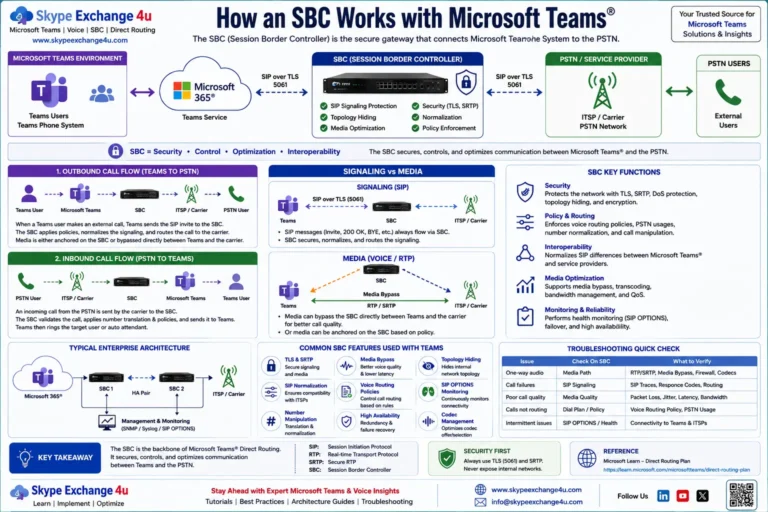
The Microsoft Teams Survivable Branch Appliance (SBA) eliminates this single point of failure. Unlike legacy Skype for Business SBAs (which required full Windows Server bare-metal hardware running Registrar and Mediation roles), the Teams SBA is a lightweight, hardened service running directly inside a certified Session Border Controller (AudioCodes Mediant, Ribbon SBC, or anynode).
When your branch office loses connectivity to Microsoft 365, the Teams desktop client seamlessly falls back to Survivable Branch Mode, allowing users to place and receive external PSTN and emergency calls across the local SBC trunk.
This deployment guide covers the end-to-end architecture, Microsoft Entra ID (Azure AD) application registration, Teams PowerShell cmdlets, and the critical local DNS/certificate prerequisites required for zero-downtime branch survivability.
Host: Embedded SBC Container / VM | Control Plane: Azure AD App Registration (OAuth 2.0) | Local Fallback: HTTPS REST + SIP | Client: Teams Desktop (Windows/Mac) & Certified IP Phones
SBA Architecture: Online vs. Offline Blackout Mode
──(Signaling & Auth via WAN)──►
Microsoft 365 Cloud
──(Local LAN HTTPS Discovery)──►
SBA on Local SBC
──(Local SIP/TDM Trunk)──►
Local PSTN / E911
Supported vs. Unsupported Capabilities During an Outage
Setting proper business expectations is essential. An SBA is designed for emergency voice survivability, not full cloud collaboration:
| Feature Category | Operational Status During WAN Blackout | Technical Mechanics |
|---|---|---|
| Emergency Calling (911 / 112) | Fully Operational | Routes out local SBC analog/PRI/SIP trunk directly to local Public Safety Answering Point (PSAP). |
| Inbound / Outbound PSTN | Fully Operational | Handled by local SBC routing tables. Inbound calls match assigned user DIDs locally. |
| Two-Way Extension Dialing | Operational (Same Branch) | Users homed to the same SBA can call each other’s full E.164 phone numbers across the LAN. |
| Teams Chat & Messaging | Offline | Chat data lives in Microsoft Cosmos DB / Exchange Online and cannot function without cloud connectivity. |
| Cloud Auto Attendants & Call Queues | Offline | Cloud IVRs reside in Azure. SBC must be programmed with fallback routing to direct pilot numbers to a physical hunt group or analog phone. |
| Voicemail & Call Recording | Offline | Exchange Voicemail unreachable. Unanswered calls roll to fast busy or local announcement. |
Phase 1: Microsoft Entra ID (Azure AD) App Registration
The SBA connects to Microsoft 365 using modern OAuth authentication. You must register an Azure AD Application to grant the appliance identity permissions:
- Sign in to the Microsoft Entra Admin Center (entra.microsoft.com).
- Navigate to Identity → Applications → App registrations → + New registration.
- Name the application (e.g.,
Teams-SBA-ChicagoBranch). Set Supported Account Types to Accounts in this organizational directory only. - Under API Permissions, click + Add a permission:
- Select Microsoft Graph → Application permissions.
- Add
TeamsSurvivableBranchAppliance.ReadWrite.All(or vendor-specified SBA scopes). - Click Grant admin consent for [Your Organization] (Mandatory).
- Navigate to Certificates & secrets:
- Click + New client secret. Set expiration to 24 months.
- Copy the secret Value immediately (it will never be displayed again).
- Record three values for your SBC setup:
- Application (Client) ID
- Directory (Tenant) ID
- Client Secret Value
Phase 2: Microsoft Teams PowerShell Provisioning
Once the Azure AD identity exists, register the physical SBA entity in Microsoft Teams and bind your branch users:
# 1. Connect to Microsoft Teams
Connect-MicrosoftTeams

# 2. Register the SBA Entity
New-CsTeamsSurvivableBranchAppliance `
  -Identity "sba-chicago.contoso.com" `
  -Fqdn "sba-chicago.contoso.com" `
  -Site "Site-Chicago" `
  -Description "AudioCodes Mediant 1000B SBA for Chicago Campus"

# 3. Create a Branch Survivability Policy
New-CsTeamsSurvivableBranchAppliancePolicy `
  -Identity "Policy-SBA-Chicago" `
  -BranchApplianceFqdn "sba-chicago.contoso.com"

# 4. Assign the Policy to Branch Users
Grant-CsTeamsSurvivableBranchAppliancePolicy `
  -Identity "nurse.station1@contoso.com" `
  -PolicyName "Policy-SBA-Chicago"

# 5. Verify Policy Assignment
Get-CsUserPolicyAssignment -Identity "nurse.station1@contoso.com" | Where-Object { $_.PolicyType -eq "TeamsSurvivableBranchAppliancePolicy" }
Phase 3: SBC Hardware Configuration & SBA Binding
AudioCodes Mediant SBA Configuration:
- In the Mediant Web GUI, navigate to Applications → Teams SBA.
- Enable the SBA Service toggle.
- Enter the credentials recorded in Phase 1:
- Tenant ID:
YOUR_DIRECTORY_TENANT_ID - Application (Client) ID:
YOUR_CLIENT_ID - Application Secret:
YOUR_CLIENT_SECRET
- Tenant ID:
- Set the SBA FQDN to match your PowerShell entity:
sba-chicago.contoso.com. - Click Apply & Reset.
- Monitor the SBA Status indicator: It should transition from Connecting to Connected & Synchronized.
- Hardware Context: If deploying on physical appliances, review our guide on AudioCodes Mediant SBC Configuration for Teams Direct Routing.
Ribbon SBC Core / Edge (1000/2000) Configuration:
- Navigate to System → SBA Settings.
- Install the ribbon-provided SBA license file and initialize the SBA application partition.
- Fill in the Microsoft Azure App Registration credentials (Tenant, Client ID, Secret).
- Under Signaling Groups, ensure the local SBA service is linked to the primary PSTN routing table.
- Verify that the ribbon SBA daemon indicates a green In-Service operational state.
The 3 Critical Network & DNS Gotchas
1. Internal DNS Resolution During a WAN Blackout
This is the #1 reason SBAs fail in production. When the internet connection drops, branch client workstations often lose access to corporate cloud DNS servers (e.g., Azure Private DNS or external resolvers).
If the Teams desktop client cannot resolve sba-chicago.contoso.com locally, it cannot establish the local HTTPS connection to initiate survivability mode.
Requirement: Your branch must have a local DNS server (or local router DNS proxy) that maintains an authoritative static A-Record pointing sba-chicago.contoso.com to the SBC’s internal private LAN IP address (e.g., 10.50.1.10) independently of internet health.
2. Local TLS Certificate Trust
The Teams desktop client connects to the SBA service over local HTTPS port 443/8443. The certificate bound to the SBA interface must have a valid Subject Alternative Name (SAN) matching the SBA FQDN and must chain up to a root authority trusted by branch workstations.
3. Client Token Caching Lifetime
While online, the Teams client periodically caches local SBA authorization tokens. Microsoft enforces an offline survival window of 24 hours. If a network outage extends beyond 24 hours without any cloud refresh, the cached authorization ticket expires, and the client will disable calling until cloud connectivity is restored.
Testing & Blackout Simulation
Never sign off on an SBA deployment without executing a physical failure test:
- Verify Client Status: Open the Teams desktop app on a machine assigned to the branch policy. Verify normal calling works.
- Sever the WAN: Unplug the upstream WAN cable from the branch firewall, or add a temporary firewall drop rule blocking all outbound traffic to
*.pstnhub.microsoft.comand*.skype.com. - Observe the Teams Client UI: Within 60–90 seconds of detecting WAN failure, the Teams client displays a yellow banner at the top of the interface:
“We cannot connect to Microsoft 365. You can still make and receive emergency and phone calls via your local branch appliance.”
- Place a Test Call: Dial an external mobile phone. Open your SBC syslog viewer to verify that the call is processed entirely over the local PSTN trunk without attempting any cloud handoff.
Need Help Designing High-Availability Teams Voice Architecture?
From mission-critical hospital SBA survivability to complex multi-carrier Direct Routing and Operator Connect migrations, our certified voice engineers design zero-downtime telephony infrastructure.
Frequently Asked Questions (FAQ)
Which Teams clients support Survivable Branch Appliance (SBA) mode?
Teams SBA mode is supported on the Microsoft Teams desktop client for Windows and macOS, as well as certified Microsoft Teams IP desk phones (AudioCodes, Yealink, Poly). Teams Web and standard mobile clients do not support local SBA fallback.
How long can a branch operate offline using an SBA?
Microsoft Teams caches user authorization and security tokens locally on the client for up to 24 hours. The branch can place and receive external and emergency PSTN calls continuously during this 24-hour window. If the internet outage exceeds 24 hours without reconnecting to Microsoft 365, the cached token expires.
Does Teams Operator Connect support Survivable Branch Appliances?
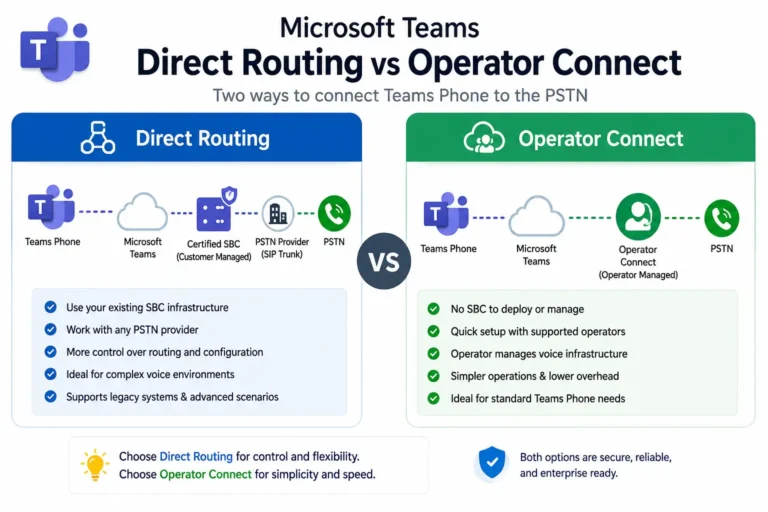
No. Operator Connect is a purely cloud-based architecture with carrier-hosted SBCs and does not support on-premises survivable hardware. If a physical site requires offline branch survivability during internet loss, you must deploy Microsoft Teams Direct Routing with a local SBA-capable SBC.
Related Microsoft Teams Enterprise Architecture Guides
- AudioCodes Mediant SBC Configuration for Teams Direct Routing: Tenant to First Call
- Direct Routing vs Operator Connect vs Teams Phone Mobile: 2026 Architecture Guide
- Media Bypass vs Local Media Optimization: When Teams Skips the SBC
- Teams Direct Routing SIP 503 Service Unavailable: Troubleshooting SBC & Trunk Outages
- Teams Direct Routing SIP 403 Forbidden: Packet Traces, FQDN Gotchas & Carrier Fixes
- Teams Direct Routing 488 Not Acceptable Here: SDP, Codecs, SRTP