Media Bypass vs Local Media Optimization: When Teams Skips the SBC
In Microsoft Teams Direct Routing, SIP signaling always routes through Microsoft’s cloud infrastructure (sip.pstnhub.microsoft.com). However, routing the actual voice audio—the Real-time Transport Protocol (RTP/SRTP) media stream—through the cloud is often inefficient, introduces latency, and consumes unnecessary internet bandwidth.
To eliminate audio trombone effects (where two employees in the same building have their audio routed through a distant cloud datacenter), Microsoft provides two media optimization architectures: Media Bypass and Local Media Optimization (LMO).
This technical guide details the packet paths, firewall port requirements, Session Border Controller (SBC) ICE Lite parameters, and PowerShell network topology scripts required to deploy both models in enterprise environments.
• Non-Bypass: Signaling & Media both traverse Microsoft Cloud Media Processors.
• Media Bypass: Signaling via Cloud | Media flows peer-to-peer between Teams Client & Public SBC IP.
• Local Media Optimization (LMO): Media stays strictly on corporate internal LAN/WAN between Branch & Central SBCs.
The 3 Media Routing Topologies Compared
──(Signaling & Media)──►
Microsoft Cloud Media Processor
──(Signaling & Media)──►
SBC
──(SIP Signaling via Cloud)──►
Microsoft SIP Proxy
──►
SBC
◄───────────────(Direct P2P SRTP Media via Public IP)───────────────►
SBC Public IP
◄──(Local Corporate LAN/WAN Media)──►
Branch / Central SBC (Private IP)
Deep Dive 1: Standard Media Bypass
In standard Media Bypass, the Teams client negotiates media directly with the SBC’s public IP address using Interactive Connectivity Establishment (ICE Lite).
How the Media Bypass Handshake Works:
- The Teams client initiates a call. SIP signaling goes over TLS to
sip.pstnhub.microsoft.com. - Microsoft sends an INVITE with an SDP offer containing ICE candidates to the SBC.
- The SBC (acting in ICE Lite mode) responds with its own media candidates (its public IP and port range).
- The Teams client and SBC execute STUN binding checks directly over UDP.
- Once verified, SRTP audio flows point-to-point between the client and SBC. Microsoft cloud media processors are completely removed from the audio path.
Deep Dive 2: Local Media Optimization (LMO)
While Media Bypass works well when the SBC has a direct public IP, it fails in distributed corporate branch offices where:
- Branch offices have local PSTN gateways or telco lines without public IP addresses.
- Corporate security policies prohibit internal client workstations from establishing direct peer-to-peer UDP connections to public internet endpoints.
- Organizations want local branch calls to remain on the private MPLS/SD-WAN network rather than consuming local internet breakout bandwidth.
The LMO Architecture: Central vs. Downstream SBC
LMO introduces two SBC functional roles:
- Central SBC: Has a public IP, valid public TLS certificate, and registered FQDN in Microsoft 365. It handles all mutual TLS (mTLS) SIP signaling with Microsoft Direct Routing.
- Downstream (Proxy) SBC: Located at a remote branch office behind internal firewalls. It connects to the Central SBC via an internal SIP trunk and interfaces with local branch PSTN lines. It does not require a public IP or a Microsoft-trusted public certificate.
How LMO Routes Media Dynamically:
Microsoft Teams evaluates the client’s current network location based on Network Sites, Subnets, and Trusted Public IPs defined in the Teams Admin Center:
- Internal Branch User: Teams detects that the client is on an internal corporate subnet assigned to the branch site. Audio media flows directly across the internal LAN to the local downstream SBC’s private IP (e.g.,
10.50.1.10). - External / Remote User: The same user works from home on external Wi-Fi. Teams detects that the user is not on a trusted corporate subnet. The signaling goes via the Central SBC, and media flows to the Central SBC’s public interface via standard Media Bypass or a cloud transport relay.
Firewall & Port Matrix: Bypass vs. LMO
Misconfigured firewalls are responsible for 90% of one-way audio and call drop issues during bypass deployments. Ensure your security team opens the following port paths:
| Traffic Flow | Protocol | Destination Port Range | Purpose |
|---|---|---|---|
| SBC ◄──► Microsoft SIP Proxy | TCP / TLS | 5061 |
SIP Signaling (mTLS) |
| Teams Client ◄──► SBC Public IP (Media Bypass) | UDP | 6000 – 6999 or 10000 – 20000(Configured on SBC Media Realm) |
Direct SRTP Voice Media |
| Teams Client ◄──► SBC Public IP (ICE/STUN) | UDP | 3478 – 3481 |
ICE connectivity checks & NAT traversal |
| Teams Client ◄──► SBC Private IP (LMO Internal) | UDP | 6000 – 6999 (Internal LAN) |
Direct internal corporate media routing |
| Central SBC ◄──► Branch SBC (LMO Trunk) | TCP / TLS | 5060 / 5061 |
Internal inter-SBC SIP signaling |
Configuring Local Media Optimization in PowerShell
To configure LMO, you must define your corporate network topology in Microsoft Teams PowerShell so Teams knows when a user is sitting inside a physical branch office:
# 1. Connect to Microsoft Teams
Connect-MicrosoftTeams

# 2. Define Network Region
New-CsTenantNetworkRegion -NetworkRegionID "Region-US"

# 3. Define Trusted IP (Corporate Egress Public IP)
New-CsTenantTrustedIPAddress -IPAddress "198.51.100.50" -MaskBits 32 -Description "HQ-Egress"

# 4. Define Network Sites (Central & Branch)
New-CsTenantNetworkSite -NetworkSiteID "Site-HQ" -NetworkRegionID "Region-US"
New-CsTenantNetworkSite -NetworkSiteID "Site-BranchChicago" -NetworkRegionID "Region-US"

# 5. Map Internal Corporate Subnets to Sites
New-CsTenantNetworkSubnet -SubnetID "10.10.0.0" -MaskBits 16 -NetworkSiteID "Site-HQ"
New-CsTenantNetworkSubnet -SubnetID "10.50.0.0" -MaskBits 16 -NetworkSiteID "Site-BranchChicago"

# 6. Configure Gateway for Local Media Optimization
Set-CsOnlinePSTNGateway -Identity "sbc-central.contoso.com" `
  -MediaBypass $true `
  -AlwaysBypass $false `
  -NetworkSiteID "Site-HQ"

# 7. Register Branch Proxy SBC (Internal Gateway)
Set-CsOnlinePSTNGateway -Identity "sbc-branch.contoso.local" `
  -MediaBypass $true `
  -AlwaysBypass $false `
  -NetworkSiteID "Site-BranchChicago" `
  -ProxySbc "sbc-central.contoso.com"
Parameter Analysis:
Setting -AlwaysBypass $false tells Teams to execute network location checks dynamically. If a user is on an internal subnet mapped to Site-BranchChicago, media routes locally. If the user works remotely, media automatically falls back to the Central SBC’s public interface.
AudioCodes & Ribbon SBC Configuration Flags
AudioCodes Mediant Configuration:
- Navigate to Signaling & Media → Media → Media Realm. Select your Teams realm and set ICE Mode to Lite.
- In your SIP Interface, set Media IP Interface to your WAN interface for standard Media Bypass, or configure dual media realms (Internal vs. External) for LMO.
- Review our complete step-by-step setup guide on AudioCodes Mediant SBC Configuration for Teams Direct Routing.
Ribbon SBC Core / Edge (1000/2000/SWe):
- Navigate to Media → Media Profiles. Enable ICE Lite on the profile assigned to the Teams media list.
- Under SIP Profiles, ensure Support ICE is set to Enabled.
- In multi-site deployments, configure Signaling Groups with designated internal translation tables to route between central and remote branches.
Architecture Decision Matrix: Which Model Should You Use?
| Deployment Scenario | Recommended Architecture | Engineering Rationale |
|---|---|---|
| Single Datacenter / Cloud SBC (Azure/AWS) | Standard Media Bypass | Simplest setup. All clients reach the SBC over public IP. Removes Microsoft cloud media hops. |
| Multi-Branch with Local Telco Trunks (No Public IP at Branch) | Local Media Optimization (LMO) | Centralizes cloud mTLS signaling on one public SBC while keeping branch audio strictly on local LAN/WAN. |
| Strict Internal Security (No Client Internet UDP Allowed) | Local Media Optimization (LMO) | Enables clients to negotiate media with internal RFC1918 private IP addresses. |
| Regulatory Compliance / Multi-Country TCO Optimization | Compare with Operator Connect | Evaluate our architectural analysis: Teams Direct Routing vs Operator Connect vs Teams Phone Mobile. |
Frequently Asked Questions (FAQ)
Does Media Bypass reduce PSTN calling latency in Microsoft Teams?
Yes. Without Media Bypass, voice audio is routed from the Teams client to Microsoft cloud media processors before reaching your SBC. Enabling Media Bypass allows the Teams client to establish a direct point-to-point SRTP connection to the SBC, eliminating cloud media transcoding hops and reducing latency by 30–80 milliseconds.
What is the primary difference between Media Bypass and Local Media Optimization?
Standard Media Bypass sends audio directly between the Teams client and the SBC’s public IP address over the internet. Local Media Optimization (LMO) is designed for multi-site corporate networks, enabling Teams clients inside a physical branch office to keep voice traffic entirely on the local corporate private LAN/WAN to a local SBC, without traversing the public internet.
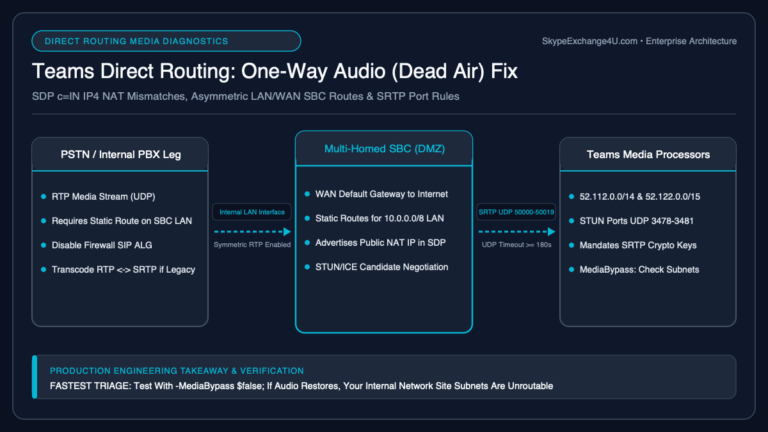
Why do I get one-way audio when enabling Media Bypass?
One-way audio in Media Bypass is almost always caused by firewall rules blocking bidirectional UDP traffic on the SBC’s configured RTP port range (typically UDP 6000–6999 or 10000–20000) or blocking STUN/ICE binding checks on UDP port 3478. Ensure both client egress and SBC ingress firewalls permit UDP RTP media traffic.
Related Microsoft Teams Direct Routing & Architecture Guides
- AudioCodes Mediant SBC Configuration for Teams Direct Routing: Tenant to First Call
- Teams Direct Routing vs Operator Connect vs Teams Phone Mobile: 2026 Architecture Guide
- Teams Direct Routing SIP 503 Service Unavailable: Troubleshooting SBC & Trunk Outages
- Teams Direct Routing SIP 403 Forbidden: Packet Traces, FQDN Gotchas & Carrier Fixes
- Teams Direct Routing 488 Not Acceptable Here: SDP, Codecs, SRTP
- Teams Direct Routing Inactive After Certificate Renew (OPTIONS Fix)
- AudioCodes vs Ribbon vs anynode: Best SBC for Teams Direct Routing