AudioCodes Mediant SBC: Fixing TLS Certificate Handshake Failures with Teams SIP Proxy
In a Microsoft Teams Direct Routing deployment, few alerts cause more immediate panic than an overnight failure of the primary Session Border Controller (SBC). In the Microsoft Teams Admin Center (TAC), the SBC status abruptly switches to “Inactive” or “Warning”, inbound calls trigger fast busy signals with carrier rejection codes, and outbound calls immediately fail with “Your call cannot be completed as dialed”.
When voice engineers inspect the AudioCodes Mediant Syslog or capture network traces on port 5061, the smoking gun is almost always identical: a broken TLS Certificate Handshake Failure (often accompanied by TLS Alert 48: Unknown CA, TLS Alert 40: Handshake Failure, or Fatal: Bad Certificate).
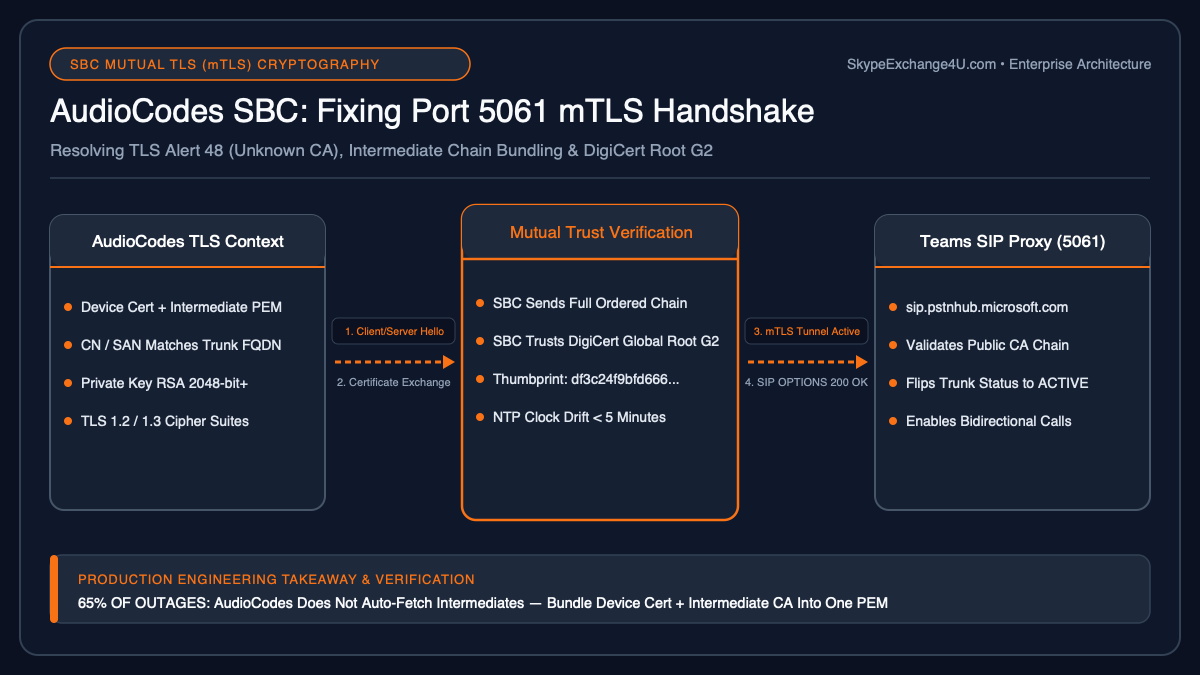
Microsoft Teams Direct Routing enforces mutual TLS (mTLS) over TCP port 5061 between your customer SBC and the Microsoft Direct Routing SIP proxies (
sip.pstnhub.microsoft.com, sip2.pstnhub.microsoft.com, sip3.pstnhub.microsoft.com). If the TLS handshake fails, Teams immediately suppresses SIP OPTIONS pings, marks the gateway dead, and removes it from routing policies within 60 seconds.
Decoding the TLS Handshake: What Syslog and Wireshark Reveal
To fix the issue rapidly, engineers must pinpoint exactly which side of the connection terminated the cryptographic negotiation. A standard Direct Routing mTLS session follows this exact sequence:
- TCP Handshake: The SBC establishes a TCP 3-way handshake with Microsoft’s SIP proxy on port 5061 (SYN → SYN-ACK → ACK).
- Client Hello: The initiating party sends supported TLS versions and cipher suites.
- Server Hello & Certificate: The responder presents its public X.509 certificate and cipher selection.
- Certificate Request (mTLS): Microsoft requests the SBC’s device certificate for client authentication.
- Client Certificate & Exchange: The SBC transmits its certificate chain and key exchange parameters.
- Finished / Encrypted Handshake: Both sides verify signatures, exchange session keys, and begin SIP signaling.
When an error occurs, the terminating side sends a fatal TLS alert record before severing the socket with a TCP RST or FIN:
[AudioCodes Syslog Trace - TLS Handshake Abort]
14:22:01.302 [S=0] [P=TLS] [C=10.10.1.5:5061 -> 52.114.75.24:5061] >> Client Hello (TLS 1.2, Ciphers: 17)
14:22:01.348 [S=0] [P=TLS] [C=52.114.75.24:5061 -> 10.10.1.5:5061] << Server Hello (TLS 1.2, Cipher: TLS_ECDHE_RSA_WITH_AES_256_GCM_SHA384)
14:22:01.350 [S=0] [P=TLS] [C=52.114.75.24:5061 -> 10.10.1.5:5061] << Certificate (CN=sip.pstnhub.microsoft.com)
14:22:01.352 [S=0] [P=TLS] [C=52.114.75.24:5061 -> 10.10.1.5:5061] << Certificate Request (Supported CAs: 12)
14:22:01.353 [S=0] [P=TLS] [C=52.114.75.24:5061 -> 10.10.1.5:5061] << Server Hello Done
14:22:01.365 [S=0] [P=TLS] [C=10.10.1.5:5061 -> 52.114.75.24:5061] >> Certificate (CN=sbc.contoso.com)
14:22:01.410 [S=0] [P=TLS] [C=52.114.75.24:5061 -> 10.10.1.5:5061] << Alert (Level: Fatal, Description: Unknown CA - 48)
14:22:01.411 [S=0] [P=TCP] [C=52.114.75.24:5061 -> 10.10.1.5:5061] << FIN, ACK
In the trace above, the Microsoft SIP proxy aborted the call at timestamp 14:22:01.410 with Unknown CA (Alert 48). This confirms the SBC presented its certificate, but Microsoft was unable to chain it back to a trusted public Certification Authority.
The 5 Root Causes & Step-by-Step Resolutions
| Diagnostic Symptom | Root Cause | Primary Resolution |
|---|---|---|
TLS Alert 48 (Unknown CA) from Microsoft |
Missing Intermediate Certificate in SBC device chain | Bundle Intermediate + Device PEM into single certificate file |
TLS Alert 48 (Unknown CA) from SBC |
Missing DigiCert Global Root G2 in SBC Trusted Store | Import current Microsoft Root CAs into SBC TLS Context |
TLS Alert 40 (Handshake Failure) |
Cipher Suite or TLS version incompatibility | Enforce TLS 1.2 with ECDHE-RSA ciphers in Mediant settings |
| TAC Shows "Inactive" / Certificate Inactive | Subject Alternative Name (SAN) mismatch | Re-issue certificate matching exact FQDN in New-CsOnlinePstnGateway |
Certificate Expired / Not Yet Valid |
AudioCodes hardware NTP clock drift (> 5 mins) | Resynchronize Mediant time with external NTP servers (pool.ntp.org) |
Root Cause 1: Incomplete Intermediate CA Chain on the AudioCodes SBC
This is responsible for over 65% of post-renewal outages. When administrators generate a certificate from providers like DigiCert, Sectigo, or GoDaddy, they frequently download only the primary server certificate and upload it directly into the Mediant GUI under Device Certificate.
Unlike web servers (which automatically serve intermediate certs if present in a directory), the AudioCodes Mediant firmware must have the entire trust chain presented in the Client Certificate packet unless Microsoft already caches that intermediate.
The Fix:
Combine your server certificate and the issuing intermediate certificate into a single ordered PEM file before uploading:
# Construct ordered certificate chain on your terminal
cat sbc_device_cert.crt intermediate_ca.crt > sbc_bundled_chain.pem

# Confirm the file contains both blocks in sequence:
# 1. -----BEGIN CERTIFICATE----- (Your SBC Server Certificate)
#    -----END CERTIFICATE-----
# 2. -----BEGIN CERTIFICATE----- (The Intermediate CA Certificate)
#    -----END CERTIFICATE-----
In the AudioCodes Web GUI, navigate to IP Network → Security → TLS Contexts. Select your Teams TLS Context (usually Context ID 1), scroll to Certificate Files, click Change Certificate File, select sbc_bundled_chain.pem, and click Load.
Root Cause 2: Missing Microsoft Root CAs in the SBC Trusted Root Store
Microsoft regularly rotates public certificates across its Direct Routing infrastructure. Historically, Microsoft relied exclusively on the Baltimore CyberTrust Root. Modern endpoints now terminate against the DigiCert Global Root G2 and DigiCert Global Root CA.
If your AudioCodes SBC was deployed prior to 2023 and has not updated its internal Trusted Root Store, the SBC will reject Microsoft's Server Hello certificate with a local TLS Alert 48.
The Fix:
- Download the official Microsoft-trusted public root certificates in Base-64 encoded X.509 (.CER/.PEM) format:
- DigiCert Global Root G2 (Thumbprint:
df3c24f9bfd666761b268073fe06d1cc8d4f82a4) - DigiCert Global Root CA (Thumbprint:
a8985d3a65e5e5c4b2d7d66d40c6dd2fb19c5436) - Baltimore CyberTrust Root (Legacy backup)
- DigiCert Global Root G2 (Thumbprint:
- In the AudioCodes GUI, navigate to IP Network → Security → TLS Contexts → Trusted Root Certificates.
- Import each root certificate into the context used for your Microsoft Teams Proxy Set.
- Click Apply and Burn to persist to flash memory.
Root Cause 3: Cipher Suite & TLS Version Incompatibility
Microsoft strictly blocks SSL 3.0, TLS 1.0, and TLS 1.1 on Direct Routing interfaces. Furthermore, Microsoft enforces Forward Secrecy cipher suites. If an older AudioCodes firmware profile proposes CBC-mode ciphers without modern GCM suites, Microsoft terminates the handshake with Alert 40: Handshake Failure.
Required AudioCodes Cipher Configuration:
Open your Teams TLS Context in the AudioCodes Mediant GUI and verify the following parameters:
- TLS Version: Set strictly to TLSv1.2 (or TLSv1.2/TLSv1.3 depending on firmware).
- Cipher Suite Profile: Ensure the following high-priority ciphers are active:
TLS_ECDHE_RSA_WITH_AES_256_GCM_SHA384TLS_ECDHE_RSA_WITH_AES_128_GCM_SHA256TLS_ECDHE_RSA_WITH_AES_256_CBC_SHA384TLS_ECDHE_RSA_WITH_AES_128_CBC_SHA256
- DH Key Size: Ensure DH key size is set to 2048 bits minimum.
Root Cause 4: Subject Alternative Name (SAN) & FQDN Mismatch
Microsoft Direct Routing validates that the Subject Common Name (CN) or Subject Alternative Name (SAN) matches the exact FQDN configured in your tenant via PowerShell:
# Verify your tenant gateway registration
Get-CsOnlinePstnGateway | Select-Object Identity, Fqdn, SipSignalingPort, Enabled

# The output Fqdn (e.g., sbc.contoso.com) MUST match the certificate SAN exactly:
# Good: DNS Name=sbc.contoso.com OR DNS Name=*.contoso.com (Wildcard)
# Bad:  Certificate issued to sbc01.internal.local (Private domain will be rejected instantly)
Note on Wildcard Certificates: If using a wildcard certificate (e.g., *.contoso.com), ensure your AudioCodes SBC is running firmware 7.20A.256 or newer. Early firmware builds occasionally failed wildcard SAN parsing during mutual TLS challenge responses.
Root Cause 5: NTP Hardware Clock Skew
Certificates enforce strict NotBefore and NotAfter validity timestamps. In virtualized deployments like our AudioCodes Mediant CE in Azure or on-prem Hyper-V/VMware hosts, host clock drift can cause the SBC system clock to slip out of sync.
If the SBC clock drifts by more than 5 minutes relative to Microsoft's global NTP stratum, Microsoft's SIP proxy will reject the certificate as either expired or not yet valid.
The Fix:
- Navigate to Administration → Time & Date in the Mediant GUI.
- Enable NTP Client.
- Configure reliable public NTP servers (e.g.,
time.windows.com,pool.ntp.org). - Verify that the current hardware timestamp matches UTC standard.
Verification: How to Confirm Resolution in TAC and PowerShell
Once you reload the updated certificates and burn to flash, execute these steps to verify gateway recovery:
1. Test Socket Connectivity via OpenSSL
Verify that your SBC presents the complete chain properly from an external endpoint:
# Test TLS connection to your SBC on port 5061
openssl s_client -connect sbc.contoso.com:5061 -tls1_2 -servername sbc.contoso.com

# Verify output ends with:
# Verify return code: 0 (ok)
2. Validate SIP Options Ping in AudioCodes GUI
Navigate to Monitor → VoIP Status → Proxy Sets Status. Locate the Proxy Set pointing to sip.pstnhub.microsoft.com:
- Status: Must display as Online / Active (Green).
- Last Response: Must display
200 OKin response to outgoing SIP OPTIONS pings.
3. Verify in Microsoft Teams Admin Center
Log in to TAC → Voice → Direct Routing → SBCs. Within 15 minutes of successful SIP OPTIONS exchange, the SBC status will transition from Inactive to Active (Green Checkmark).
Frequently Asked Questions (FAQ)
Can I use a free Let's Encrypt certificate on AudioCodes for Teams Direct Routing?
No. Microsoft Direct Routing strictly enforces a whitelist of approved public Certification Authorities (CAs). Let's Encrypt is not on Microsoft's approved CA list for Direct Routing. You must purchase a certificate from approved vendors such as DigiCert, Sectigo, GoDaddy, GlobalSign, or Entrust.
Why does my certificate say "Active" in AudioCodes but "Inactive" in Teams Admin Center?
The AudioCodes status only verifies that the certificate file is loaded locally into memory. TAC status reflects whether Microsoft's SIP proxy successfully completed mutual TLS and received a 200 OK response to its SIP OPTIONS ping. If TAC says Inactive, Microsoft is either rejecting your intermediate CA chain or firewall port 5061 is blocked.
Do I need to reboot the AudioCodes SBC after loading new certificates?
A full reboot is not required. However, you must click Burn to save the certificate to non-volatile flash, and you should toggle the Teams TLS Context or perform a soft reset on the SIP Interface to force existing TLS sockets to close and renegotiate with the new certificate.
What is the difference between TLS Alert 40 and TLS Alert 48?
TLS Alert 40 (Handshake Failure) indicates a cryptographic protocol mismatch, such as no shared cipher suites, an unsupported TLS version, or mismatched DH parameters. TLS Alert 48 (Unknown CA) specifically indicates that the certificate presented by the client or server could not be validated against a trusted root authority due to a missing root or missing intermediate chain.
Stop waiting for users to report dropped calls or expired Port 5061 certificates. Deploy our production Teams Direct Routing & SBC Automation Runbook (SIP OPTIONS Ping & TLS Expiry Watchdog) and Microsoft 365 & Entra ID PowerShell Automation Runbook.
Related Break-Fix Runbook: If call setup fails immediately with SDP media codec or SRTP encryption rejection, see our comprehensive diagnostic guide: Teams Direct Routing SIP 488 Not Acceptable Here: SDP Codec & SRTP Mismatch Fix.
Related Enterprise Teams Voice Runbooks
- AudioCodes Mediant CE in Azure: Step-by-Step Teams Direct Routing Setup Guide
- How an SBC Works with Microsoft Teams: Signaling, Media & Transcoding
- Teams Direct Routing Local Media Optimization (LMO): Central & Proxy SBC Architecture
- Microsoft Teams Shared Calling Setup Runbook: Architecture, Licensing & E911
- Teams Voice Routing Policy Explained: PSTN Usages, Routes & Failover
- Need enterprise voice architecture assistance or SBC troubleshooting support? Contact our engineering team.
Related Diagnostic Runbook: If your calls connect with two-way audio but disconnect at exactly 20–32 seconds or 15 minutes, see our Teams Direct Routing Calls Dropping After 30 Seconds (Missing SIP ACK & Session Timer Fix).