Teams Direct Routing Local Media Optimization (LMO): Setup Runbook (2026)
Enterprise Voice Engineering Runbook
In multi-site Microsoft Teams Direct Routing deployments, routing media traffic across the internet to Microsoft cloud Transport Relays introduces latency, jitter, and excessive WAN bandwidth consumption. Local Media Optimization (LMO) solves this by keeping voice media local to corporate subnets while centralizing SIP signaling through a parent Central SBC connected to private downstream Proxy SBCs. This comprehensive runbook covers architectural topologies, network topology mapping, PowerShell provisioning, SBC configurations, and production troubleshooting.
1. The Media Hairpinning Problem & Why Basic Media Bypass Fails
In standard Microsoft Teams Direct Routing without media optimization, both SIP signaling and Real-time Transport Protocol (RTP) media traverse Microsoft’s cloud infrastructure:
- The Default Media Path: When an employee at a branch office dials an external PSTN number, the Teams client sends media to Microsoft Transport Relays in the Azure cloud. Microsoft’s cloud then relays the media back down to the enterprise Session Border Controller (SBC), hairpinning voice packets across the WAN twice.
- Why Basic Media Bypass Is Insufficient: Basic Media Bypass allows a Teams client on the corporate network to stream SRTP directly to the SBC’s public IP address. However, it requires that every branch SBC possess a public static IP, a public FQDN, and a trusted public third-party TLS certificate. Furthermore, if the client is on an internal branch subnet without direct access to the SBC’s public interface, media drops or falls back to cloud relays.
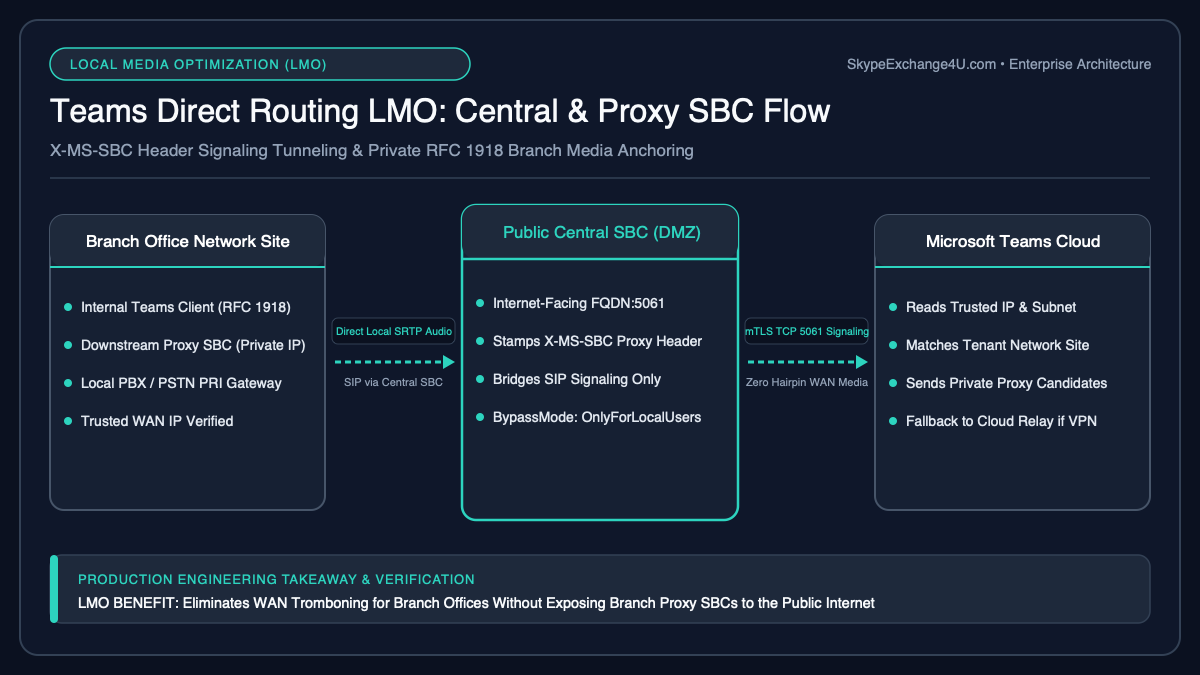
- The LMO Solution: Local Media Optimization enables a centralized Session Border Controller (Central SBC) with a public IP/FQDN to handle all SIP signaling with Microsoft Phone System, while delegating RTP media to local downstream SBCs (Proxy SBCs) residing behind firewalls on private corporate IP space.
2. Core LMO Topologies: Central SBC vs. Downstream Proxy SBC
Microsoft Teams Direct Routing LMO supports two primary architectural modes depending on whether your organization centralizes SIP trunks or distributes local PSTN breakouts across regional branch offices:
Topology A: Central SBC with Downstream Local SBCs (Branch Breakout)
This is the classic multi-site architecture. A high-capacity virtualized SBC (such as an AudioCodes Mediant CE in Azure or Ribbon SBC SWe) serves as the Central SBC. Physical appliances (AudioCodes Mediant 900, Ribbon SBC 1000/2000, Cisco CUBE) sit in branch offices as Downstream SBCs connecting to local E1/T1 PRI lines or regional SIP trunks.
Teams Phone System (sip.pstnhub.microsoft.com)
│ (mTLS SIP Signaling on Port 5061)
▼
[ Central Datacenter / Azure ]
Central SBC (Public FQDN: sbc-central.contoso.com | Public IP: 203.0.113.10)
│
│ (Private Corporate WAN / MPLS / SD-WAN)
▼
[ Branch Office Site (Paris) ]
Downstream Proxy SBC (Internal FQDN: sbc-paris.internal.contoso.com | Private IP: 10.20.1.10)
▲
│ (Direct Local SRTP Media over Branch LAN: 10.20.0.0/16)
▼
Teams Client / Teams IP Phone (Local Subnet: 10.20.5.50)
Topology B: Centralized SBC with Central SIP Trunks (LAN Optimization)
In this mode, all PSTN trunks terminate directly on the Central SBC. However, for branch office users connected over private corporate MPLS/WAN links, LMO ensures the Teams client streams media directly to the Central SBC’s internal IP address over the private network, bypassing the public internet and cloud relays entirely.
3. Step 1: Defining Network Regions, Sites, & Trusted Subnets
For Microsoft Teams to understand where a client is located physically and determine whether to send media locally or proxy it through a cloud relay, you must configure the tenant Network Topology.
Step 1A: Register Public Trusted IP Addresses
Teams evaluates the external egress public IP of the user. If the egress IP matches a Trusted IP, the client is classified as Internal:
# Connect to Microsoft Teams PowerShell
Import-Module MicrosoftTeams
Connect-MicrosoftTeams

# Define enterprise internet egress public IPs
New-CsTenantTrustedIPAddress -IPAddress "198.51.100.5" -Mask "32" -Description "Central Datacenter NAT Egress"
New-CsTenantTrustedIPAddress -IPAddress "198.51.100.25" -Mask "32" -Description "Paris Branch Internet Egress"
Step 1B: Create Network Regions, Sites, & Subnets
Map the physical internal subnets to their respective Network Sites:
# 1. Create Network Region
New-CsTenantNetworkRegion -NetworkRegionID "EMEA" -Description "Europe, Middle East, Africa"

# 2. Create Network Site for Paris Branch
New-CsTenantNetworkSite -NetworkSiteID "Paris_Branch" `
    -NetworkRegionID "EMEA" `
    -Description "Paris Branch Office Site"

# 3. Associate Internal Subnets with the Paris Site
New-CsTenantNetworkSubnet -SubnetID "10.20.0.0" -Mask "16" -NetworkSiteID "Paris_Branch"
4. Step 2: Provisioning Central & Downstream Gateways via PowerShell
The configuration of the PSTN gateways is where LMO is activated. The Central SBC must have MediaBypass enabled and declare its internal/external proxy parameters. The Downstream SBC points to the Central SBC as its proxy.
Step 2A: Configure the Central SBC Gateway
The Central SBC requires its external public FQDN, internal private FQDN, and its internal IP addresses mapped to its network site:
# Configure Central SBC for Local Media Optimization
Set-CsOnlinePSTNGateway -Identity "sbc-central.contoso.com" `
    -MediaBypass $true `
    -InternalFQDN "sbc-central.internal.contoso.com" `
    -InternalSipPort 5060 `
    -ExternalSipPort 5061 `
    -NetworkSiteID "Central_Datacenter" `
    -SendSIPOptions $true `
    -BypassMode "Always"
Step 2B: Provision the Downstream / Proxy Branch SBC
The Downstream SBC does not communicate directly with Microsoft’s cloud SIP proxies. Instead, you declare the Central SBC as its proxy using the -ProxySBC parameter:
# Create the Downstream Branch SBC linked to the Central SBC Proxy
New-CsOnlinePSTNGateway -Fqdn "sbc-paris.internal.contoso.com" `
    -ProxySBC "sbc-central.contoso.com" `
    -MediaBypass $true `
    -InternalSipPort 5060 `
    -NetworkSiteID "Paris_Branch" `
    -SendSIPOptions $false `
    -BypassMode "Always"
Crucial Setting: Notice that -SendSIPOptions is set to $false on the downstream gateway. Because the downstream SBC resides on a private subnet without public internet visibility, Microsoft Teams cloud SIP proxies cannot exchange SIP OPTIONS pings directly with it. The Central SBC manages heartbeat health checks to the downstream unit.
5. Step 3: Voice Routes, PSTN Usages, & Routing Policies
To direct calls to the downstream branch SBC while leveraging LMO, build dedicated Voice Routes targeting the downstream FQDN:
# 1. Define PSTN Usage for Paris Local Breakout
Set-CsOnlinePstnUsage -Identity "Global" -Usage @{Add="France_Paris_Local"}

# 2. Create Voice Route routing French numbers to the downstream SBC
New-CsOnlineVoiceRoute -Identity "VR_Paris_Local" `
    -NumberPattern "^\+33[1-9]\d{8}$" `
    -OnlinePstnGatewayList "sbc-paris.internal.contoso.com" `
    -OnlinePstnUsages "France_Paris_Local" `
    -Priority 1

# 3. Create and assign Voice Routing Policy to Paris branch users
New-CsOnlineVoiceRoutingPolicy -Identity "VRP_Paris_Users" -OnlinePstnUsages "France_Paris_Local"
Grant-CsOnlineVoiceRoutingPolicy -Identity "pierre.dubois@contoso.com" -PolicyName "VRP_Paris_Users"
6. Step 4: SBC Implementation (AudioCodes Mediant & Ribbon Core)
Both the Central SBC and Downstream SBC require specific configuration adjustments to handle the proprietary headers (X-MS-MediaPath and X-MS-UserLocation) injected by Microsoft Phone System during LMO call setup.
AudioCodes Mediant Configuration
Ribbon Core / Edge SBC Configuration
On Ribbon SBC 1000/2000 or SBC SWe:
- In SIP Profile, enable “Local Media Optimization Support”.
- Under Media List, configure SRTP with Crypto Suite
AES_CM_128_HMAC_SHA1_80. - Ensure ICE (Interactive Connectivity Establishment) Lite is enabled if the SBC acts as the media terminating endpoint for internal clients.
- In the Transformation Table, configure passthrough for the
Contactheader containing the internal FQDN token.
7. Step 5: End-to-End Call Flows (Internal vs. External Clients)
Understanding how Teams dynamically routes media based on the user’s physical presence is critical for network engineering. Two primary scenarios exist:
Scenario 1: User Is Internal at the Paris Branch Office
- Location Assessment: The Teams client detects its local IP (
10.20.5.50) and public egress IP (198.51.100.25). Teams matches these againstParis_Branchsite and marks the client as Internal to the branch. - SIP Signaling: Teams Phone System sends a SIP INVITE to
sbc-central.contoso.comover TLS port 5061. The INVITE contains custom header:X-MS-UserLocation: internal
X-MS-MediaPath: sbc-paris.internal.contoso.com - Proxy Signaling: Central SBC proxies the INVITE over the internal network to
sbc-paris.internal.contoso.com. - Direct Media Flow: In the SDP offer/answer, the downstream SBC provides its private IP (
10.20.1.10). The Teams client establishes direct peer-to-peer SRTP media across the branch LAN to10.20.1.10. Neither the Central SBC nor Microsoft Azure handles audio bytes!
Scenario 2: User Is External (Working from Home / Remote)
- Location Assessment: User’s public IP does not match any registered Trusted IP address. Teams marks client as External.
- SIP Signaling: Signaling travels from Teams Cloud to Central SBC to Downstream SBC.
- Media Relaying: Because the remote user has no route to the private
10.20.1.10IP, Teams routes media via Microsoft Cloud Media Processors down to the Central SBC’s public interface (203.0.113.10). The Central SBC then relays media over the internal WAN to the Downstream SBC. The call completes seamlessly without failure.
8. Production Troubleshooting Matrix & ICE Diagnostics
Misconfigured subnets or missing ICE candidates frequently trigger media cutoffs. Refer to our deep dive on Direct Routing SIP 488 Not Acceptable Here troubleshooting for lower-level SDP negotiation breakdowns.
Validating LMO ICE Candidates in Client Logs
To confirm that an active call successfully bypassed cloud relays and used local media, inspect the Teams desktop client log (Ctrl + Alt + Shift + 1 on Windows or Option + Command + Shift + 1 on Mac) and examine the media connection:
# Search for ICE candidate pair selection in client diagnostics
Transport: UDP
SelectedCandidatePair: 10.20.5.50:50022 <--> 10.20.1.10:6214
LocalCandidateType: host
RemoteCandidateType: host
RelayProtocol: None
MediaBypassMode: LocalMediaOptimization
When both LocalCandidateType and RemoteCandidateType report host, media is streaming directly over your local network switch infrastructure with minimum latency (typically < 5ms) and zero internet dependency.
Enterprise Voice Architecture Consulting
Need Help Architecting Global Direct Routing & SBCs?
Our certified Microsoft Teams voice architects design and optimize multi-site SBC networks, high-availability Azure voice gateways, and zero-trust identity architectures across global enterprises.
9. Frequently Asked Questions (FAQ)
Does a downstream proxy SBC require a public static IP or third-party SSL certificate?
No. One of the primary advantages of Local Media Optimization is that downstream SBCs can operate entirely on private internal IP addresses with private DNS FQDNs. Only the Central SBC requires a public IP address, public FQDN, and a trusted third-party SSL/TLS certificate to communicate with Microsoft Phone System.
What happens if an internal user moves to another branch office or works from home?
Teams dynamically evaluates the client’s current IP address and subnet against tenant network sites for every single call. If an employee connects from home, Teams recognizes that the client is external and automatically routes media through Microsoft Cloud Media Processors to the Central SBC. The user experiences zero interruption or configuration changes.
Can LMO be combined with a Survivable Branch Appliance (SBA)?
Yes. Many enterprise branch SBCs (such as AudioCodes Mediant 900 or Ribbon SBC 1000/2000) support co-locating the Teams Survivable Branch Appliance (SBA) service. If the WAN or Microsoft 365 cloud connection drops, the local SBC continues providing PSTN breakout and survivable dial tone to branch clients.
Why does Microsoft Teams require SendSIPOptions to be false on downstream SBCs?
Because downstream SBCs reside on private corporate subnets without public internet exposure, Microsoft’s cloud SIP proxies cannot send direct SIP OPTIONS pings to them. Setting SendSIPOptions to false stops Microsoft Phone System from falsely marking the downstream gateway as offline or inactive.
Quick Reference: LMO Central vs. Downstream Proxy SBC Port Requirements
Unlike standard Teams Media Bypass (which requires direct public IP visibility to every branch SBC), Local Media Optimization (LMO) routes all SIP TLS signaling through a single internet-facing Central SBC on TCP Port 5061 while keeping RTP/SRTP voice media strictly inside RFC 1918 private branch subnets via internal Proxy SBCs. To monitor your Central and Proxy SBC trunks automatically, deploy our Teams Direct Routing & SBC Automation Runbook.
Official Architecture Specifications:
Microsoft Learn: Local Media Optimization for Direct Routing |
Configure LMO Network Sites & Trusted IPs