AudioCodes Mediant CE in Azure: Teams Direct Routing Setup Guide (2026)
As enterprise IT departments decommission on-premises datacenters, voice infrastructure is rapidly shifting to the public cloud. Deploying an AudioCodes Mediant Cloud Edition (CE) Session Border Controller (SBC) inside Microsoft Azure provides a carrier-grade, highly available bridge between your SIP trunk providers, legacy PBXs, and Microsoft Teams Direct Routing without requiring physical datacenter rack space.
However, running an SBC in a public cloud introduces unique architectural challenges not present on bare-metal hardware: Azure Virtual Network (VNet) asymmetric routing, Network Address Translation (NAT) traversal where private IP addresses leak into SIP Contact headers, Accelerated Networking (SR-IOV) requirements to prevent jitter, and strict Network Security Group (NSG) port filters for Microsoft SIP proxies.
This deployment runbook details the end-to-end architecture and configuration required to deploy, secure, and validate an AudioCodes Mediant CE SBC in Microsoft Azure for Microsoft Teams Direct Routing.
Architecture Standard:
Always deploy AudioCodes Mediant CE with a Dual-NIC topology (one NIC in an untrusted WAN subnet with a Static Public IP; one NIC in a trusted LAN subnet peered to your enterprise network). Never deploy a single-NIC SBC in production where carrier and internal traffic share the same routing table.
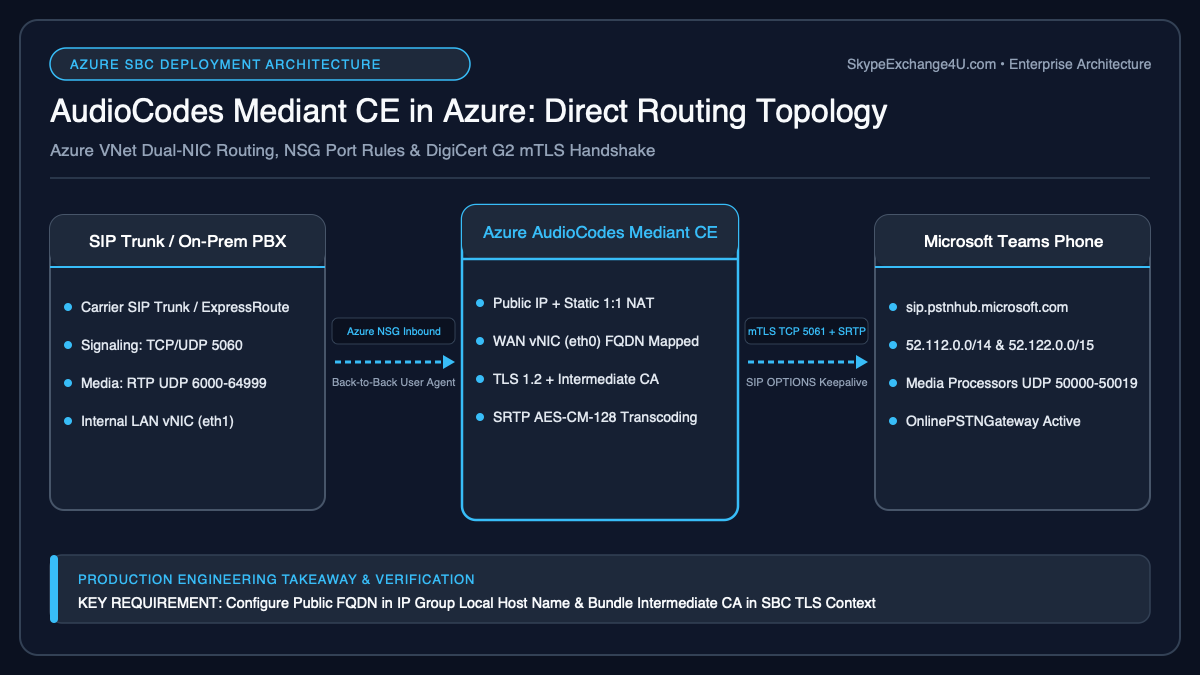
Table of Contents
1. Azure VNet & Dual-NIC Architecture
Azure virtual machines exist behind a hypervisor Virtual Filtering Platform (VFP) that performs 1:1 NAT between the Azure Public IP address and the private IP assigned to the network interface. For robust security and separation of concerns, structure your Azure resource group with a dedicated VNet containing two subnets:
| Network Interface | Subnet Name & CIDR | IP Configuration | Traffic Flow |
|---|---|---|---|
| NIC 0 (WAN / Untrusted) | sbc-wan-subnet (10.100.1.0/24) |
Static Private (10.100.1.4) + Static Standard Public IP | Microsoft Teams SIP Proxy (52.112.0.0/14) & PSTN Carriers |
| NIC 1 (LAN / Trusted) | sbc-lan-subnet (10.100.2.0/24) |
Static Private (10.100.2.4) only (No Public IP) | Corporate PBX, SIP Gateways, and Management Web GUI |
Production Requirement:
Enable Accelerated Networking (SR-IOV) on both Azure NICs during provisioning. Without Accelerated Networking, network traffic traverses the Azure virtual switch host CPU, introducing micro-jitter and packet latency that degrades Mean Opinion Score (MOS) on real-time voice calls.
2. Azure Network Security Group (NSG) Port Hardening
Attach a dedicated Network Security Group to the sbc-wan-subnet. Lock down inbound traffic strictly to Microsoft Teams Direct Routing signaling subnets and your SIP carrier endpoints:
| Priority | Name | Source CIDR | Port / Protocol | Action |
|---|---|---|---|---|
| 100 | Allow_Teams_SIP_Signaling | 52.112.0.0/14, 52.122.0.0/15 |
TCP 5061 (TLS) | Allow |
| 110 | Allow_Teams_Media_SRTP | 52.112.0.0/14, 52.122.0.0/15 |
UDP 6000-6999 (SRTP) | Allow |
| 120 | Allow_Carrier_SIP_Signaling | Carrier Public IP (e.g., 198.51.100.10) | TCP / UDP 5060 or 5061 | Allow |
| 130 | Allow_Carrier_Media_RTP | Carrier Media Subnets | UDP 10000-20000 | Allow |
| 4096 | DenyAllInbound | Any | Any | Deny |
3. Deploying the Mediant CE Virtual Machine in Azure
AudioCodes provides official marketplace images for the Mediant CE SBC running on Azure. For production workloads supporting up to 250 concurrent sessions with transcoding, deploy using the Standard_D4s_v5 or Standard_D2s_v5 VM size.
4. AudioCodes Network & NAT Traversal Configuration
Log in to the AudioCodes Web GUI over your secure internal LAN interface (https://10.100.2.4). Because Azure enforces 1:1 NAT, the SBC operating system sees its private IP (10.100.1.4), but external Microsoft proxies communicate with the Azure Public IP (e.g., 20.105.45.10). You must configure NAT Traversal to instruct the SBC to rewrite SIP headers.
A. Configure IP Interfaces
- Navigate to Setup ➔ IP Network ➔ Core Entities ➔ IP Interfaces.
- Edit your WAN interface (e.g.,
Interface_WAN):- Application Type:
Media + Control - IP Address:
10.100.1.4 - Prefix Length:
24 - Default Gateway:
10.100.1.1(Azure default subnet router) - NAT Traversal:
Enable - Public IP Address:
20.105.45.10(Your static Azure Public IP)
- Application Type:
- Edit your LAN interface (e.g.,
Interface_LAN):- Application Type:
Media + Control - IP Address:
10.100.2.4 - Prefix Length:
24 - Default Gateway: Leave blank (Route via Static Routing Table to avoid asymmetric routing)
- Application Type:
The #1 Azure Direct Routing Gotcha:
If you fail to populate Public IP Address on the WAN interface with NAT Traversal enabled, the AudioCodes SBC will advertise Contact: <sip:10.100.1.4:5061;transport=tls> in its 200 OK response. Microsoft Teams SIP proxies cannot route to RFC 1918 private addresses, resulting in dropped calls or immediate SIP 503 Service Unavailable errors.
5. TLS Certificate Enrollment (CSR & Root CA Chain)
Microsoft Teams Direct Routing strictly enforces mutual TLS (mTLS) on TCP port 5061. The SBC must present an X.509 certificate signed by a Microsoft-approved public Certificate Authority (e.g., DigiCert, Sectigo, GlobalSign). Self-signed certificates are rejected immediately.
A. Generate CSR on AudioCodes
- Navigate to Setup ➔ IP Network ➔ Security ➔ TLS Contexts.
- Select TLS Context
0(Default) ➔ Click Change Certificate. - Under Certificate Signing Request (CSR), populate:
- Common Name (CN):
sbc.yourdomain.com(Must match your registered DNS A record) - Subject Alternative Name (SAN):
sbc.yourdomain.com - Key Size:
2048(RSA)
- Common Name (CN):
- Click Generate CSR, copy the output, and submit it to your public CA.
B. Import Trusted Root Certificates
To validate Microsoft’s SIP proxy certificates, upload Microsoft’s intermediate and root CAs into the AudioCodes Trusted Root Certificate Store:
- DigiCert Global Root CA
- DigiCert Global Root G2
- Microsoft RSA Root Certificate Authority 2017
6. AudioCodes SIP Entities (IP Groups, Proxy Sets & Routing)
With IP routing and certificates established, bind AudioCodes logical SIP entities to the Microsoft Teams SIP proxy infrastructure.
A. Proxy Set Configuration
- Navigate to Setup ➔ Signaling & Media ➔ Core Entities ➔ Proxy Sets.
- Create Proxy Set ID
1(Name:ProxySet_Teams):- SBC IPv4 SIP Interface:
Interface_WAN - TLS Context:
0 - Proxy Address:
sip.pstnhub.microsoft.com:5061;transport=tls - Proxy Keep-Alive:
SIP Options(Frequency:60seconds) - Redundancy Mode:
Parking
- SBC IPv4 SIP Interface:
B. IP Group Configuration
- Navigate to Setup ➔ Signaling & Media ➔ Core Entities ➔ IP Groups.
- Create IP Group ID
1(Name:IPG_Teams):- Type:
Server - Proxy Set:
ProxySet_Teams - Media Realm:
MediaRealm_WAN - SIP Profile:
Teams_SIP_Profile
- Type:
7. Microsoft Teams Direct Routing PowerShell Pairing
Connect to the Microsoft Teams PowerShell module to create the PSTN Gateway pairing, configure SIP OPTIONS heartbeats, and bind voice routing:
Within 15 minutes of executing this command, log in to the Microsoft Teams Admin Center (admin.teams.microsoft.com) ➔ Voice ➔ Direct Routing ➔ SBCs. The SBC status must display a green checkmark indicating Active with successful SIP OPTIONS heartbeats.
8. Common Azure SBC Failure Modes & Debugging
1. Teams Admin Center Shows SBC Status “Inactive”
Root Cause: Mutual TLS handshake failure. Either the Azure NSG is blocking inbound TCP 5061 from Microsoft IP ranges, the public SSL certificate does not match the FQDN, or Microsoft root certificates are missing from the AudioCodes trust store.
Diagnostic: Run an AudioCodes Syslog / Message Tracer capture (filtering on SIP port 5061). Search for SSL_ERROR_SSL or certificate unknown alert codes.
2. One-Way Audio on Outbound PSTN Calls
Root Cause: Symmetric RTP failure. Azure NSG allowed outbound UDP media, but carrier RTP packets returning on ports 10000-20000 were dropped by default inbound deny rules.
Diagnostic: Verify that the NSG rule for carrier media explicitly covers the full port range configured in the AudioCodes Media Realm (typically UDP 6000-6999 for Teams and UDP 10000-20000 for PSTN carriers).
3. High Audio Jitter and Call Choppiness Under Load
Root Cause: Accelerated Networking was not enabled during VM NIC creation. Standard Azure synthetic network drivers introduce CPU interrupts under heavy RTP packet serialization.
Fix: Deallocate the VM in Azure, enable Accelerated Networking via Azure CLI or Portal, and start the VM:
az vm deallocate --resource-group rg-voice-prod --name vm-sbc-mediant-ce
az network nic update --resource-group rg-voice-prod --name nic-sbc-wan --accelerated-networking true
az network nic update --resource-group rg-voice-prod --name nic-sbc-lan --accelerated-networking true
az vm start --resource-group rg-voice-prod --name vm-sbc-mediant-ce
Need Enterprise AudioCodes & Azure Direct Routing Advisory?
Our voice practice specializes in high-availability enterprise telephony migrations, AudioCodes Mediant Cloud Edition deployments in Azure and AWS, SIP normalization regex, and carrier trunk failover architectures. If you are migrating away from legacy PBX infrastructure to Teams Phone, contact our senior UC voice architects for an architecture review.
9. Frequently Asked Questions (FAQ)
Related Break-Fix Runbook: If call setup fails immediately with SDP media codec or SRTP encryption rejection, see our comprehensive diagnostic guide: Teams Direct Routing SIP 488 Not Acceptable Here: SDP Codec & SRTP Mismatch Fix.
Related Microsoft Teams & SBC Guides
- How to Configure AudioCodes SBC for Microsoft Teams Direct Routing (On-Premises Runbook)
- Teams Direct Routing SIP 503 Service Unavailable: Troubleshooting SBC & Trunk Outages
- Teams Direct Routing SIP 403 Forbidden: Voice Routing Policies & FQDN Gotchas
- Teams Direct Routing 488 Not Acceptable Here: SDP, Codecs & SRTP Negotiation
- Media Bypass vs Local Media Optimization: When Teams Skips the SBC
- Teams Direct Routing vs Operator Connect: Enterprise Architecture Comparison
Azure Mediant CE Dual-NIC Signaling & Media Topology
In Microsoft Azure, AudioCodes Mediant Cloud Edition (CE) uses a single or dual virtual network interface (vNIC) architecture mapped to an Azure Public IP with static NAT rules for SIP TLS (TCP 5061) and SRTP Media (UDP 50000–50019). For on-premises physical hardware or VMware vSphere deployments, refer to our companion On-Premises AudioCodes SBC Configuration Guide, and automate ongoing certificate monitoring with our Teams Direct Routing & SBC PowerShell Automation Runbook.
Official Vendor References:
Microsoft Learn: Plan Direct Routing |
Microsoft Certified SBC Validation Matrix |
AudioCodes Mediant CE Azure Deployment Notes
Related Diagnostic Runbook: If your calls connect with two-way audio but disconnect at exactly 20–32 seconds or 15 minutes, see our Teams Direct Routing Calls Dropping After 30 Seconds (Missing SIP ACK & Session Timer Fix).