Backup and Restore of AudioCodes Mediant 4000 SBC
Backing up an AudioCodes Mediant 4000 SBC is one of those tasks that may seem simple—until you actually need the backup during a production issue.
The SBC contains important settings for SIP routing, IP Groups, Proxy Sets, SIP interfaces, routing rules, certificates, codecs, and other voice configurations. Having a recent backup can save hours of troubleshooting and configuration work.
What Does an SBC Backup Contain?
The Mediant 4000 stores its configuration in configuration files. Depending on the software version and management method, AudioCodes supports configuration files such as .ini and, in newer environments, configuration packages such as .zip.
A configuration backup can contain settings including:
- Network configuration
- OAMP interface settings
- SIP configuration
- SIP Interfaces
- Proxy Sets
- IP Groups
- IP Profiles
- Tel Profiles
- Coder Groups
- Message Manipulation Sets
- Classification rules
- Routing rules
- SBC application settings
- Security configuration
- TLS-related configuration
- System settings
- Other configured parameters
The Web interface provides configuration and maintenance functions, while AudioCodes also supports CLI and other management methods.
Why Regular SBC Backups Matter
An SBC can contain hundreds of configuration parameters that may have been accumulated over months or years.
Imagine an administrator makes a configuration change that unexpectedly breaks SIP routing.
Without a recent backup, troubleshooting may involve manually comparing configuration parameters and trying to reconstruct the previous working state.
With a known-good backup, recovery becomes much easier.
A good operational process should therefore include:
Configure → Test → Save → Backup → Store securely → Document
The backup should ideally be taken before major changes such as:
- SIP trunk modifications
- Microsoft Teams Direct Routing changes
- IP address changes
- Certificate replacement
- Routing changes
- SIP manipulation changes
- Firmware upgrades
- HA configuration changes
- Migration activities
Visual Overview
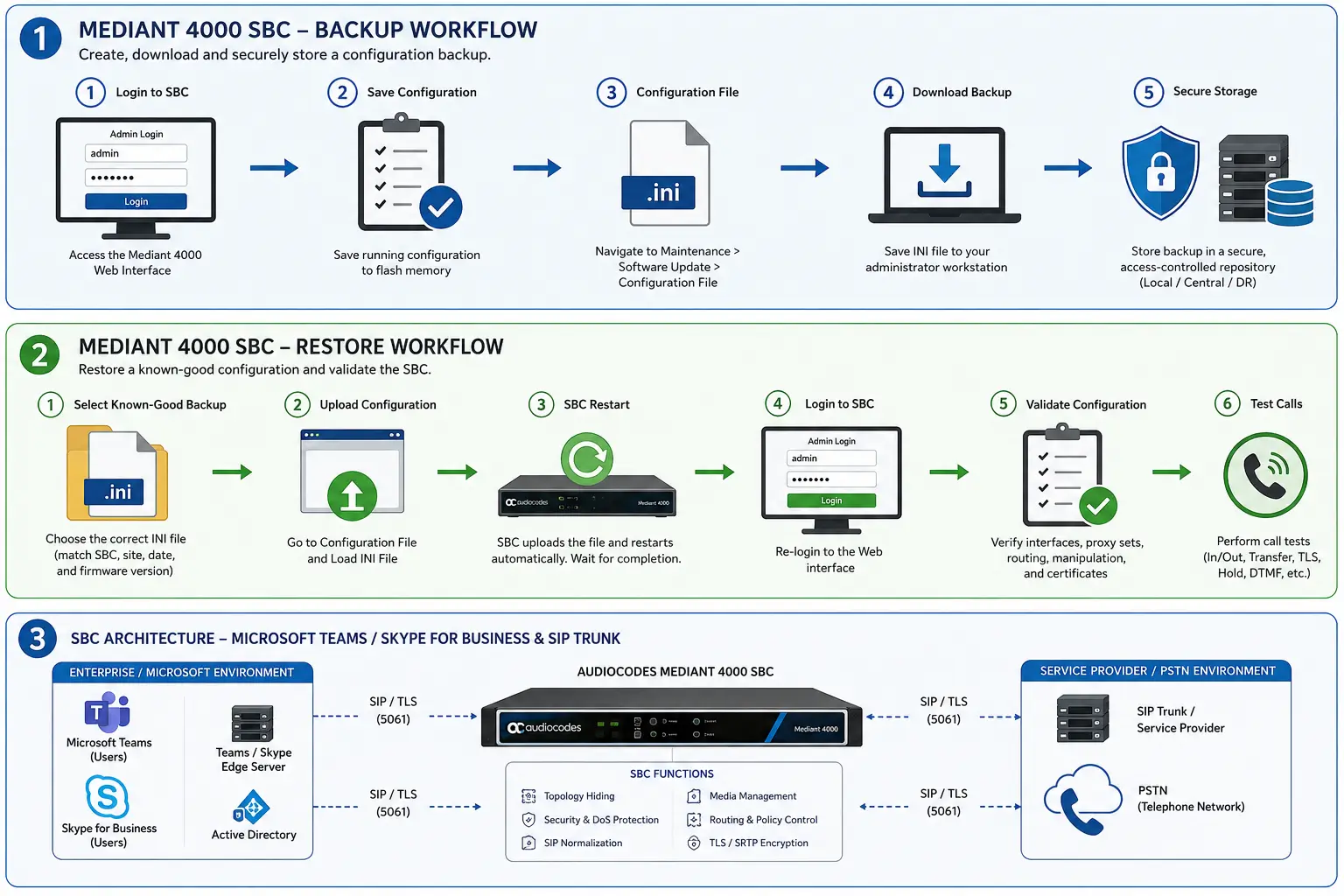
Visualise: A simple enterprise voice architecture showing Microsoft Teams/Skype for Business on one side, the AudioCodes Mediant 4000 SBC in the middle, and SIP Trunk/PSTN on the other side. Highlight the SBC configuration backup flowing from the SBC to a secure administrator workstation or backup repository.
Before You Start
Before taking or restoring a configuration backup, collect the following information:
1. SBC management IP address
You need access to the SBC’s management interface.
2. Administrator credentials
Use an account with sufficient privileges to access configuration and maintenance functions.
3. Firmware version
Record the current firmware/software version.
This is important because configuration-file and configuration-package behavior can differ between releases.
4. Current configuration status
Make sure recent configuration changes have been saved to flash before creating the backup.
AudioCodes documentation notes that configuration changes may need to be saved to flash memory; otherwise, changes can revert following a reset or power interruption.
5. Backup location
Store the backup in a controlled location such as:
- Secure file server
- Encrypted administrator workstation
- Enterprise backup system
- Restricted-access configuration repository
Avoid keeping the only copy of an SBC backup on the SBC itself.
Step 1 — Log in to the Mediant 4000 Web Interface
Open a supported web browser and connect to the SBC’s management IP address.
The AudioCodes Web interface provides access to configuration, maintenance, status, diagnostics, and other management functions.
After authentication, you should see the main management interface.
Visualise: Show the administrator logging into the Mediant 4000 Web interface, with the navigation tree on the left and configuration/maintenance options visible.
Step 2 — Save the Current Configuration
Before taking the backup, save the current configuration.
This is an important step because configuration changes that have not been committed to flash may not survive a restart.
AudioCodes documentation describes the Save function as saving configuration changes to the device’s flash memory.
A recommended operational sequence is:
- Review recent configuration changes.
- Confirm the configuration is working.
- Save the configuration.
- Wait for the save operation to complete.
- Create the backup.
Step 3 — Open Configuration File
Depending on the firmware version and Web UI layout, navigate to the configuration-file section.
In AudioCodes documentation, the configuration file can be accessed through the maintenance/software-update area or through the device actions menu.
The configuration-file page provides options for saving or loading configuration data.
Visualise: A close-up diagram of the AudioCodes Web UI navigation path:
Maintenance → Software Update → Configuration File
and an alternative:
Device Actions → Save Configuration File
Step 4 — Save the Configuration File
Select the option to save/download the configuration.
In the traditional Mediant configuration-file workflow, the administrator can select Save INI File and download the configuration file to a local folder.
Use a clear naming convention.
For example:
Mediant4000-Primary-2026-08-14.iniFor production environments, an even better convention can include:
<SBC>-<Site>-<Date>-<Firmware>-<ChangeID>.iniFor example:
SBC01-Delhi-2026-08-14-v7.4-CHG1024.iniRestoring a Mediant 4000 Configuration
Restoration should be treated as a controlled change.
Do not upload an old configuration file to a production SBC without first checking what is inside it.
AudioCodes documentation states that when an INI file is loaded, parameters that are not included in the INI file can be reset to their default values. This makes configuration compatibility and file completeness particularly important.
Step 1 — Identify the Correct Backup
Before restoration, confirm:
- SBC identity
- Site
- Date
- Firmware version
- Configuration purpose
- Whether the backup was known-good
For example:
SBC01-Delhi-2026-08-14-v7.4-CHG1024.iniNever restore a configuration simply because it has the newest timestamp.
Step 2 — Compare Firmware Versions
Ideally, restore a configuration to the same firmware/software version from which it was generated.
If the firmware versions differ, review AudioCodes documentation for the relevant release before proceeding.
This is especially important when moving between major firmware versions or restoring onto replacement hardware.
Step 3 — Access the Configuration File Page
Navigate to the configuration-file section of the Web interface.
Select the option to load/upload the configuration file.
AudioCodes’ documented workflow allows the administrator to browse for the configuration file and then select Load INI File.
Step 4 — Upload the Backup
Select the appropriate configuration file.
For example:
Mediant4000-Primary-2026-08-14.iniConfirm that the selected file is the intended backup.
Then start the load operation.
Visualise: Show a configuration restore workflow:
Administrator → Select Backup → Upload to SBC → Validate → Reset/Restart → Login → Verify
Setp 5 – Allow the SBC to Complete the Operation
Depending on the configuration-file workflow and firmware version, loading the configuration may cause the device to reset.
AudioCodes’ documented Mediant 4000 workflow indicates that after loading an INI file, the device uploads the file and resets; after completion, the Web login screen becomes available again.
Do not interrupt the process.
Avoid:
Performing unrelated configuration changes
Powering off the SBC
Closing the session unnecessarily
Disconnecting management connectivity
Log Back In
After the device becomes available, reconnect to the Web interface.
Confirm that:
- SBC is reachable
- Management IP is correct
- Administrator access works
- Required interfaces are operational
- SIP services are running
Perform Test Calls
A configuration restore should always be followed by functional testing.
At minimum, test:
- Internal-to-internal call
- Internal-to-PSTN call
- PSTN-to-internal call
- Teams/Skype-to-PSTN call, where applicable
- PSTN-to-Teams/Skype call
- Transfer
- Hold/resume
- DTMF
- Caller ID
- Call disconnect
For Microsoft Teams Direct Routing deployments, also validate the Teams-to-SBC and SBC-to-SIP-trunk signaling path.