Microsoft Teams Shared Calling Setup Runbook: Architecture, Licensing, PowerShell Configuration & E911 Emergency Routing
In enterprise unified communications, licensing every desk worker and hybrid employee with an individual Direct Inward Dialing (DID) phone number and a standalone Microsoft Teams Calling Plan or dedicated Session Border Controller (SBC) concurrent voice channel creates massive operational waste. In a 5,000-user enterprise, hundreds of shift workers, factory floor supervisors, retail staff, and internal back-office personnel rarely receive external inbound phone calls from the public telephone network, yet they require the ability to make occasional outbound calls to vendors, clients, and local services.
Historically, solving this required complex PBX trunk group partitioning, third-party analog adapters, or paying $15 to $24 per user monthly for unused domestic calling plans. With Microsoft Teams Shared Calling, organizations can enable outbound PSTN calling for users without assigning individual phone numbers or individual calling plan licenses. Instead, users share the phone number and outbound calling capacity of a designated Teams Resource Account.
While Shared Calling drastically slashes telecom carrier bills, it fundamentally alters Emergency Calling (E911) mechanics. Because shared users do not possess personal DIDs, emergency dispatchers cannot call back the caller directly on an individual line unless your Emergency Callback Number (ECBN) and dynamic location infrastructure are explicitly engineered. Implementing Shared Calling without configuring emergency call routing policies will fail public safety telecommunications compliance.
How Microsoft Teams Shared Calling Works
Under traditional Teams Phone architecture, every user provisioned for external calling requires three distinct elements:
- A Teams Phone Standard license (included in Microsoft 365 E5 or added to E3/Business Standard).
- A PSTN Connectivity Path (Microsoft Calling Plan, Operator Connect, or Direct Routing).
- A unique, globally routable Telephone Number (DID) assigned to their identity via
Set-CsPhoneNumberAssignment.
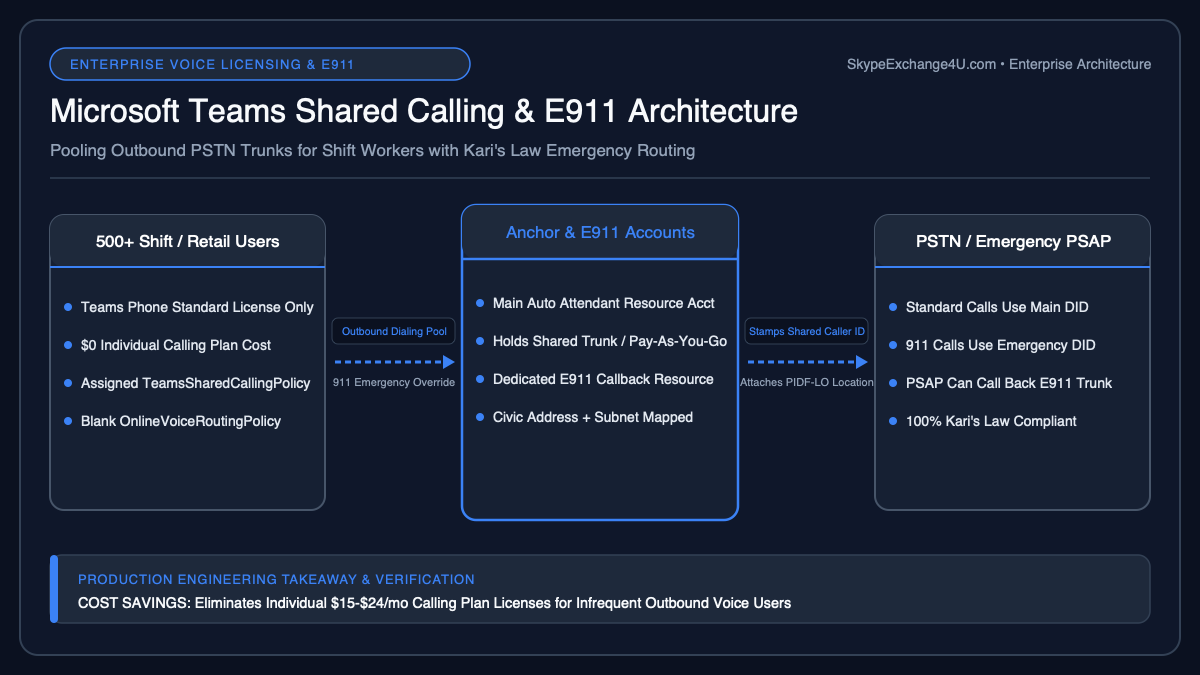
With Shared Calling, the requirement for an individual phone number and individual PSTN calling license is decoupled from the user. The architecture shifts the telecom routing burden to an Exchange/Teams Resource Account.
| Component | Traditional Teams Phone | Shared Calling Architecture |
|---|---|---|
| User License | Teams Phone Standard + Calling Plan | Teams Phone Standard Only |
| User Phone Number | Unique DID assigned to user | None (Inherits Resource Account DID) |
| Outbound Caller ID | User’s DID or Service Number via Caller ID Policy | Resource Account DID automatically |
| Inbound PSTN Calls | Rings directly on user’s Teams client | Routed via Auto Attendant (IVR) or Call Queue |
| Emergency Callback (ECBN) | User’s direct phone number | Assigned Emergency Resource Account DID or Security Desk |
High-Level Call Flow: Outbound & Inbound Routing
To understand the mechanics, consider an employee named Alex in a manufacturing facility who needs to call a supplier:
- Dialing: Alex opens the Teams Calls tab and enters a 10-digit PSTN number (e.g.,
+1 415 555 0199). - Policy Evaluation: Teams Cloud Voice Routing checks Alex’s assigned policies. Because Alex has no direct telephone number assigned, Teams inspects Alex’s assigned TeamsSharedCallingPolicy.
- Trunk Selection: The policy maps Alex to a Resource Account (
ra-sharedcalling-mfg@contoso.com). The Resource Account possesses a licensed Domestic Calling Plan or Direct Routing voice routing policy. - Signaling & Caller ID: Teams constructs the SIP INVITE. The
FromandP-Asserted-Identity (PAI)headers are overwritten with the Resource Account’s DID (e.g.,+1 415 555 0100). - PSTN Egress: The call traverses the Microsoft PSTN edge or your certified Session Border Controller (SBC) as an authorized call.
- Inbound Return: When the supplier calls back
+1 415 555 0100, the call terminates at the Teams Auto Attendant or Reception Call Queue linked to that Resource Account. The automated receptionist prompts the caller or routes to an operator who transfers the call to Alex via internal Teams federated search.
Prerequisites & Licensing Requirements
Before executing configuration commands, verify that your Microsoft 365 tenant satisfies the following prerequisites:
- User Licenses: Every user assigned to a Shared Calling policy must hold a Teams Phone Standard license (or Microsoft 365 E5). They do not need a Microsoft Calling Plan license.
- Resource Account Licenses: The Resource Account acting as the Shared Calling anchor requires:
- A Microsoft Teams Phone Resource Account license (available at $0 zero cost in your M365 admin center).
- A PSTN connectivity license: Either a Microsoft Teams Calling Plan (Pay-As-You-Go or Domestic) if using Microsoft native voice, or an assigned Voice Routing Policy if using Operator Connect or Direct Routing SBCs.
- Administrator Role: Teams Administrator or Global Administrator privileges.
- MicrosoftTeams PowerShell Module: Version 5.5.0 or newer (required for
New-CsSharedCallingPolicycmdlets).
Step-by-Step PowerShell Deployment Runbook
Follow this exact sequence to deploy Shared Calling across a department or regional branch office.
Step 1: Connect to Microsoft Teams PowerShell
Ensure you run the latest PowerShell 7 or Windows PowerShell environment with elevated administrative credentials:
# Install or update the MicrosoftTeams module
Install-Module -Name MicrosoftTeams -Force -AllowClobber

# Connect to your Microsoft 365 tenant
Connect-MicrosoftTeams
Step 2: Create the Outbound Shared Calling Resource Account
Create a dedicated cloud Resource Account that will host the primary outbound DID and calling license:
# Define identity variables
$ResourceUPN = "ra-sharedcalling-chicago@contoso.com"
$ResourceDisplayName = "Chicago Branch Shared Calling Trunk"

# Create the Azure AD / Entra ID Resource Account
New-CsOnlineApplicationEndpoint `
  -ApplicationId "ce933385-9390-45d1-9512-c8d228074e07" `
  -Name $ResourceDisplayName `
  -Uri $ResourceUPN

Write-Host "Resource Account created: $ResourceUPN" -ForegroundColor GreenNavigate to Microsoft 365 Admin Center ➔ Users ➔ Active Users. Locate
ra-sharedcalling-chicago@contoso.com and assign the Microsoft Teams Phone Resource Account license, plus your Calling Plan license (or enable EnterpriseVoice if using Direct Routing). Allow 15 minutes for directory replication before proceeding to number assignment.
Step 3: Assign a Telephone Number to the Resource Account
Assign a service or subscriber telephone number in E.164 format to the Resource Account:
# Assign phone number via Calling Plan or Operator Connect
Set-CsPhoneNumberAssignment `
  -Identity "ra-sharedcalling-chicago@contoso.com" `
  -PhoneNumber "+13125550150" `
  -PhoneNumberType CallingPlan

# Verify assignment
Get-CsPhoneNumberAssignment -Identity "ra-sharedcalling-chicago@contoso.com"
Step 4: Provision Emergency Callback Resource Accounts (E911 Compliance)
Under United States Kari’s Law and Ray Baum’s Act, emergency dispatchers must have a mechanism to return a 911 call if disconnected. When a user makes an emergency call from a Shared Calling policy, Teams can route the emergency call using a dedicated emergency callback pool. Create an Emergency Resource Account:
# Create dedicated E911 Emergency Resource Account
$EmergencyUPN = "ra-e911-chicago@contoso.com"

New-CsOnlineApplicationEndpoint `
  -ApplicationId "ce933385-9390-45d1-9512-c8d228074e07" `
  -Name "Chicago Shared Calling E911 Trunk" `
  -Uri $EmergencyUPN

# Assign phone number to emergency endpoint
Set-CsPhoneNumberAssignment `
  -Identity $EmergencyUPN `
  -PhoneNumber "+13125550159" `
  -PhoneNumberType CallingPlan
Step 5: Create and Configure the Teams Shared Calling Policy
Now execute New-CsSharedCallingPolicy, linking the primary outbound Resource Account and the emergency numbers:
# Retrieve Object IDs of the resource endpoints
$MainResource = Get-CsOnlineApplicationEndpoint -Identity "ra-sharedcalling-chicago@contoso.com"
$EmergResource = Get-CsOnlineApplicationEndpoint -Identity "ra-e911-chicago@contoso.com"

# Create the Shared Calling Policy
New-CsSharedCallingPolicy `
  -Identity "Chicago_Branch_SharedCalling" `
  -Description "Outbound PSTN policy for Chicago shift workers" `
  -ResourceAccount $MainResource.Identity `
  -EmergencyNumbers @(
    @{
      EmergencyNumber = "911";
      ResourceAccount = $EmergResource.Identity
    }
  )

# Review the created policy
Get-CsSharedCallingPolicy -Identity "Chicago_Branch_SharedCalling"
Step 6: Grant the Policy to Users or Security Groups
Assign the policy to targeted users. For enterprise scale, use group-based assignment:
# Method A: Assign to an individual user
Grant-CsSharedCallingPolicy `
  -Identity "alex.wong@contoso.com" `
  -PolicyName "Chicago_Branch_SharedCalling"

# Method B: Group-based assignment (Azure AD / Entra ID Security Group)
$GroupId = (Get-MgGroup -Filter "DisplayName eq 'Chicago-Warehouse-Staff'").Id

New-CsGroupPolicyAssignment `
  -GroupId $GroupId `
  -PolicyType SharedCallingPolicy `
  -PolicyName "Chicago_Branch_SharedCalling" `
  -Rank 1
Critical Architectural Considerations & Edge Cases
1. Inbound Routing Strategy
Because users in a Shared Calling policy do not have individual phone numbers, external parties cannot dial them directly. You must link the primary Resource Account (ra-sharedcalling-chicago@contoso.com) to a Teams Auto Attendant (Cloud AA) or Call Queue.
- Cloud Auto Attendant Option: Set up speech recognition or DTMF directory search (“Say the name or enter the extension of the person you wish to reach”). When the caller speaks “Alex Wong,” the Auto Attendant transfers the call to Alex’s Teams account via SIP URI.
- Extension Dialing: Assign 3-digit or 4-digit internal extensions to users in Entra ID (
telephoneNumber: ext=4012). Configure the Auto Attendant’s Dial by Extension setting so callers can reach desk staff directly without requiring paid carrier DIDs.
2. Direct Routing vs. Microsoft Calling Plans
Shared Calling is fully supported across both Microsoft Calling Plans and certified Direct Routing Session Border Controllers (SBCs). When using Direct Routing:
- The Resource Account must be assigned a Teams Voice Routing Policy (
Grant-CsOnlineVoiceRoutingPolicy) pointing to your PSTN usage record. - Ensure your SBC (AudioCodes Mediant, Ribbon SBC SWe, or Oracle E-SBC) is configured to accept SIP INVITEs containing the Resource Account’s caller ID without rejecting calls due to PAI mismatch.
- Refer to our detailed Teams Voice Routing Policy Guide and Dial Plan vs Voice Routing Guide for detailed PSTN usage architecture.
3. E911 Emergency Location & Ray Baum’s Act Compliance
When a user covered by a Shared Calling policy dials 911, Teams evaluates the user’s current physical location based on subnet, BSSID, LLDP chassis ID, or switch port data configured in the Location Information Service (LIS).
- The emergency call egresses with the Dispatchable Location (e.g., Building B, Floor 3, Suite 302).
- The caller ID presented to the Public Safety Answering Point (PSAP) is the designated Emergency Resource Account DID.
- If the PSAP dispatcher is disconnected and dials back that number, the incoming call must route to an active corporate Security Desk or reception console ready to direct first responders to the exact caller location.
Frequently Asked Questions (FAQ)
Can users on a Shared Calling policy make international calls?
Yes, provided two conditions are met: First, the user must be assigned a TeamsCallingPolicy that allows international calling (AllowInternationalCalling = $true). Second, the underlying Resource Account must hold an International Calling Plan license or have Communications Credits enabled (or route out via a Direct Routing SBC with international PSTN carrier authorization).
What happens if multiple shared users make outbound calls simultaneously?
All active outbound calls share the trunk capacity of the Resource Account. On Microsoft Calling Plans, Microsoft dynamically allocates concurrency based on pooled capacity. On Direct Routing, concurrent call capacity is governed by the session licenses available on your SBC and carrier SIP trunk.
Why does a user still see “You’re not configured to make external calls” in Teams?
This typically indicates one of three issues: (1) The user has not been granted a Teams Phone Standard license; (2) The policy assignment has not finished propagating through Azure AD / Teams Cloud Voice cache (can take up to 2-4 hours for initial policy binding); or (3) The user’s account has EnterpriseVoiceEnabled set to false when attempting Direct Routing egress.
Can I assign a Shared Calling policy to Common Area Phones (CAP) or Teams Rooms?
Yes. Common Area Phones (Teams Shared Device license) and Microsoft Teams Rooms (MTR Pro or Basic) can be assigned a Shared Calling policy. This is common in factory breakrooms, hospital nurse stations, and conference rooms where outbound dialing is needed but receiving direct external DID calls is unnecessary.
Related Enterprise Teams Voice Guides
- Teams Dial Plan vs Voice Routing Policy: Complete Comparison & Precedence Runbook
- Teams Voice Routing Policy Explained: PSTN Usages, Routes & Failover
- Microsoft Teams Direct Routing: Architecture, SBC Pairing & SIP Trunking
- How an SBC Works with Microsoft Teams: Signaling, Media & Transcoding
- SBC Transcoding with Microsoft Teams & Legacy PBX: G.711 vs SILK vs OPUS
- Need enterprise architecture support for Microsoft Teams Voice or Direct Routing? Contact our engineering team for specialized consulting.