Teams Direct Routing 488 Not Acceptable Here: Troubleshooting Guide
The important part is not to treat every 488 as the same problem. Microsoft currently documents several different 488 scenarios, including unsupported media, missing SRTP support, missing ICE candidates, and an invalid media address.
In this guide, we will walk through a practical way to investigate the error, identify who generated the 488, and then use the SIP/SDP information to narrow down the actual problem.
Quick takeaway: Don’t start by changing the Teams dial plan or voice route just because you see a 488. First identify the source of the response and inspect the SIP/SDP negotiation.
What Does 488 Not Acceptable Here Mean?
488 Not Acceptable Here is a SIP response indicating that the receiving side cannot accept the request in its current form.
With Teams Direct Routing, that can involve the media/session information exchanged between Microsoft Teams, the Direct Routing service, the SBC, and the PSTN carrier.
A simplified outbound call can look like this:
User
Microsoft
Session Border Controller
PSTN
Call flow: Teams → Direct Routing → SBC → Carrier.
The carrier-side 488 response is then returned through the SIP path toward Teams.
The important question is:
Which component actually generated the 488?
That answer determines where you should investigate next.
Why You Should Not Immediately Change the Teams Dial Plan
When a call fails, it is tempting to change the dial plan, normalization rules, voice routes, or PSTN usages.
Sometimes those settings are involved. But a 488 should make you look closely at the SIP and media negotiation before changing unrelated configuration.
I prefer this troubleshooting sequence:
- Identify the failed call.
- Determine whether it is inbound or outbound.
- Find the SIP response.
- Identify who generated the 488.
- Inspect the SIP INVITE and SDP.
- Compare the successful and failed calls.
- Make one controlled configuration change.
- Test again.
This approach gives you evidence instead of guesswork.
Original SIP Call Flow
The following diagram shows a typical Teams Direct Routing call where the carrier returns a 488 response.
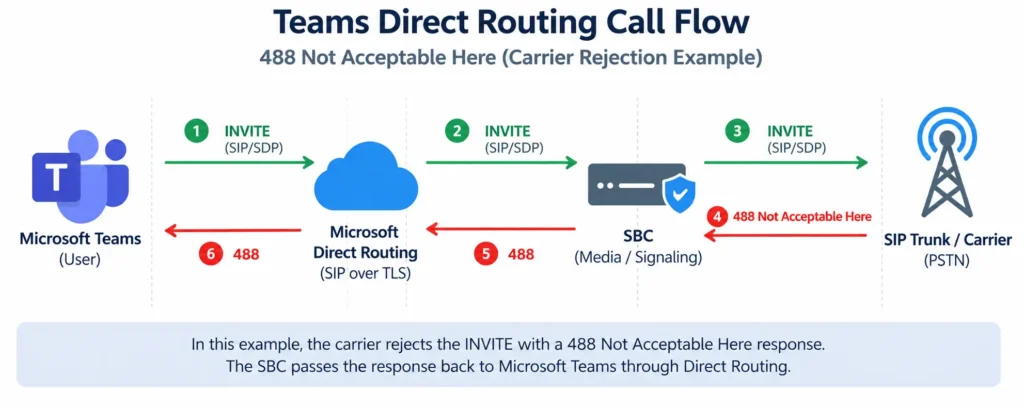
Important: The diagram is a simplified troubleshooting model. The exact SIP flow can vary depending on your SBC, media bypass configuration, carrier, and deployment design.
First Check: Who Generated the 488?
This is one of the most important steps.
Microsoft’s Direct Routing documentation explains that the Microsoft response code can help determine whether the final SIP response was generated by Microsoft or the SBC. A Microsoft response code beginning with 560 indicates that the final SIP response was generated by the SBC. For example, 560403 indicates that the SBC generated the SIP 403 response.
For a 488 investigation, therefore, don’t rely only on the three-digit SIP code. Look at the available Microsoft response information and then confirm the actual SIP transaction in the SBC logs.
Why this matters
Consider this call flow:
Call flow: Teams → SBC → Carrier → 488 Not Acceptable Here
Here, the SBC is not necessarily the root cause. It may simply be passing the carrier’s 488 response back toward Teams.
That is very different from an SBC that generates the 488 itself.
Use Your SBC Trace as Evidence
This is where I recommend using your own production or lab evidence.
Do not publish raw traces containing customer information. Before uploading screenshots, redact:
- Public IP addresses
- Internal IP addresses
- Telephone numbers
- Usernames
- Email addresses
- Customer domains
- Call-ID values
- Carrier account information
- Authentication information
Example 1 — INVITE Sent from SBC to Carrier
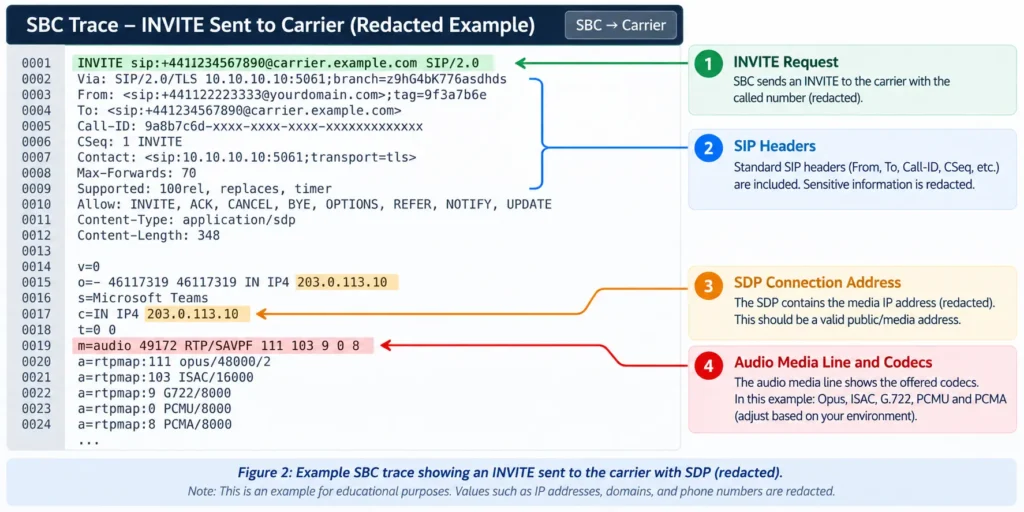
When reviewing the INVITE, pay particular attention to the SDP section.
Look for:
- Audio media line
- Codec list
- RTP information
- SRTP attributes
- Connection address
- Media ports
- ICE information where applicable
Example 2 — 488 Response
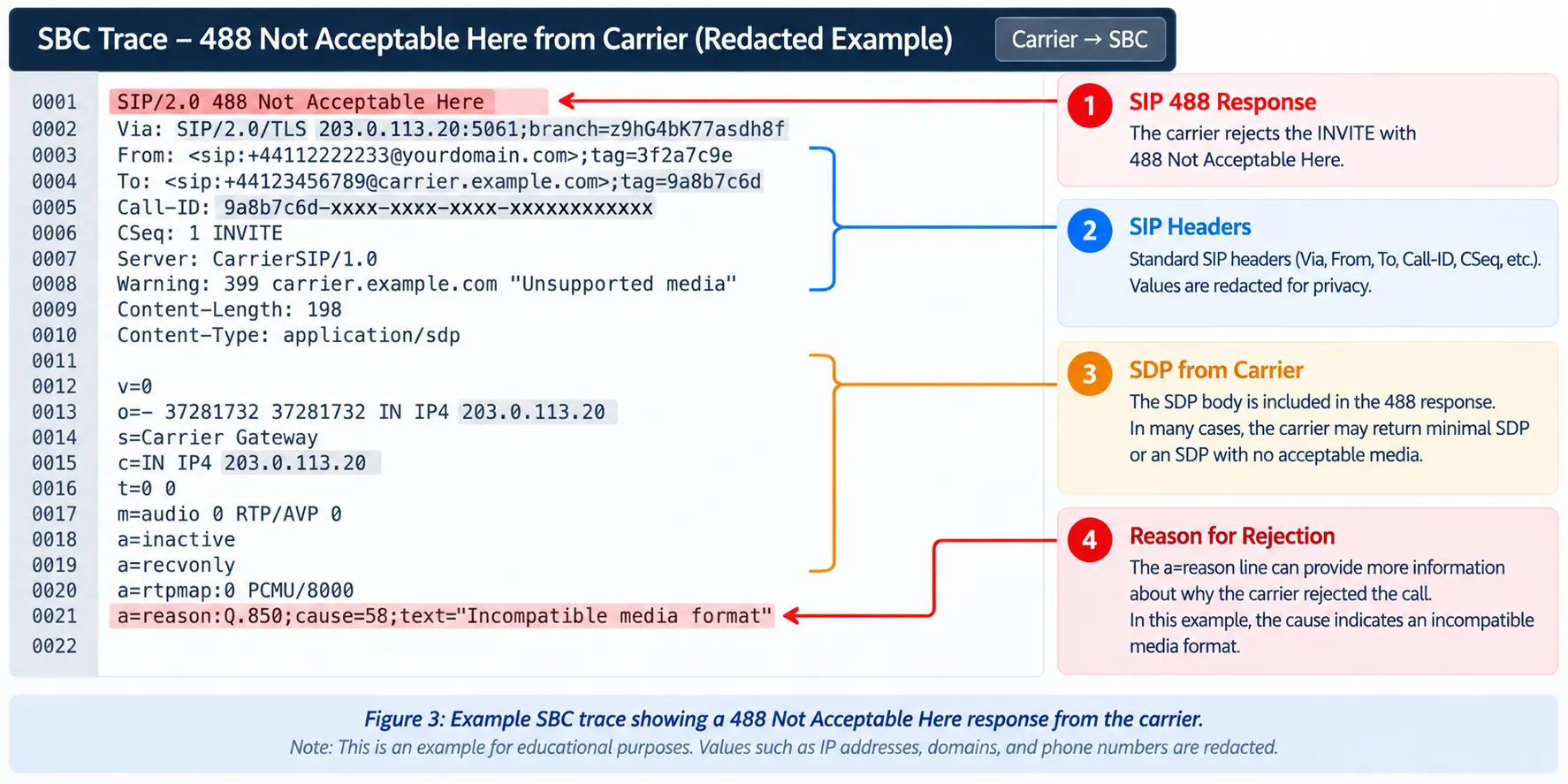
Now determine whether the 488 came from the carrier, the SBC, or another part of the call path.
Don’t assume that the component displaying the error is necessarily the component that created it.
Screenshot 3 — 488 Passed Back Toward Teams
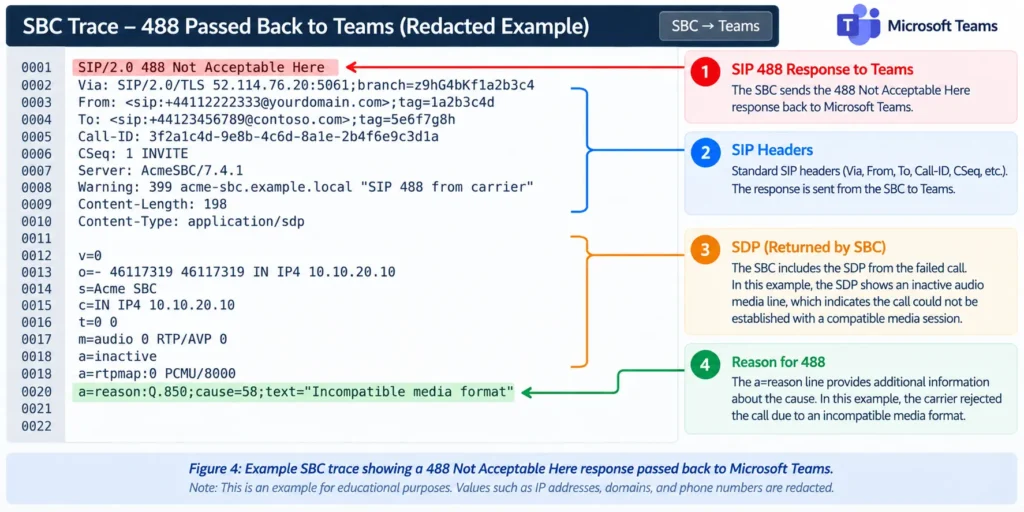
Practical tip: Compare the timestamp, Call-ID, CSeq and SIP transaction across both SBC legs. This makes it much easier to follow the same call from Teams to the carrier and back.
Common Causes of Teams Direct Routing 488
A 488 can have several causes. Microsoft’s current Teams documentation specifically identifies multiple 488 scenarios, so it is better to investigate the actual diagnostic information rather than assuming the problem is always a codec mismatch.
1. Unsupported or Invalid SDP
One common scenario is that the SDP offer does not contain media that the receiving side can accept.
Microsoft documents a 488 scenario with the diagnostic description CannotSupportAnyMedia, where the SDP offer does not contain acceptable media. Microsoft recommends checking the SBC configuration and supported codecs in this situation.
When troubleshooting, compare the SDP offered by each side.
User
Session Border
Controller
PSTN
SDP flow:
Teams / Microsoft side → SBC → Carrier. The SDP offer is passed through the SBC toward the carrier during call setup.
The question is not simply, “Is the codec configured?”
The better question is:
Does the complete media offer make sense to the device receiving it?
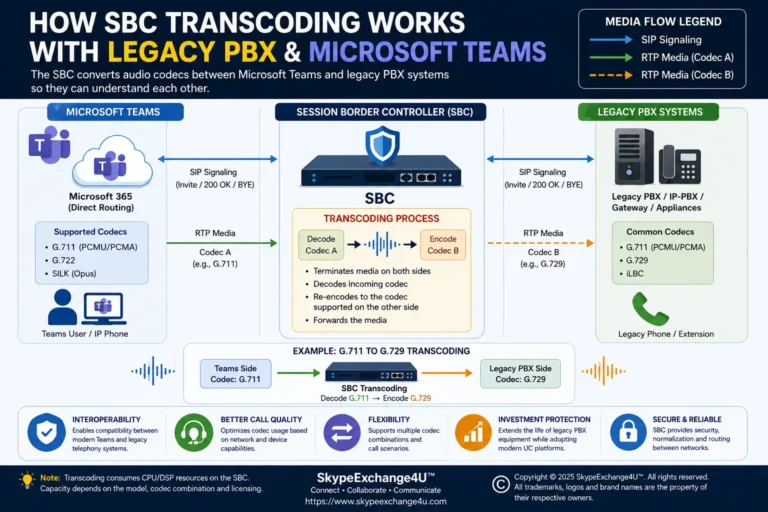
2. Codec Mismatch
Codec negotiation is another area to investigate.
For example, one side might offer a set of codecs that the other side does not support.
Do not assume that seeing a codec in the SBC configuration means that it will necessarily be used for every call.
Check the actual SDP from the failed call.
Then compare it with a successful call using the same route or carrier.
3. SRTP Requirement
Microsoft also documents a 488 scenario where the remote participant does not offer the required SRTP support. The recommended investigation is to check the SBC configuration and SRTP support.
This is particularly important when the failure begins after a change to media or security configuration.
Check:
- Whether SRTP is enabled where required
- Whether the SBC is using the expected media security profile
- Whether the remote side offers compatible media security
- Whether the behavior changed after an SBC configuration update
4. ICE and Media Bypass
Another Microsoft-documented 488 scenario occurs when media bypass is being used but the SBC does not provide ICE candidates in its SDP offer.
Microsoft identifies this as response code 531027 and recommends checking the SBC configuration and ICE Lite configuration for the applicable media-bypass scenario.
If your environment uses media bypass, this is an important area to check rather than assuming every 488 is related to codecs.
5. SDP Contains a 0.0.0.0 Connection Address
Microsoft also documents a 488 scenario involving a connection address of 0.0.0.0 in the SDP.
The corresponding Microsoft response code is 531052. Microsoft recommends checking the SBC configuration when this condition occurs.
If you see this value in a failed call, investigate why the SBC is generating that SDP instead of immediately changing Teams voice routing.
Compare a Failed Call With a Successful Call
This is one of the most useful techniques when working with SIP traces.
Take one failed call and one successful call using the same environment if possible.
| Item | Successful Call | Failed Call |
|---|---|---|
| INVITE | Accepted | Rejected |
| SDP | Supported media | Check for differences |
| Codecs | Common codec | Check negotiation |
| SRTP | Expected | Check offer |
| ICE | Expected where applicable | Check candidates |
| SIP response | 2xx | 488 |
Sometimes the difference between the two traces is much easier to spot than the problem in the failed trace alone.
Check the SBC Configuration
Once the SIP trace points toward the SBC, review the configuration involved in the affected call path.
- Codec profile
- Media profile
- SIP profile
- SRTP configuration
- ICE/media bypass settings
- Transcoding
- SDP manipulation
- SIP trunk configuration
- Routing
- Recent configuration changes
The exact configuration names vary by SBC vendor, so avoid copying a setting from another vendor’s documentation without understanding what it does in your environment.
Check the Carrier Side
If the carrier is the device returning the 488, investigate the carrier-facing SIP leg.
Ask:
- What exactly did the carrier reject?
- Does the carrier support the offered codec?
- Does the carrier require a particular media profile?
- Does the carrier require SRTP or plain RTP?
- Did the carrier recently change its SIP configuration?
- Does the same destination work from another SBC or trunk?
A carrier-generated 488 is a very different troubleshooting path from a Microsoft-generated 488.
Check Microsoft Teams Configuration
Teams configuration should still be checked, but it should be checked as part of the complete call path.
Review:
- Voice routing policy
- PSTN usage
- Voice route
- Dial plan
- Normalization rules
- Direct Routing gateway configuration
- User assignment
- Call records and diagnostics
Microsoft’s Direct Routing documentation recommends using the available response information and diagnostics to determine whether the failure is coming from Microsoft or the SBC.
PowerShell Checks
PowerShell is useful when you want to verify what is actually configured rather than relying only on what you see in the Teams admin center.
For example:
Get-CsOnlineVoiceRouteGet-CsOnlineVoiceRoutingPolicyGet-CsOnlinePstnUsageGet-CsOnlinePstnGatewayBefore running commands in production, verify the current Microsoft Teams PowerShell documentation because cmdlets and available properties can change over time.
A Real-World Troubleshooting Example
Imagine an organization has two SBCs:
Teams
  |
  +---- SBC01 ---- Carrier
  |
  +---- SBC02 ---- Carrier
Users routed through SBC01 receive a 488, while calls through SBC02 work normally.
Instead of changing the tenant-wide Teams configuration, compare the two SBC paths.
Check:
- Codec profile
- Media profile
- SIP trunk
- SRTP settings
- SDP manipulation
- ICE/media bypass
- Firmware
- Recent configuration changes
This type of side-by-side comparison can quickly reveal configuration drift.
What If the 488 Started After a Change?
Always ask:
What changed immediately before the problem appeared?
Examples include:
- SBC firmware upgrade
- Codec profile change
- Carrier migration
- Media profile modification
- SRTP configuration change
- New SIP trunk
- Firewall change
- Teams voice-routing change
- SDP manipulation change
If the calls worked before a configuration change and failed immediately afterward, that timeline is valuable evidence.
Teams Direct Routing 488 Troubleshooting Checklist
- Identify the failed call.
- Determine whether it is inbound or outbound.
- Check whether one user or multiple users are affected.
- Check Microsoft 365 Service Health.
- Review Teams diagnostic information.
- Find the SIP response.
- Identify who generated the 488.
- Review the SIP INVITE.
- Review the SDP.
- Check codec negotiation.
- Check SRTP requirements.
- Check ICE/media-bypass requirements where applicable.
- Check for an SDP connection address of 0.0.0.0.
- Review the SBC media profile.
- Review the carrier SIP trunk.
- Check transcoding.
- Review SDP manipulation.
- Compare the failed call with a successful call.
- Check recent configuration changes.
- Make one controlled change and test again.
What to Collect Before Opening a Support Case
If you need to escalate the problem to Microsoft, your SBC vendor, or the carrier, collect the evidence first.
- Date and time of the failed call
- Calling number
- Called number
- Call direction
- Affected user or users
- SBC name
- SIP response code
- Microsoft response code, where available
- Relevant SIP trace
- Relevant SDP
- SBC logs
- Successful call for comparison
- Recent configuration changes
Always redact customer and personal information before sharing logs externally.
Final Thoughts
A 488 Not Acceptable Here response is a clue, not a complete diagnosis.
The biggest mistake is to see the number 488 and immediately start changing Teams voice routes or dial plans.
Instead, follow the call:
Where did the call start?
        ↓
Where did it go?
        ↓
Who generated the 488?
        ↓
What did the INVITE contain?
        ↓
What did the SDP offer?
        ↓
What did the receiving side accept?
        ↓
Where is the mismatch?
Once you approach the problem this way, the 488 becomes much easier to investigate.
For enterprise Teams Direct Routing, the most useful troubleshooting habit is simple:
Evidence first. Configuration second.
Related Teams Direct Routing Troubleshooting
- Teams SBC Inactive After Certificate Renewal
- Teams Direct Routing 403 Forbidden
- Teams Direct Routing SIP OPTIONS Troubleshooting
- Teams Direct Routing TLS Troubleshooting
- Teams Voice Routing Policy vs Dial Plan
Microsoft reference: Microsoft documents several specific 488 Direct Routing scenarios, including unsupported media, SRTP requirements, ICE/media bypass and invalid SDP connection addresses.