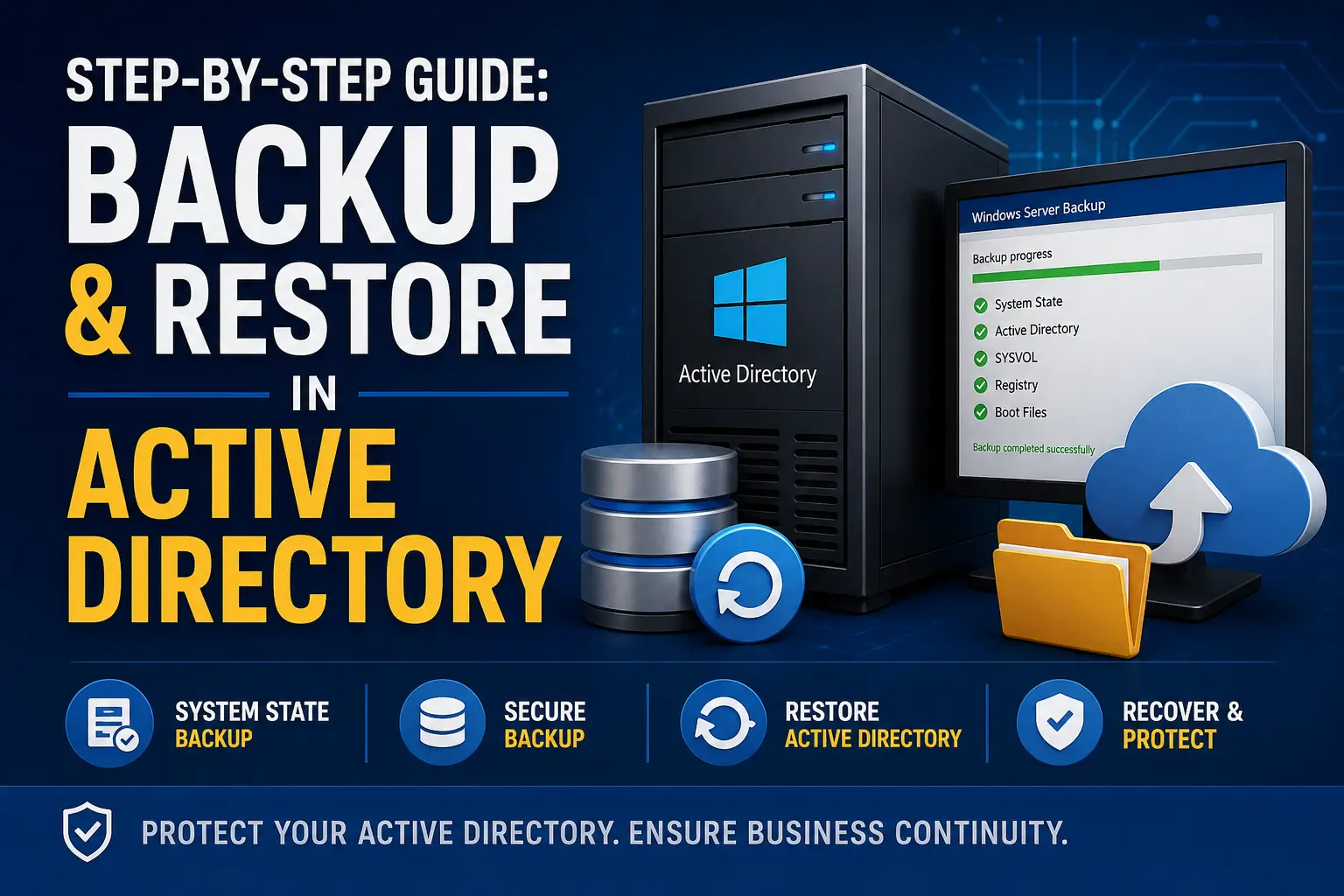
Step-by-Step Guide: Backup and Restore in Active Directory
Active Directory is one of the most critical services in a Windows Server
environment. A reliable backup and recovery strategy can help you recover
from Domain Controller failures, accidental deletions, corruption, or
other unexpected incidents.
In this guide, you’ll learn how to back up and restore Active Directory
using System State Backup and
Windows Server Backup, including the difference between
non-authoritative and authoritative restoration.
procedures in an isolated lab environment before performing a restore
in production.
What Does an Active Directory Backup Include?
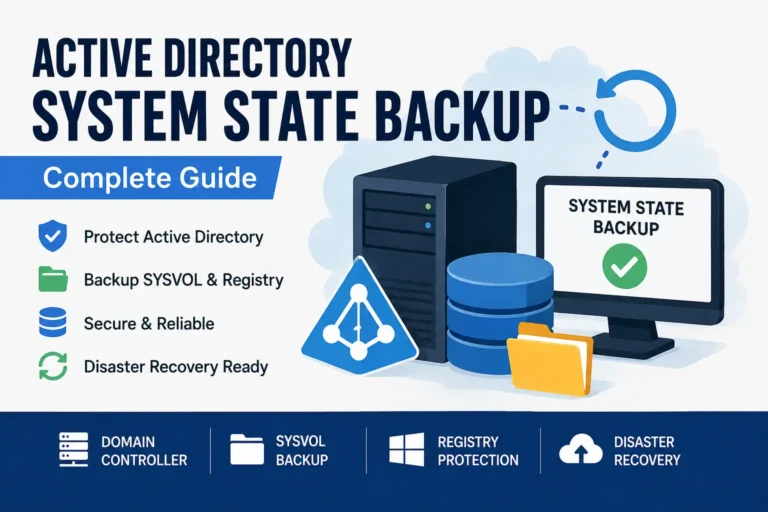
A System State backup of a Domain Controller protects
important components required to recover Active Directory and the operating
system.
- Active Directory Domain Services (AD DS)
NTDS.DIT- SYSVOL
- Windows Registry
- Boot files
- Other system-state components
Microsoft recommends System State backup as an important method for
protecting Active Directory Domain Services data.
Before You Start
Before creating the backup, make sure you have:
- A Windows Server Domain Controller
- Appropriate administrator or backup permissions
- Windows Server Backup installed
- A dedicated backup destination
- The DSRM Administrator password
- Enough storage for the backup
- A documented recovery procedure
backup on the same server or storage that hosts the Domain Controller.
Step 1: Install Windows Server Backup
Windows Server Backup can be installed through Server Manager or
PowerShell.
Using Server Manager
- Open Server Manager.
- Select Manage.
- Click Add Roles and Features.
- Continue through the wizard.
- Select Windows Server Backup under Features.
- Complete the installation.
Using PowerShell
Install-WindowsFeature Windows-Server-BackupStep 2: Create an Active Directory System State Backup
Open Server Manager → Tools → Windows Server Backup.
- Select Local Backup.
- Click Backup Once.
- Select Different options.
- Click Next.
- Select Custom.
- Click Next.
- Click Add Items.
- Select System State.
- Click OK.
is to protect Active Directory and other system components required for
Domain Controller recovery.
Step 3: Select the Backup Destination
Choose a backup destination that is separate from the Domain Controller.
For example:
E:\You can also use a network share:
\\BackupServer\ADBackupsSelect the destination, review the configuration, and click
Backup.
Step 4: Verify the Backup
Never assume that a backup is usable simply because the backup job
completed successfully.
Use the following command to list available backup versions:
wbadmin get versionsTo check a specific backup destination:
wbadmin get versions -backuptarget:E:For a network share:
wbadmin get versions -backuptarget:\\BackupServer\ADBackupsRecord the appropriate Version identifier. You may need
it during the recovery process.
Step 5: Create a System State Backup Using WBADMIN
You can also create a System State backup directly from an elevated
Command Prompt.
wbadmin start systemstatebackup -backuptarget:E:For a network backup destination:
wbadmin start systemstatebackup -backuptarget:\\BackupServer\ADBackupsStep 6: Understand the Two Types of Active Directory Restore
Non-Authoritative Restore
A non-authoritative restore is commonly used when a
Domain Controller needs to be restored or rebuilt while other healthy
Domain Controllers are still available.
For example:
DC02 → Healthy
DC03 → Healthy
After DC01 is restored, it can synchronize current Active Directory
information from its replication partners.
Authoritative Restore
An authoritative restore is used when restored Active
Directory data needs to become authoritative and replicate to other
Domain Controllers.
you understand the replication implications and have a documented
recovery plan.
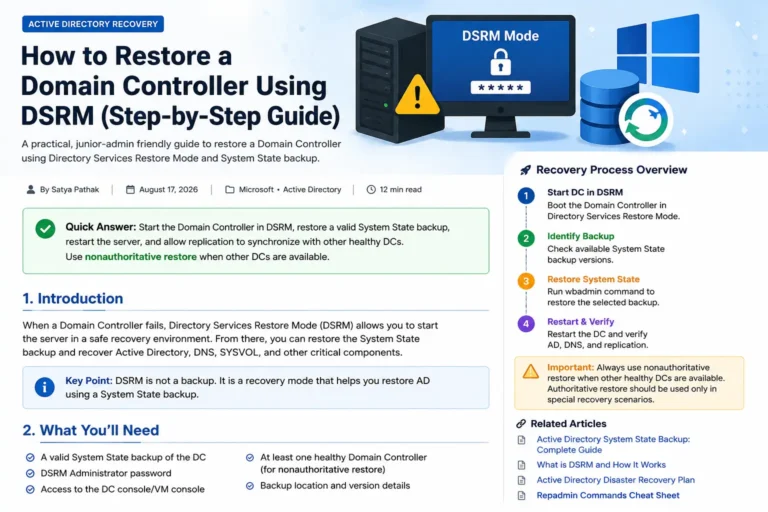
Step 7: Boot the Domain Controller into DSRM
Directory Services Restore Mode (DSRM) is used for certain Active
Directory recovery operations.
From an elevated Command Prompt:
bcdedit /set safeboot dsrepairRestart the server:
shutdown /r /t 0The server will restart into Directory Services Restore Mode.
You will need the DSRM Administrator password.
Step 8: Identify the Backup Version
After entering DSRM, list the available backups:
wbadmin get versions -backuptarget:E:You may see a version similar to:
08/15/2026-01:00Select the backup version that is appropriate for your recovery scenario.
Step 9: Perform a Non-Authoritative Restore
A typical System State recovery command looks like this:
wbadmin start systemstaterecovery -version:08/15/2026-01:00If the backup is stored on a network share:
wbadmin start systemstaterecovery ^
-version:08/15/2026-01:00 ^
-backupTarget:\\BackupServer\ADBackups ^
-machine:DC01backup location, and computer name with values from your environment.
Step 10: Restore SYSVOL When Required
SYSVOL is an important part of a Domain Controller because it contains
Group Policy-related data and logon scripts.
In certain forest recovery scenarios, an authoritative SYSVOL restore
may be required.
wbadmin start systemstaterecovery ^
-version:08/15/2026-01:00 ^
-authsysvolwhether you are recovering one Domain Controller, the last Domain
Controller in a domain, or performing a complete forest recovery.
Step 11: Return the Server to Normal Boot
After the recovery is complete, remove the DSRM boot option:
bcdedit /deletevalue safebootThen restart the server:
shutdown /r /t 0Step 12: Verify Active Directory
After the Domain Controller starts normally, verify its health and
replication status.
Check Domain Controller Health
dcdiagCheck Replication Summary
repadmin /replsummaryCheck Detailed Replication
repadmin /showreplCheck SYSVOL and NETLOGON
net shareYou should normally see:
NETLOGON
SYSVOL
Also verify:
- User authentication
- DNS functionality
- Active Directory replication
- Group Policy processing
- Domain Controller health
- Critical applications
What If Only a User Was Deleted?
A full System State restore is not always necessary when an individual
Active Directory object has been deleted.
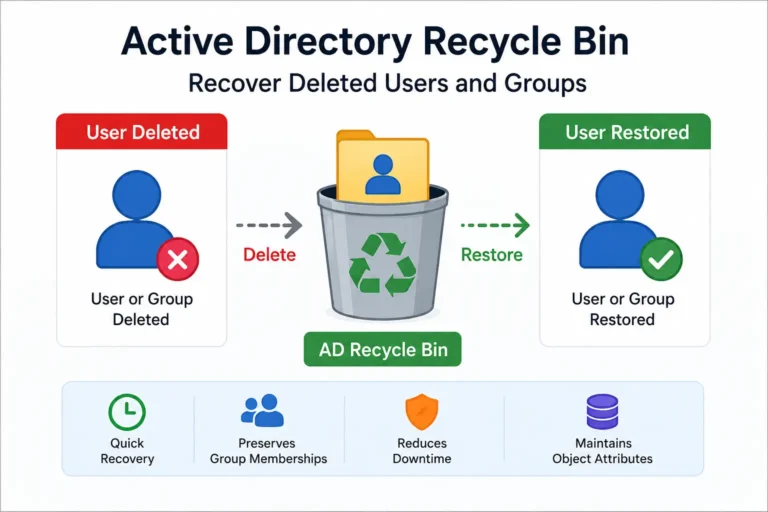
If Active Directory Recycle Bin is enabled, deleted
objects can often be restored without performing a complete Domain
Controller recovery.
Get-ADObject -Filter 'Name -Like "*User*"' `
-IncludeDeletedObjects |
Restore-ADObjectfor recovering individual deleted users, groups, and other supported
objects.
Recommended Active Directory Backup Strategy
For production environments, avoid relying on a single backup copy.
↓
System State Backup
↓
Dedicated Backup Storage
↓
├── Local Recovery Copy
├── Offsite Copy
└── Protected / Immutable Copy
Most importantly, regularly test your recovery process in an isolated
environment.
A backup that has never been tested is not a proven recovery plan.
Common Active Directory Backup Mistakes
1. Only Backing Up NTDS.DIT
Do not treat the NTDS.DIT file as a standalone Active
Directory backup strategy.
2. Keeping the Only Backup on the Domain Controller
If the Domain Controller and its storage fail, a backup stored on the
same system may be lost as well.
3. Using Authoritative Restore Unnecessarily
Authoritative recovery can affect replication throughout the domain.
Use it only when the recovery scenario requires it.
4. Forgetting the DSRM Password
The DSRM password may be required during Domain Controller recovery.
5. Never Testing Restoration
A successful backup job does not automatically mean that the recovery
process will work when you need it.
6. Ignoring SYSVOL
Active Directory and SYSVOL are both critical components of a healthy
Domain Controller environment.
Active Directory Backup & Restore Command Reference
| Task | Command |
|---|---|
| Install Windows Server Backup | Install-WindowsFeature Windows-Server-Backup |
| Create System State backup | wbadmin start systemstatebackup -backuptarget:E: |
| List backup versions | wbadmin get versions |
| Enter DSRM boot mode | bcdedit /set safeboot dsrepair |
| Restore System State | wbadmin start systemstaterecovery ... |
| Restore authoritative SYSVOL | wbadmin start systemstaterecovery ... -authsysvol |
| Exit DSRM boot mode | bcdedit /deletevalue safeboot |
| Check Domain Controller health | dcdiag |
| Check replication | repadmin /replsummary |
| Detailed replication status | repadmin /showrepl |
Final Thoughts
Active Directory recovery is about more than simply creating a backup.
You need a documented and tested recovery process.
In most Domain Controller rebuild scenarios, a
non-authoritative System State restore is the appropriate
approach when healthy replication partners remain.
Authoritative recovery should be reserved for situations where restored
Active Directory data or SYSVOL needs to become authoritative.
For individual deleted users or groups, Active Directory Recycle
Bin may provide a much simpler recovery option than restoring
an entire Domain Controller.
and recovery procedure in a lab environment before relying on it during
a production incident.