Active Directory to Entra ID Synchronization: Complete Guide
Active Directory to Entra ID Synchronization: Complete Guide
Learn how identity data moves from on-premises Active Directory to Microsoft Entra ID, including synchronization tools, configuration, authentication, troubleshooting, security and best practices.
Updated: August 27, 2026
•
Reading time: 12–15 minutes
⚡ Quick answer
Active Directory to Entra ID synchronization connects an organization’s on-premises Active Directory environment with Microsoft Entra ID so supported users, groups, contacts and attributes can be synchronized to the cloud. Microsoft provides two primary synchronization approaches: Microsoft Entra Connect Sync and Microsoft Entra Cloud Sync.
What Is Active Directory to Entra ID Synchronization?
Organizations that have used Windows Server and Active Directory for years often need a way to connect their existing identities with Microsoft 365 and other cloud applications.
That is where Active Directory to Entra ID synchronization comes in.The synchronization process connects an on-premises directory with Microsoft Entra ID, allowing selected identity information to
be represented in the cloud. Microsoft documents both Microsoft Entra Connect Sync and Microsoft Entra Cloud Sync as synchronization technologies for hybrid identity scenarios. Cloud Sync uses the Microsoft Entra provisioning agent and a cloud-based provisioning service, while Connect Sync uses an on-premises synchronization engine.
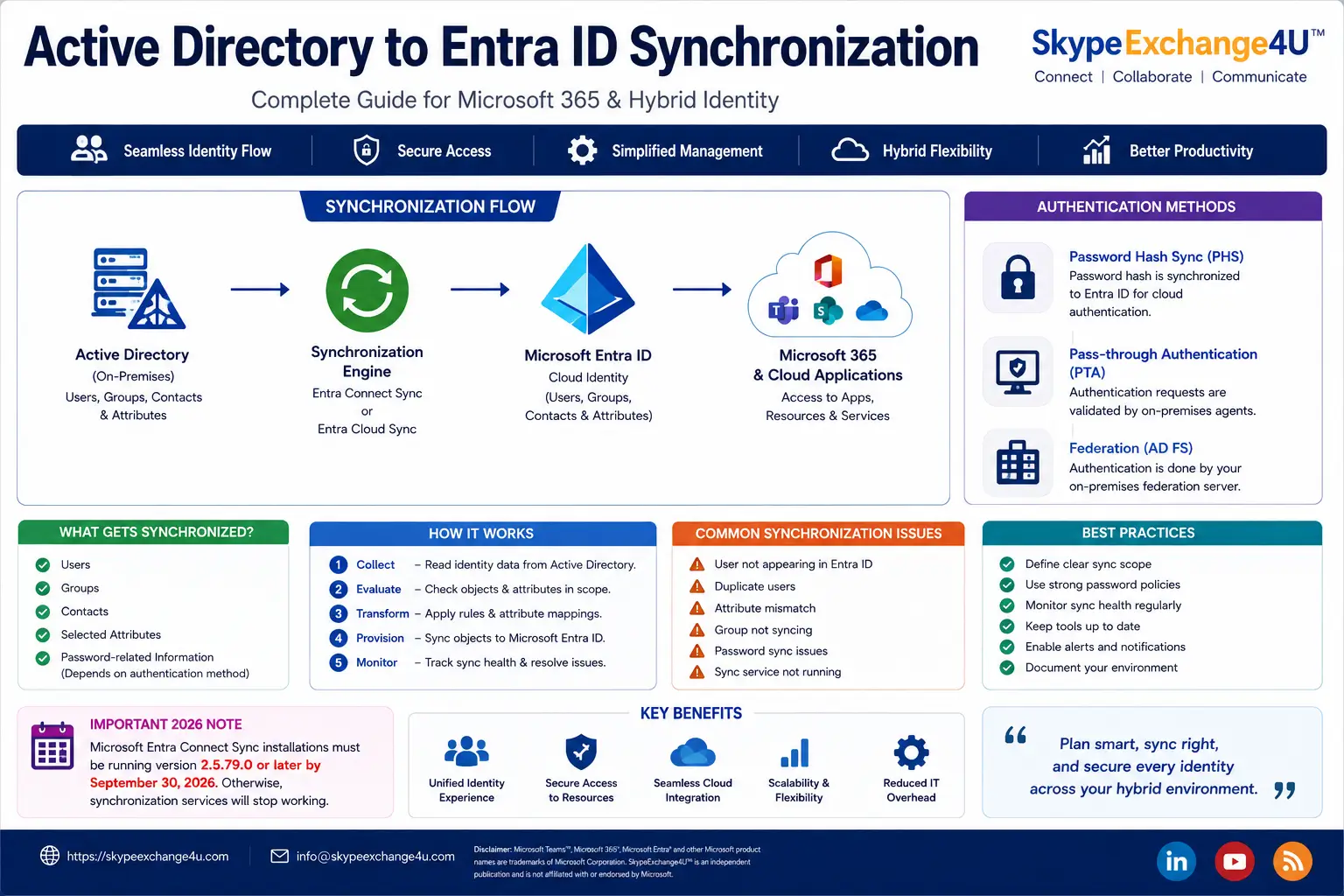
Active Directory to Entra ID Synchronization Flow
On-premises identities
Connect Sync / Cloud Sync
Cloud identity
Microsoft 365 & apps
What You’ll Need
Before implementing synchronization, understand the environment rather than
installing a synchronization tool immediately.
- Working Active Directory Domain Services environment.
- Administrative access appropriate for the selected synchronization tool.
- A Microsoft Entra tenant.
- Verified and correctly configured domains where required.
- Network connectivity required by the selected Microsoft service.
- A documented synchronization scope.
- A defined source of authority for identity attributes.
- A recovery and rollback plan.
⚠️ Don’t skip planning.
The most difficult synchronization problems are often caused by unclear object scope, duplicate identities, incorrect attribute mappings or unexpected directory topology—not by the installation wizard itself.
Which Synchronization Tool Should You Use?
Microsoft currently provides two important synchronization approaches: Microsoft Entra Connect Sync and
Microsoft Entra Cloud Sync.
| Area | Entra Connect Sync | Entra Cloud Sync |
|---|---|---|
| Architecture | On-premises synchronization engine | Cloud-managed provisioning with an agent |
| On-premises component | Connect Sync server | Microsoft Entra provisioning agent |
| Management | More configuration locally | Primarily cloud-managed |
| Multi-forest scenarios | Supported scenarios vary | Supports additional modern scenarios |
| Strategic direction | Existing supported deployments | Microsoft’s strategic direction |
Microsoft describes Cloud Sync as its strategic direction for hybrid identity
synchronization as functional parity is reached. However, organizations should
evaluate their actual topology and required features before migrating.
How Active Directory to Entra ID Synchronization Works
Although the underlying architecture can become complex, the basic process can be understood in five stages.
1. Collect
The synchronization technology reads supported identity information from. Active Directory.
2. Evaluate
The synchronization configuration determines which objects and attributes are inside the configured scope.
3. Transform
Configured synchronization rules and attribute mappings determine how source directory information is represented in the target identity system.
4. Provision
The synchronization service provisions supported objects and attributes into Microsoft Entra ID.
5. Monitor
Administrators monitor synchronization health, errors, provisioning status and authentication dependencies.
Active Directory
       |
       v
Synchronization Scope
       |
       v
Attribute Mapping
       |
       v
Synchronization Engine
       |
       v
Microsoft Entra ID
       |
       v
Microsoft 365 / Cloud Applications
What Gets Synchronized?
The exact objects and attributes depend on the selected synchronization. technology and configuration.
Common identity objects include:
- Users
- Groups
- Contacts
- Selected directory attributes
A critical point is that having an object in Active Directory does not automatically mean it will appear in Microsoft Entra ID. Synchronization scope and rules determine what is processed.
Real-World Example: Synchronizing a New User
Imagine an administrator creates a new employee account in an Organizational. Unit called Employees.
- The administrator creates the user in Active Directory.
- The user falls within the configured synchronization scope.
- The synchronization system evaluates the object’s attributes.
- The object is provisioned into Microsoft Entra ID.
- The administrator verifies the resulting cloud identity.
- Appropriate Microsoft 365 licensing and application access can then be
configured separately.
💡 Important distinction:
Synchronization creates or updates identity information. It does not automatically mean that every Microsoft 365 service is licensed or that the. user has access to every application.
How Does Password Synchronization Work?
Password synchronization and directory-object synchronization are related but. different functions.
With Password Hash Synchronization (PHS), password-derived. information is synchronized so Microsoft Entra ID can perform cloud. authentication without synchronizing the user’s clear-text password.
Organizations can also use other authentication architectures, including Pass-through Authentication (PTA) and federation, depending on their requirements.
| Method | Basic idea | Operational consideration |
|---|---|---|
| PHS | Password-derived information is synchronized to Entra ID | Less dependent on on-premises authentication at sign-in |
| PTA | Authentication validation involves on-premises agents | On-premises availability matters |
| Federation | Authentication is delegated to a federation service | Additional infrastructure and dependencies |
How to Configure Active Directory to Entra ID Synchronization
The exact configuration differs between Cloud Sync and Connect Sync, so use. Microsoft’s current prerequisites and deployment guidance for the selected. tool.
Step 1 — Review the Active Directory Environment
- Check domains and forests.
- Review Organizational Units.
- Identify user and group locations.
- Review duplicate or conflicting identities.
- Confirm required attributes.
Step 2 — Choose the Synchronization Technology
Use Microsoft’s current decision guidance to determine whether Cloud Sync or Connect Sync fits your environment.
Step 3 — Define Synchronization Scope
Avoid synchronizing unnecessary objects. Define the Organizational Units, groups or other supported scope that should be included.
Step 4 — Configure Attribute Mapping
Review how important Active Directory attributes map to Microsoft Entra ID.Pay particular attention to identity matching and sign-in attributes.
Step 5 — Configure Authentication
Select and configure the authentication architecture appropriate for the organization.
Step 6 — Pilot Before Production
Start with a controlled group of users whenever practical. Validate synchronization, sign-in, applications and user attributes before expanding the scope.
Step 7 — Monitor the Environment
After deployment, monitor synchronization status and errors instead of assuming the environment will remain healthy indefinitely.
Common Active Directory to Entra ID Synchronization Errors
| Problem | Possible cause | First check |
|---|---|---|
| User does not appear | Scope, filtering or sync issue | OU/scope and synchronization status |
| Duplicate user | Identity matching conflict | Source identity and matching attributes |
| Wrong attribute | Attribute mapping or source value | Source and target attributes |
| Group not synchronized | Scope or unsupported configuration | Group scope and tool capabilities |
| Password sign-in fails | Authentication configuration | PHS/PTA/federation configuration |
| Synchronization stopped | Service, agent, configuration or connectivity issue | Health status and logs |
Active Directory to Entra ID Synchronization Troubleshooting
When synchronization fails, avoid changing multiple settings at once. Troubleshoot from the source toward the cloud.
- Check Active Directory.
Confirm that the source object exists, is enabled where appropriate and has
the expected attributes. - Check synchronization scope.
Confirm the object is actually included. - Check synchronization health.
Review errors, provisioning status and agent/service health. - Check Microsoft Entra ID.
Confirm whether the object exists and whether the expected attributes were
provisioned. - Check authentication separately.
Do not assume a successful synchronization means authentication is working. - Check the Microsoft 365 workload.
Only after identity and authentication are confirmed should you investigate
the specific application.
Advanced Hybrid Identity Considerations
Multiple Active Directory Forests
Organizations involved in mergers, acquisitions or complex enterprise. architectures may operate multiple forests.
Cloud Sync supports scenarios involving multiple disconnected forests that can. be difficult to address with traditional synchronization architectures.
Source of Authority
Before changing an identity attribute, determine which system is authoritative. If Active Directory is the source of authority for an attribute, changing the value directly in Microsoft Entra ID may not provide the long-term result you
expect.
Attribute Matching
Identity matching is particularly important when organizations have existing cloud accounts and begin synchronization. A poorly planned matching strategy can result in duplicate objects or
unexpected identity relationships.
🚨 Important 2026 Microsoft Entra Connect Update
Microsoft states that Microsoft Entra Connect Sync synchronization services will stop working on September 30, 2026 if the installation is not running at least version 2.5.79.0. Organizations using Connect Sync should therefore review their installed version and Microsoft’s current upgrade guidance before the deadline.
Pros and Cons of Active Directory to Entra ID Synchronization
✅ Advantages
- Connects existing Active Directory investments with cloud identity.
- Provides a consistent identity across supported environments.
- Supports gradual cloud adoption.
- Reduces repetitive manual identity administration.
- Integrates with Microsoft Entra security capabilities.
- Supports hybrid enterprise architectures.
❌ Challenges
- Introduces additional identity infrastructure.
- Incorrect scope can cause unexpected provisioning results.
- Attribute conflicts can be difficult to diagnose.
- Authentication and synchronization must be troubleshot separately.
- Complex forests require careful architecture.
- Synchronization infrastructure must be monitored and maintained.
Best Practices
- Start with a documented identity architecture.
- Define the source of authority.
- Keep synchronization scope as simple as practical.
- Pilot changes before expanding synchronization.
- Monitor synchronization health continuously.
- Protect synchronization infrastructure.
- Keep supported Microsoft components updated.
- Document recovery and rollback procedures.
- Review Cloud Sync eligibility as your environment evolves.
💡 Architecture rule:
Keep identity scope controlled, authentication resilient,
synchronization monitored and recovery tested.
Related Articles
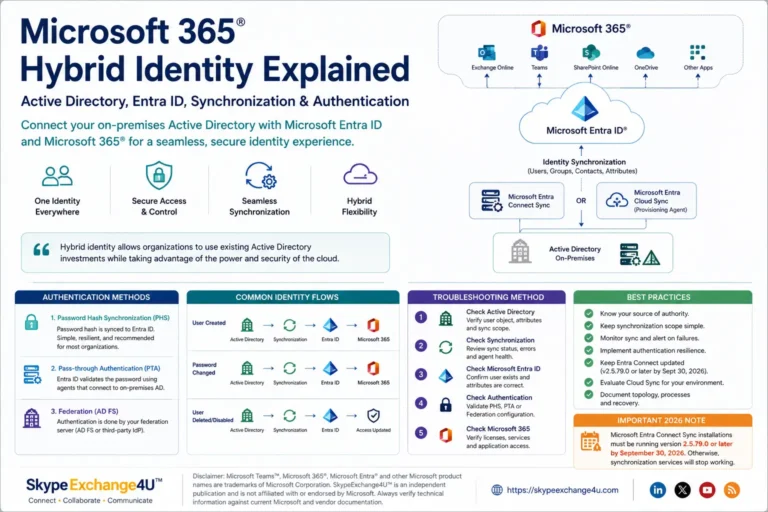
Microsoft 365 Hybrid Identity Explained
Understand the complete hybrid identity architecture.
How to Restore a Domain Controller Using DSRM
Learn about Active Directory recovery and DSRM.
Microsoft Teams Call Flow Explained
Understand enterprise Teams signaling and media flow.
Microsoft Teams Voice Troubleshooting Guide
Practical troubleshooting for enterprise Teams voice.
Frequently Asked Questions
What is Active Directory to Entra ID synchronization?
It is the process of synchronizing supported identity information from an on-premises Active Directory environment to Microsoft Entra ID.
What is Microsoft Entra Connect Sync?
Microsoft Entra Connect Sync is Microsoft’s on-premises synchronization technology for synchronizing identity information between Active Directory and Microsoft Entra ID.
What is Microsoft Entra Cloud Sync?
Microsoft Entra Cloud Sync is a cloud-managed synchronization service that uses the Microsoft Entra provisioning agent to connect Active Directory with Microsoft Entra ID.
Does synchronization automatically give users Microsoft 365 access?
No. Synchronization and licensing are separate processes. Synchronization creates or updates the identity in Microsoft Entra ID, while licensing and application permissions determine access to specific services.
Which is better: Entra Connect Sync or Cloud Sync?
There is no universal answer. Microsoft positions Cloud Sync as its strategic direction, but organizations should compare their topology and required features before selecting or migrating synchronization technology.
What happens if Active Directory synchronization stops?
Existing cloud identities do not simply disappear when synchronization stops, but new or changed on-premises identity information may not reach Microsoft Entra ID. The impact depends on the specific synchronization and authentication architecture.
What Entra Connect version is required in 2026?
Microsoft states that Microsoft Entra Connect Sync installations need to be running version 2.5.79.0 or later by September 30, 2026 to avoid synchronization service disruption.
Conclusion
Active Directory to Entra ID synchronization is one of the core building blocks of Microsoft 365 hybrid identity. The technology itself is straightforward at a high level:
Active Directory → Synchronization → Microsoft Entra ID → Cloud Applications
The real engineering challenge is making that flow secure, predictable and. recoverable. Before deploying synchronization, understand your directory topology, define. your source of authority, choose the right synchronization technology, control. your synchronization scope and test the environment before production rollout.
For organizations already using Microsoft Entra Connect Sync, 2026 is also an important review point because Microsoft has published a mandatory minimum. version requirement for September 30, 2026.
Authoritative Sources
- Microsoft Learn — Microsoft Entra Cloud Sync
- Microsoft Learn — Microsoft Entra Connect Sync
- Microsoft Learn — Microsoft Entra synchronization tools
- Microsoft Learn — Microsoft Entra Connect prerequisites and upgrade requirements
Disclaimer: Microsoft®, Microsoft 365®, Microsoft Entra®, Microsoft Teams™ and other Microsoft product names are trademarks of Microsoft Corporation. SkypeExchange4U™ is an independent publication and is not affiliated with or endorsed by Microsoft.
Technical features, supported configurations, synchronization capabilities,versions and requirements can change. Always verify production deployments against current Microsoft documentation and applicable vendor documentation.