Logitech Rally Bar & Tap / Tap IP Setup: Complete Teams Rooms (MTR) Deployment Guide
The Logitech Rally Bar paired with the Logitech Tap or Tap IP touch controller is an industry-standard hardware foundation for medium and large conference rooms. Operating either in Appliance Mode running Logitech CollabOS (Teams Rooms on Android) or connected as a modular AV peripheral to a Windows mini-PC (Teams Rooms on Windows), the platform delivers cinema-quality optics, automated PTZ framing, and modular microphone expansion.
However, scaling Logitech meeting spaces across corporate campuses introduces friction: Tap IP touch controllers falling into a “Searching for device” pairing loop across enterprise VLANs, audio dropouts from improperly seated Rally Mic Pod daisy-chains, HDMI EDID handshake failures on dual commercial displays, and authentication rejections caused by Microsoft Intune Android Device Administrator retirement.
This deployment runbook provides a practical, step-by-step engineering guide to deploying, securing, and optimizing Logitech Rally Bar and Tap systems in production Microsoft 365 environments.
Architectural Distinction:
Differentiate between Logitech Tap (USB connection directly to compute via Cat5e kit) and Logitech Tap IP (standalone PoE device communicating with the Rally Bar over the local network via IP). Mixing these topologies during planning leads to mismatched switch cabling and routing failures.
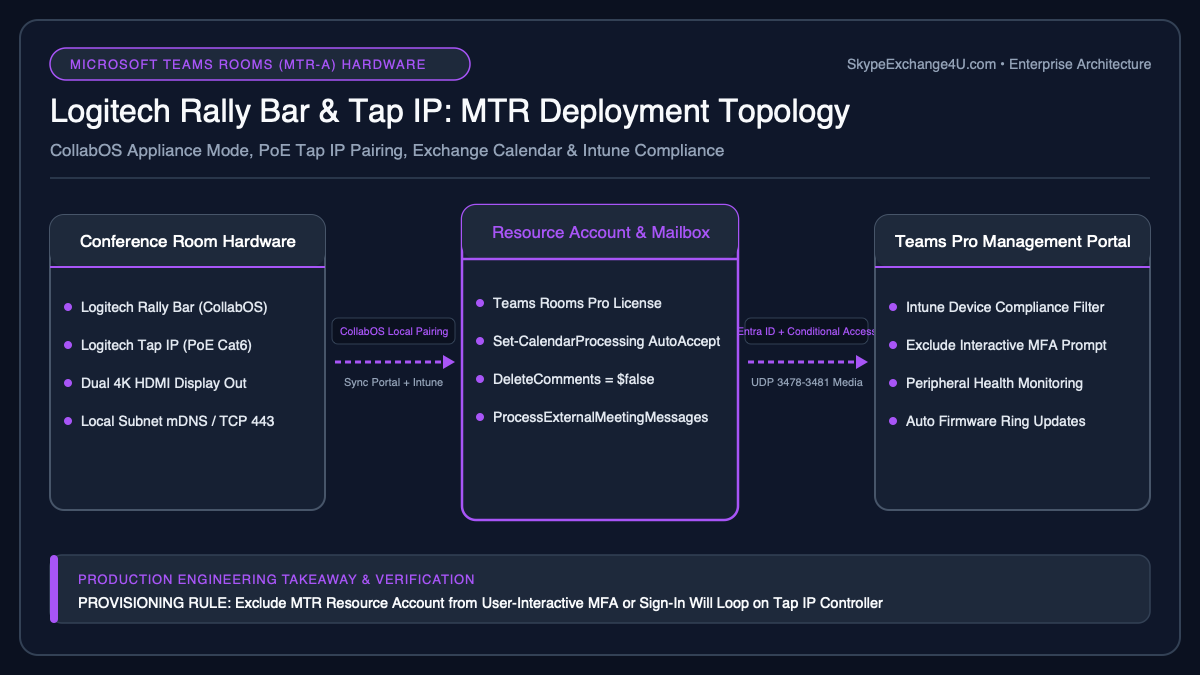
Table of Contents
1. Deployment Topology: Appliance Mode (CollabOS) vs. Windows Compute
Logitech Rally Bar supports two distinct operating architectures for Microsoft Teams Rooms:
| Architecture Layer | Appliance Mode (MTR-A) | Windows Compute Mode (MTR-W) |
|---|---|---|
| Operating System | Logitech CollabOS (Embedded Android 10/12) | Windows 11 IoT Enterprise (x64 Compute) |
| Touch Controller | Logitech Tap IP (PoE) or Logitech Tap (USB) | Logitech Tap (USB / Cat5e kit directly to PC) |
| Hardware Footprint | All-in-one bar + 1 network cable | Rally Bar + Mini PC (Intel NUC/Lenovo) + USB cable |
| Display Support | Dual 4K displays (HDMI 1 & HDMI 2) | Dual/Triple displays via PC GPU ports |
2. Network Segmentation & Firewall Port Matrix
Isolate the Rally Bar and Tap IP inside a dedicated, non-routable Voice/Video IoT VLAN. Configure your enterprise perimeter firewall with outbound access to Microsoft 365 and Logitech cloud endpoints:
| Protocol & Port | Destination FQDN / IP | Traffic Purpose |
|---|---|---|
| TCP 443 / 8883 (MQTT) | *.sync.logitech.com |
Logitech Sync cloud telemetry, firmware updates, and settings |
| TCP 443 (HTTPS) | *.microsoft.com, login.microsoftonline.com |
Entra ID authentication, Microsoft Intune, Graph API |
| UDP 3478-3481 | *.teams.microsoft.com |
STUN/TURN Real-time media (Audio, Video, Desktop Share) |
| TCP 5228-5230 | fcm.googleapis.com |
Firebase Cloud Messaging (instant meeting push notifications) |
| UDP 5353 (mDNS) | 224.0.0.251 (Local Subnet) |
Logitech Tap IP automatic discovery of Rally Bar |
Proxy & SSL Inspection Notice:
Do not terminate SSL/TLS sessions via intermediate proxies on traffic destined for *.sync.logitech.com or *.microsoft.com. CollabOS enforces certificate pinning; man-in-the-middle SSL re-signing breaks cloud sync and blocks device enrollment.
3. Zero-Touch Onboarding via Logitech Sync Portal
Logitech Sync (sync.logitech.com) is the enterprise management plane for Logitech video collaboration hardware. It provides centralized policy configuration, firmware staging, and room telemetry.
Step-by-Step Sync Cloud Registration:
- Log in to Logitech Sync Portal (
sync.logitech.com). - Navigate to System ➔ Provisioning.
- Generate a 12-character Provisioning Code for your target Room Group (e.g.,
HQ-Boardrooms). - During the initial boot wizard of the Rally Bar (or inside the local web GUI under System ➔ Logitech Sync), enter the 12-character code.
- The Rally Bar immediately checks in, applies your room policy, and maps to the correct inventory site.
4. Logitech Tap IP Pairing & Cross-Subnet Configuration
Unlike the traditional USB Tap controller, the Logitech Tap IP runs its own build of CollabOS and communicates with the Rally Bar over the network. In standard single-subnet setups, discovery is automated via mDNS. In enterprise segregated environments, manual pairing is required.
Manual PIN Pairing Procedure:
- Connect both the Rally Bar and Tap IP to their respective PoE/network ports and ensure they receive IP addresses via DHCP.
- On the Rally Bar display, advance the setup wizard to the Connect Controller screen.
- On the Tap IP display, select Set up as a room controller.
- The Tap IP will scan the subnet. If the Rally Bar does not appear automatically, tap Pair with IP Address.
- Enter the IP address of the Rally Bar.
- A secure 6-digit PIN code will generate on the primary conference room TV screen.
- Enter the 6-digit PIN on the Tap IP screen to establish an encrypted TLS tunnel between the controller and the video bar.
Critical Routing Failure Point:
If the Tap IP displays “Pairing failed: Device unreachable”, verify that your internal network firewall allows TCP port 443 and TCP port 18888 bidirectionally between the Tap IP address and the Rally Bar address. Access Control Lists (ACLs) that block intra-VLAN or inter-subnet routing will break controller communication.
5. Microsoft Intune & Conditional Access (AOSP Enrollment)
CollabOS 1.8+ operates under the modern Android (AOSP) Device Management architecture in Microsoft Intune. Legacy Android Device Administrator profiles must not be targeted at these accounts.
A. Intune AOSP Profile Setup
- Open the Microsoft Intune Admin Center (
endpoint.microsoft.com). - Go to Devices ➔ Android ➔ Android enrollment ➔ Android (AOSP) corporate-owned dedicated devices.
- Create an enrollment profile:
- Name:
Logitech-MTR-AOSP-Profile - Token Type:
Corporate-owned dedicated device (user-associated) - Token Expiration: Select the maximum allowable date (up to 65 years).
- Name:
- Assign this profile to your dynamic security group containing all meeting room resource accounts.
B. Conditional Access Exclusion
Ensure your Conditional Access policies do not enforce user-interactive biometric or SMS MFA on the room account:
- Target Resources: Exclude your MTR room accounts from MFA policies.
- Grant Controls: Require “Require device to be marked as compliant” (verified via Intune compliance policies).
- Trusted Locations: Require sign-ins to originate from your corporate egress public IP addresses.
6. Camera & Audio Optimization: RightSight 2 & Mic Pods
Logitech’s onboard AI viewfinder and primary PTZ sensor operate under the RightSight 2 algorithm. Selecting the correct framing profile is essential for natural meeting dynamics:
| RightSight 2 Mode | Recommended Room Geometry | Framing Behavior |
|---|---|---|
| Speaker View | Medium to Long Conference Rooms | Picture-in-Picture: displays an active close-up of the current speaker alongside a persistent room overview wide shot. |
| Group View | Huddle Rooms / Focus Spaces | Continuously adjusts zoom and pan to capture all physical participants in a single frame. |
| Grid View | Executive Boardrooms (8+ chairs) | Extracts individual participant facial cutouts and arranges them in equal-sized composite gallery tiles. |
Rally Mic Pod Daisy-Chaining Architecture:
The Rally Bar internal beamforming microphone array covers small to medium rooms (up to 4.5 meters / 15 feet). For larger conference tables, expand audio capture using Rally Mic Pods:
- Maximum Pod Count: Rally Bar supports up to 4 Rally Mic Pods (or 3 Mic Pods + 2 Mic Pod Hubs).
- Cabling Rule: Never loop Mic Pod connections back into a hub. Use a star topology through a Logitech Rally Mic Pod Hub under the table to eliminate cable clutter.
- RightSound Audio Processing: Leave “AI Noise Suppression” enabled in CollabOS. It automatically filters paper shuffling, keyboard clicks, and air conditioning hum without cutting off low-volume speakers.
7. BYOD Mode & Displaylink USB Passthrough
Organizations often host meetings on platforms outside of Microsoft Teams (e.g., Zoom, Google Meet, Cisco Webex). With Logitech Swytch or direct USB-C passthrough, users can utilize the Rally Bar’s camera, microphones, and room displays with their personal laptops:
- In CollabOS settings, navigate to System ➔ Device Mode.
- Set Device Mode to Auto-Switch / Manual.
- When a user connects the room’s USB-C Swytch cable to their laptop, the Rally Bar automatically releases control from the native Teams Android engine and presents the camera and audio as standard UVC/UAC USB peripherals.
- Once the laptop is unplugged, the system returns to the native Teams Room home screen within 5 seconds.
8. Common Failure Modes & Diagnostics
1. Tap IP Displays “Searching for device…” or Continually Unpairs
Root Cause: The Rally Bar and Tap IP have drifted onto different firmware builds, or mDNS traffic is being suppressed by enterprise access points with “Client Isolation” or “Multicast Suppression” enabled.
Fix: Log in to the local web GUI of both devices and ensure they are on the identical CollabOS maintenance release. Re-pair using the manual IP address method with PIN validation.
2. Dual Display Showing Black Screen on Second TV
Root Cause: HDMI EDID negotiation failure on HDMI Out 2. Commercial monitors with deep sleep modes often fail to wake when signaled by embedded Android hardware.
Fix: In the Rally Bar web GUI, navigate to Display Settings and lock the display resolution to Fixed 1080p (60Hz) or 4K (30Hz) instead of “Auto”. Disable “Deep Sleep / Energy Saving” in the physical TV settings.
3. Exchange Calendar Missing on Room Touchscreen
Root Cause: The Exchange Online mailbox calendar processing rule is deleting the body comments of incoming meeting invitations.
Fix: Connect to Exchange Online PowerShell and run:
Set-CalendarProcessing -Identity "boardroom-rally@yourdomain.com" `
  -AutomateProcessing AutoAccept `
  -DeleteComments $false `
  -DeleteSubject $false `
  -AddOrganizerToSubject $false `
  -ProcessExternalMeetingMessages $true
Need Enterprise Microsoft Teams Rooms & Logitech AV Consulting?
Our unified communications practice designs, provisions, and supports enterprise meeting room fleets across Logitech Rally Bar, Poly Studio, Cisco Webex, and custom Teams Rooms Pro architectures. If you are planning an executive boardroom upgrade or rolling out global conference spaces, connect with our senior UC architects for a technical consultation.
9. Frequently Asked Questions (FAQ)
Related Meeting Room & Infrastructure Guides
- Poly Studio X & TC8/TC10 Setup: Teams Rooms on Android (MTR-A) Complete Deployment Guide
- Microsoft Teams Rooms (MTR) Setup: Step-by-Step Exchange Online, CA & Console Guide
- Microsoft Teams Rooms (MTR) Intune & Pro Portal: Custom Compliance Policies & Remote Log Analysis
- Exchange Online Room Finder & Hierarchical Room Lists: Step-by-Step Set-Place Guide
- Cisco Webex Room Kit Integration with Microsoft Teams: Direct Guest Join (WebRTC) & xAPI Setup Guide
- AudioCodes Mediant CE in Azure: Step-by-Step Teams Direct Routing Setup Guide