Master Microsoft Teams Auto Attendants Call Queues Architecture Free Resource Account Licensing Outbound Pstn Transfer Fixes And Agent Routing Gotchas — Complete Step-by-Step Guide (2026)
In enterprise voice deployments, an organization’s front-line telephony relies entirely on two core building blocks in Microsoft Teams Phone: Auto Attendants (AA) for automated interactive voice response (IVR) and directory navigation, and Call Queues (CQ) for intelligent call distribution across customer service, helpdesk, and sales teams.
While Microsoft provides a graphical wizard in the Teams Admin Center (TAC), enterprise voice architects frequently run into complex operational traps: outbound PSTN transfers failing silently, conference mode audio glitches, 15-minute replication delays, and licensing misunderstandings regarding Resource Accounts. This technical guide breaks down the underlying routing architecture, exact PowerShell provisioning cmdlets, routing algorithms, and battle-tested troubleshooting fixes.
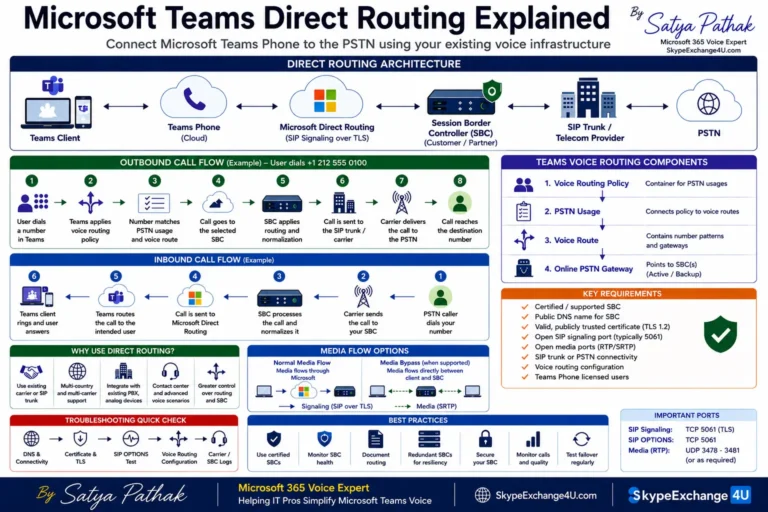
PSTN (Direct Routing / Operator Connect / Calling Plan) ➔ Microsoft Media Processor ➔ Auto Attendant (IVR/Greeting) ➔ Call Queue (Distribution Logic) ➔ Agent Endpoints (Teams Desktop, Mobile, IP Desk Phones, or External PSTN)
High-Level Call Flow Architecture
To understand where call failures occur, you must visualize how the Microsoft Teams cloud PBX processes an inbound session through Auto Attendants and Call Queues:
──(SIP INVITE)──►
Enterprise SBC / Operator Connect
──(TLS/SRTP)──►
Teams Auto Attendant (Resource Account)
──(Routing Algorithm)──►
Conference Bridge Media Processor
──(Forked Alert)──►
Agent Clients (Teams App / Mobile)
Resource Accounts & Licensing: The Virtual User Explained
Every Auto Attendant and Call Queue that receives inbound calls directly from the PSTN requires an identity known as a Resource Account (Application Instance). In Microsoft Entra ID, this is a disabled user object linked to the Microsoft Teams Voice Service Principal.
1. Licensing Requirements
- Microsoft Teams Phone Resource Account License: Formerly known as the Virtual User License, this license is completely $0 / Free. Organizations receive an initial quota (typically 25 licenses base) and gain additional free licenses for every 10 paid Teams Phone user licenses owned in the tenant.
- When is a license required? Any Resource Account assigned a public telephone number (DID/DDI) must have a Phone Resource Account license. If a Call Queue only receives internal transfers from an Auto Attendant and has no external phone number, a license is technically not required. However, best practice is to license all voice resource accounts to prevent provisioning blocks.
2. Assigning Direct Routing Numbers to Resource Accounts
Unlike user accounts where numbers can sometimes be configured in the GUI, Resource Accounts using Direct Routing phone numbers must be assigned via PowerShell using Set-CsPhoneNumberAssignment:
# 1. Connect to Microsoft Teams PowerShell
Connect-MicrosoftTeams

# 2. Assign a Direct Routing phone number to the Auto Attendant Resource Account
Set-CsPhoneNumberAssignment `
  -Identity "aa-main-reception@contoso.com" `
  -PhoneNumber "+14155550100" `
  -PhoneNumberType DirectRouting

# 3. Verify the assignment
Get-CsPhoneNumberAssignment -Identity "aa-main-reception@contoso.com"
Auto Attendant Deep-Dive: Menus, Scopes & Hours
An Auto Attendant serves as the digital receptionist. Designing an enterprise AA requires adhering to a strict order of schedule evaluation:
1. Order of Execution
- Holidays: Evaluated first. If the current date/time falls within an active holiday entry, the standard schedule is completely overridden.
- Business Hours: Evaluated second. If within business hours, plays the open greeting and executes business hours call routing.
- After Hours: Any time outside business hours routes to an after-hours greeting (e.g., redirect to shared voicemail or on-call engineer).
2. Dial by Name Scoping
Dial by Name allows callers to reach employees using speech recognition or dial-pad numbers. In large enterprises, you must configure a Search Scope using an Entra ID security group. This prevents callers from dialing executives, contractors, or conference room resource accounts.
Call Queue Routing Algorithms & Conference Mode
Call Queues distribute calls among designated agents. The efficiency of your call center depends on choosing the correct routing method and media configuration.
| Routing Method | How It Works | Best Used For |
|---|---|---|
| Attendant Routing | Rings all available agents in the queue simultaneously. First agent to answer gets the call. | Small teams (up to 20 agents), urgent incident response. |
| Serial Routing | Rings agents one at a time in the exact order specified in the agent list. Default ring duration is 20 seconds. | Tiered escalation (e.g., Level 1 agent first, then Team Lead). |
| Round Robin | Balances calls evenly. When a call arrives, it rings the agent who answered the furthest back in time. | Sales teams, lead distribution where fairness is required. |
| Longest Idle | Rings the agent whose presence status has been continuously Available for the longest duration. |
High-volume enterprise IT service desks and support centers. |
Conference Mode: The Critical Performance Switch
By default in older Teams configurations, Call Queues operated in Transfer Mode. In transfer mode, when an agent answers, Teams initiates a SIP Refer / Re-INVITE to tear down the queue audio and connect the agent directly, resulting in a noticeable 2 to 4 second delay of silence.
Always enable Conference Mode: Conference Mode places the caller and queue into a pre-established audio conference bridge. When an agent clicks answer, the agent simply joins the existing conference. Call setup latency drops to under 0.5 seconds.
Collaborative Calling (Voice-Enabled Channels)
Traditional call queues assign users directly or via static distribution groups. Modern Teams deployments leverage Collaborative Calling by binding a Call Queue directly to a Microsoft Teams Channel:
- Shared History & Voicemail: Missed calls and queue voicemails land directly in the channel’s Calls tab for the entire team to see and action.
- Dynamic Membership: As team members are added or removed from the underlying Microsoft 365 Team, queue agent membership updates automatically without touching TAC.
- Calling on Behalf of the Queue: Agents can make outbound PSTN calls presenting the Call Queue’s phone number rather than their personal direct line.
The Top 5 Enterprise Gotchas & Troubleshooting Fixes
Gotcha 1: Outbound PSTN Transfer Fails (Call Drops Immediately)
The Symptom: An Auto Attendant menu option transfers the caller to an external phone number (e.g., an on-call answering service or mobile phone). The call drops immediately with dead air or a busy tone.
The Root Cause: In Teams Direct Routing, an outbound transfer requires an Online Voice Routing Policy. When an Auto Attendant performs an external transfer, the call egresses under the context of the Resource Account. If the Resource Account has no Voice Routing Policy assigned, Teams denies PSTN egress.
The Fix: Assign an Online Voice Routing Policy directly to the Auto Attendant’s Resource Account:
# Grant the voice routing policy to the Resource Account
Grant-CsOnlineVoiceRoutingPolicy `
  -Identity "aa-main-reception@contoso.com" `
  -PolicyName "US-PSTN-Outbound-Policy"

# Also ensure Enterprise Voice is enabled on the resource account
Set-CsPhoneNumberAssignment `
  -Identity "aa-main-reception@contoso.com" `
  -EnterpriseVoiceEnabled $true
Gotcha 2: Agents Not Ringing Despite Being “Available”
When agents complain they are not receiving calls:
- Presence-Based Routing (PBR): If PBR is turned ON, Teams will not ring an agent whose status is
Busy,In a Call, orDo Not Disturb. If an agent has a meeting on their Outlook calendar, Teams automatically sets their status to Busy, suppressing queue alerts. - Agent Opt-Out: Check if the agent has accidentally toggled themselves off. In the Teams desktop app, navigate to Settings ➔ Calls ➔ Call Queues and verify the toggle for the queue is set to Active.
- Windows Focus Assist: Windows Notification / Focus Assist rules can silence Teams incoming call popups even though the Teams client is running in the background.
Gotcha 3: Music on Hold (MOH) Silence or Audio Distortion
If external callers hear silence instead of queue music on hold, inspect your Session Border Controller (SBC) configuration. When Teams holds a call in queue, it renegotiates SDP codecs (often switching between SILK and G.711u/a). If your SBC does not support media renegotiation without SIP Re-INVITE, or if firewall UDP ports (3478–3481) are blocked, the RTP media stream collapses.
Gotcha 4: Outbound Calling on Behalf of a Call Queue
To enable agents to call clients back while displaying the service desk’s phone number, deploy a Calling Line Identity (Caller ID) Policy:
# 1. Retrieve the Resource Account Application Instance ID
$appId = (Get-CsOnlineApplicationInstance -UserPrincipalName "cq-servicedesk@contoso.com").ObjectId

# 2. Create the Caller ID Policy substituting the Queue's phone number
New-CsCallingLineIdentity `
  -Identity "ServiceDesk-Outbound-CallerID" `
  -CallingIdSubstitute "Resource" `
  -ServiceNumber "+14155550200" `
  -ResourceAccountObjectId $appId `
  -EnableUserOverride $false

# 3. Assign the policy to helpdesk agents
Grant-CsCallingLineIdentity `
  -Identity "agent.smith@contoso.com" `
  -PolicyName "ServiceDesk-Outbound-CallerID"
Gotcha 5: TAC Replication Delay
Configuration changes made in the Teams Admin Center can take anywhere from 15 minutes to 4 hours to replicate globally across Microsoft’s distributed microservices. If you adjust an agent group or routing rule, do not immediately test and declare it broken. For mission-critical changes, script deployments via Teams PowerShell to ensure immediate commitment to the directory backend.
Need Expert Help Designing or Troubleshooting Teams Phone Infrastructure?
Our team of senior voice architects designs resilient, multi-region Microsoft Teams Direct Routing, contact center migrations, collaborative calling workflows, and complex IVR architectures.
Frequently Asked Questions (FAQ)
How many free Teams Phone Resource Account licenses can an organization get?
Every tenant with at least one paid Teams Phone Standard license gets 25 free Resource Account licenses automatically. For every 10 additional paid user licenses purchased, the tenant receives 1 additional free resource license. If an enterprise requires more resource licenses beyond this calculation, extra licenses can be purchased from Microsoft for a nominal fee.
Why does a transfer from an Auto Attendant to an external phone number fail?
External transfers fail because the Auto Attendant’s Resource Account lacks an assigned Online Voice Routing Policy. In Direct Routing environments, Teams requires an active routing policy on the initiating identity to determine which PSTN gateway (SBC) should handle the call. Grant the policy via Grant-CsOnlineVoiceRoutingPolicy in Teams PowerShell.
What is the difference between Attendant Routing and Round Robin in Call Queues?
Attendant Routing rings all available agents simultaneously (up to 20 agents), and whoever clicks answer first takes the call. Round Robin rings agents individually in rotation, targeting the agent who answered a call furthest back in time, ensuring calls are distributed fairly across the team.
Why should Conference Mode always be enabled on Teams Call Queues?
Conference Mode eliminates the 2–4 second audio delay that occurs when an agent answers. Instead of performing a SIP Re-INVITE transfer to connect media, the caller waits inside an audio bridge, and the agent instantly joins when answering, reducing pickup latency to less than half a second.
Related Microsoft Teams Voice & Infrastructure Guides
- Teams Voice Routing Policy Explained: PSTN Usages, Routes & Dial Plans
- Teams Dial Plan vs. Voice Routing Policy: When to Use Which
- Microsoft Teams Call Flow Explained: Direct Routing & SBC Signaling
- Teams Direct Routing SIP 403 Forbidden: Packet Traces & Provisioning Gotchas
- Teams Dynamic Emergency Calling (E911): RAY BAUM’S Act & Compliance
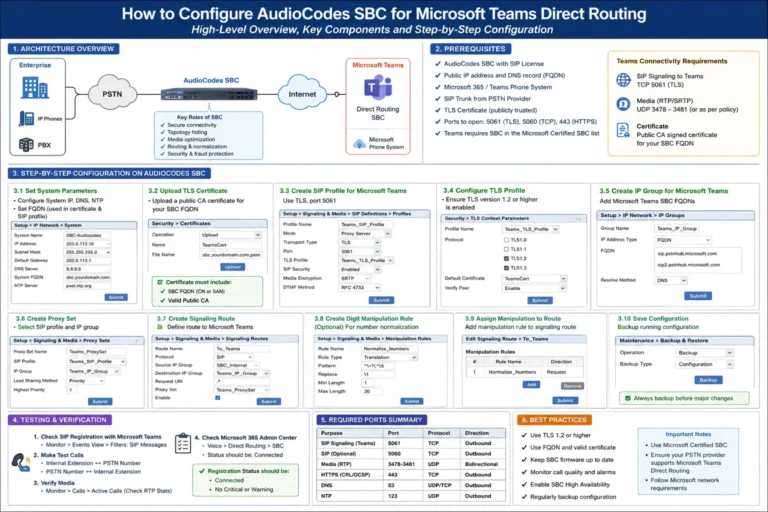
- How to Configure AudioCodes SBC for Microsoft Teams Direct Routing