SIP 486 Busy Here & 603 Decline in Teams Direct Routing: Call Forwarding Loops, Busy Options & Carrier Fixes
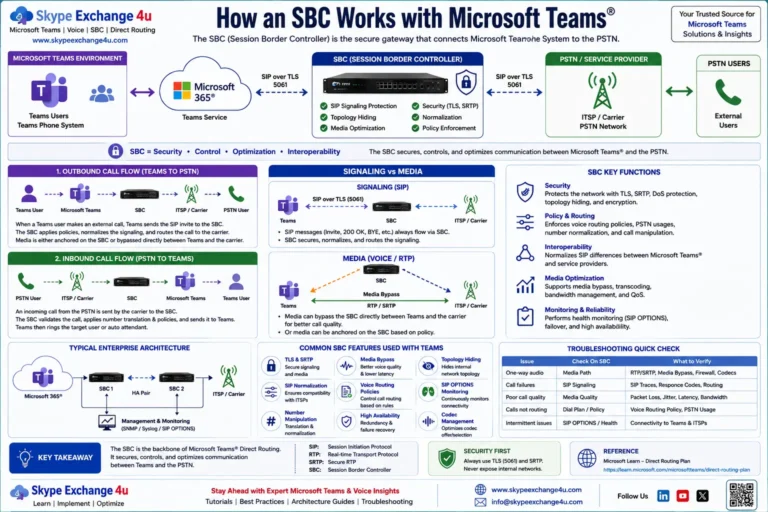
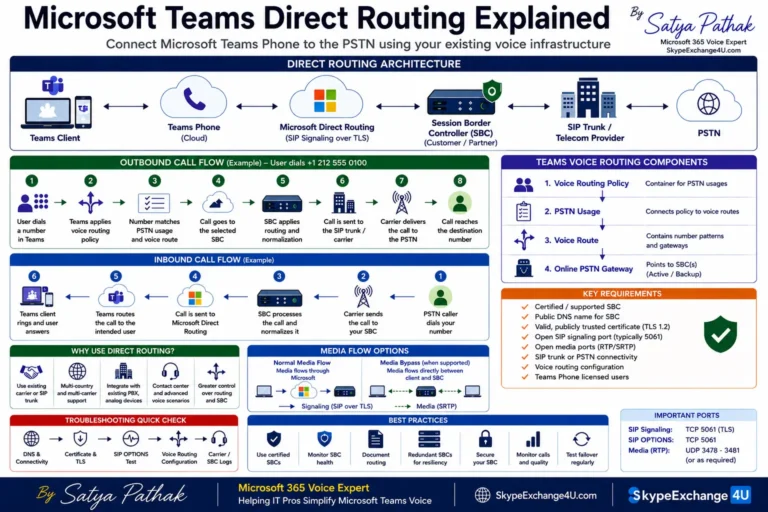
In SIP telephony and Microsoft Teams Direct Routing, handling an unanswered or rejected call requires precise signaling between the Microsoft Teams SIP Proxy, your Session Border Controller (SBC), and the PSTN carrier. Two response codes are frequently misunderstood by voice engineers: SIP 486 Busy Here and SIP 603 Decline.
While both indicate that a call cannot be completed to the recipient, their underlying RFC 3261 mechanics, routing implications, and Q.850 release causes are completely different. A 486 Busy Here is an endpoint-specific state that permits alternative routing (such as voicemail, call forwarding, or hunt groups). Conversely, a 603 Decline is a global refusal that strictly forbids downstream proxies from trying any other destinations. Misinterpreting these responses often leads to circular call loops, broken Busy on Busy policies, and SBC trunk failover delays.
• SIP 486 (Busy Here): Callee endpoint is busy at this specific location. Proxies MAY attempt alternative routing (Voicemail / Call Forwarding / Simultaneous Ring).
• SIP 603 (Decline): Callee explicitly rejects the call everywhere. Downstream proxies and SBCs MUST NOT search other destinations or trigger trunk failovers.
SIP 486 vs. SIP 603: Technical Comparison
| SIP Response Code | RFC 3261 Meaning | Q.850 Cause Code | SBC Alternative Routing Allowed? |
|---|---|---|---|
| 486 Busy Here | Target endpoint is currently occupied or engaged in another call. | Cause 17 (User busy) | Yes (Internal redirects permitted) |
| 603 Decline | Target endpoint explicitly refuses the session across all possible devices. | Cause 21 (Call rejected) | NO (Strictly prohibited by RFC) |
Deep-Dive: What Triggers SIP 486 Busy Here in Teams Direct Routing?
1. “Busy on Busy” (BusyOptions) Policy is Enabled
By default, Microsoft Teams permits call waiting: if a user is in a meeting or on a phone call, a second inbound call alerts them with an audio beep and banner. However, many enterprise organizations (financial trading desks, emergency dispatch, executive lines) enforce strict Busy on Busy policies.
When BusyOnBusyEnabledType is set to Enabled, any second inbound call immediately causes the Teams SIP Proxy to send a SIP/2.0 486 Busy Here back to your SBC. If the user has unanswered call forwarding configured, the call diverts to voicemail; if not, the caller hears a busy tone.
2. User Manually Rejects the Call (“Decline” Button)
When an incoming call rings on the Microsoft Teams desktop client or mobile app, the user can click the red Decline button.
If the user has an active voicemail policy, Teams absorbs the rejection internally and re-routes the media session to Azure Voicemail (the SBC never sees the 486). However, if the user has Voicemail disabled (or is a shared device / Common Area Phone), clicking Decline forces Teams to return a raw 486 Busy Here with Reason: Q.850;cause=17;text="User busy" to the SBC.
3. Circular Call Forwarding Loops (Teams ➔ PBX ➔ Teams)
In coexistence environments where a legacy PBX (Cisco CallManager, Avaya Aura) is connected alongside Teams via an SBC, forward loops are common. A user configures Teams to forward calls to their legacy desk phone extension. Simultaneously, the legacy PBX has an un-cleared forward rule pointing back to Teams.
The SBC loops the call back and forth. Teams detects the repeated hops via the History-Info or Diversion SIP headers, or the Max-Forwards header reaches 0. Teams terminates the loop by returning 486 Busy Here or 483 Too Many Hops.
How to Check and Configure Busy on Busy via PowerShell
To audit your tenant’s Teams Calling Policy settings for Busy on Busy:
# 1. Connect to Microsoft Teams PowerShell
Connect-MicrosoftTeams

# 2. Inspect the Global and custom Calling Policies
Get-CsTeamsCallingPolicy | Select-Object Identity, BusyOnBusyEnabledType

# Output Values:
# Enabled       ➔ Returns 486 Busy Here if user is on a call
# Disabled      ➔ Call rings through (Standard Call Waiting)
# Unanswered    ➔ Immediately executes the user's Unanswered Call routing (e.g., Voicemail)

# 3. Enable Busy on Busy for a specific executive policy
Set-CsTeamsCallingPolicy -Identity "ExecutiveCallingPolicy" -BusyOnBusyEnabledType "Enabled"
Deep-Dive: What Triggers SIP 603 Decline in Teams Direct Routing?
A SIP 603 Decline is a deliberate, authoritative termination. When an SBC receives a 603, it must clear the call immediately with an ISDN Q.850 Cause 21 (Call Rejected). In Teams Direct Routing, 603 errors stem from two distinct scenarios:
1. Inbound Call Blocked by Teams Tenant Block Pattern
Microsoft Teams provides tenant-level inbound number blocking. Administrators can configure regex patterns to block nuisance, robocall, or malicious callers. When an inbound INVITE arrives from a blocked caller:
PSTN Carrier ──(INVITE From: +14155559999)──► SBC ──(INVITE)──► Teams SIP Proxy
Teams SIP Proxy ──(SIP/2.0 603 Decline)──► SBC ──(SIP/2.0 603 Decline)──► PSTN Carrier
You can verify active blocked patterns in PowerShell:
# View all tenant inbound blocked number patterns
Get-CsInboundBlockedNumberPattern

# Example pattern blocking a nuisance caller
# Description: Telemarketer Spam | Pattern: ^\+?14155559999$
2. Carrier Rejection on Outbound Calling (CLIR / STIR/SHAKEN Violations)
When placing outbound PSTN calls from Teams through an SBC, carriers frequently reject calls with 603 Decline if the calling party number (Caller ID) is invalid, unallocated, or marked as fraudulent under STIR/SHAKEN regulations. If an enterprise user attempts to hide their caller ID using Calling Line Identity (CLIR), but the SBC fails to include an authentic, carrier-verified P-Asserted-Identity (PAI) header, upstream Class 4 switches drop the call with 603 Decline.
SBC Gotcha: The 15-Second Trunk Hunting Bug on 486
One of the most damaging configuration errors on enterprise SBCs (AudioCodes Mediant or Ribbon SBC) is misconfigured Alternative Routing / Trunk Hunting.
The Symptom:
An external caller rings an employee who is on another call. Instead of immediately hearing a busy tone or going to voicemail, the caller hears dead silence or prolonged ringing for 12 to 18 seconds before the call drops.
The Root Cause
SBCs are configured with routing tables that fail over to alternative SIP trunks if the primary trunk returns an error (e.g., SIP 503 Service Unavailable or SIP 408 Request Timeout). However, if an administrator mistakenly leaves SIP 486 (Cause 17) in the SBC’s alternative routing trigger list:
- Teams legitimately reports
486 Busy Herebecause the user is engaged. - The SBC assumes the route failed and hunts to Secondary Teams Proxy (
sip2.pstnhub.microsoft.com). - Secondary Proxy also returns
486 Busy Here. - The SBC hunts to Tertiary Teams Proxy (
sip3.pstnhub.microsoft.com), which also returns486 Busy Here. - Only after exhausting all 3 trunks does the SBC finally release the call to the carrier.
The Fix
- On AudioCodes: Navigate to Signaling & Media ➔ Routing ➔ Alternative Routing Reasons. Verify that
User Busy (17)is NOT checked for alternative routing. - On Ribbon: Navigate to Routing Tables ➔ Cause Code Mapping. Ensure Cause Code
17 (User Busy)and Cause Code21 (Call Rejected)are marked as Final Responses and excluded from hunting profiles.
Experiencing Call Drops, Busy Tone Glitches, or Routing Delays?
Our Microsoft-certified voice architects specialize in raw SIP ladder trace diagnostics, AudioCodes and Ribbon SBC route optimization, call-forwarding loop remediation, and carrier interop engineering.
Frequently Asked Questions (FAQ)
Why does a caller hear a busy signal instead of being routed to Teams Voicemail?
This occurs when the user has a Busy on Busy policy set to “Enabled” but has no active unanswered call forwarding configured, or when the user’s Microsoft 365 license lacks Exchange Online Voicemail. In these cases, Teams rejects the incoming session with a SIP 486 Busy Here rather than forwarding the call to the voicemail processor.
What is the primary operational difference between SIP 486 and SIP 603?
A SIP 486 Busy Here signals that the callee is occupied at this specific device, allowing downstream proxies to attempt alternative targets like secondary phone numbers or voicemail. A SIP 603 Decline is an explicit rejection of the call across all endpoints; downstream proxies and SBCs are strictly prohibited from attempting alternative routes.
How can I stop my SBC from hunting through all trunks when a user is busy?
In your SBC routing configuration, remove ISDN Cause Code 17 (User Busy / SIP 486) from the Alternative Routing / Trunk Hunting profile. Treat SIP 486 as a final response so the SBC immediately delivers the busy signal back to the originating carrier without cycling through backup trunks.
Why does Teams return a SIP 603 Decline for specific incoming telephone numbers?
Teams returns a SIP 603 Decline when the caller’s phone number matches an active tenant-level Inbound Blocked Number Pattern configured via PowerShell (Get-CsInboundBlockedNumberPattern). Teams identifies the caller as blacklisted and terminates the session immediately with Q.850 Cause 21.
Related Microsoft Teams Direct Routing & SIP Error Guides
- SIP 487 Request Terminated & 408 Request Timeout: Carrier Ring Timers & NAT Drops
- Teams Direct Routing SIP 503 Service Unavailable: Trunk Outages & Failover
- Teams Direct Routing SIP 403 Forbidden: Regex Gotchas & Licensing
- Teams Direct Routing 488 Not Acceptable Here: SDP Codec & SRTP Gotchas
- Microsoft Teams Call Queues & Auto Attendants: Architecture & Gotchas
- How to Configure AudioCodes SBC for Microsoft Teams Direct Routing
- Ribbon SBC 1000/2000 Teams Direct Routing Step-by-Step Configuration