
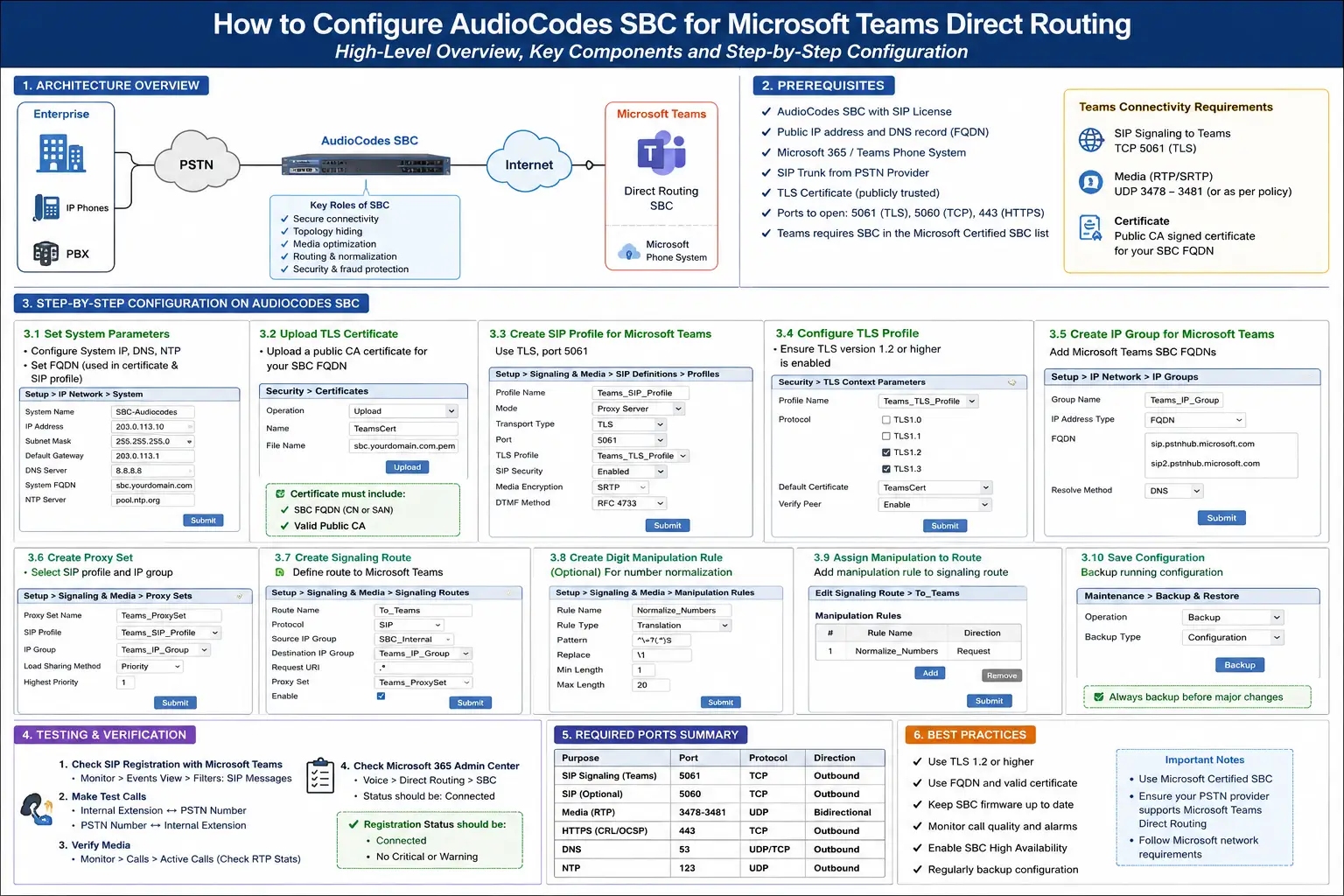
How to Configure AudioCodes SBC for Microsoft Teams Direct Routing – Step-by-Step Guide
Deploying Microsoft Teams Direct Routing on an AudioCodes Mediant SBC (whether a physical Mediant 500/800/1000/2600/4000 or a virtualized Mediant VE in Azure/AWS) bridges your enterprise PSTN trunks with Microsoft’s cloud phone system. While Microsoft documentation outlines high-level topology, it omits the exact AudioCodes Web GUI parameters, certificate chains, and manipulation rules required to establish end-to-end call routing.
This deployment guide walks through the complete, battle-tested configuration sequence: network interfaces, public TLS certificate generation, SIP definitions, Microsoft 365 tenant provisioning in PowerShell, and first-call validation.
AudioCodes Firmware: 7.40A / 7.20A+ | Port: TLS 5061 | Signaling: mTLS | Media: SRTP (RTP/SAVP) | Microsoft Proxies: sip.pstnhub.microsoft.com
Direct Routing Architecture Overview
Direct Routing requires a clean separation of network boundaries. In standard enterprise topologies, the Mediant SBC acts as a back-to-back user agent (B2BUA) with dual interfaces: WAN (facing Microsoft and optionally the SIP carrier) and LAN (facing internal PBXs or local management).
Phase 1: Tenant & DNS Prerequisites
Before touching the AudioCodes Web GUI, two non-negotiable Microsoft 365 requirements must be completed:
1. Base Domain Registration in Microsoft 365
Microsoft Direct Routing validates the SBC FQDN against verified domains in your tenant. If your SBC hostname is sbc01.voice.contoso.com, the base domain contoso.com (or subdomain voice.contoso.com) must be added and verified in the M365 Admin Center under Settings → Domains.
- Activation Requirement: A verified domain remains dormant in Azure AD until at least one licensed user account is assigned a UPN with that domain suffix (e.g.,
dummyuser@voice.contoso.comwith a basic license). If this is omitted, Microsoft will reject all inbound SBC traffic with a SIP 403 Forbidden (Tenant Not Found) error.
2. Public DNS A-Record
Create an external DNS A Record pointing your SBC FQDN (e.g., sbc01.contoso.com) to the SBC’s static public WAN IP address. Direct Routing does not support dynamic IPs or CNAMEs for gateway discovery.
Phase 2: TLS Context & Certificate Installation
Mutual TLS (mTLS) over port 5061 is mandatory. Microsoft will immediately terminate any connection that presents an untrusted, mismatched, or expired certificate.
1. Generate the Certificate Signing Request (CSR)
In the AudioCodes Web GUI:
- Navigate to Setup → IP Network → Security → TLS Contexts.
- Select TLS Context 0 (or click +New to create a dedicated Teams TLS context).
- Scroll down to the Certificate Information pane and click Change Random Number.
- Fill in your CSR details:
- Common Name (CN):
sbc01.contoso.com - Subject Alternative Name (SAN):
DNS:sbc01.contoso.com(Mandatory: Microsoft strictly checks the SAN extension). - Key Size:
2048bit (RSA).
- Common Name (CN):
- Click Generate Private Key, then click Generate CSR. Copy the Base64 output.
2. Submit to a Microsoft-Approved Public CA
Direct Routing does not support self-signed certificates or private corporate PKIs. Submit your CSR to an approved public CA: DigiCert, Sectigo, GlobalSign, Entrust, or GoDaddy.
3. Install Root CAs and Device Certificate
Once issued, upload the files to AudioCodes:
- Under the same TLS Context, click Trusted Root Certificate File and upload the combined Root and Intermediate bundle (including the Microsoft Baltimore CyberTrust Root / DigiCert Global Root G2 chains).
- Under Device Certificate, click Send File and upload your public
.ceror.pemcertificate. - Click Save & Reset if prompted.
- Troubleshooting Reference: If the SBC displays inactive after renewal, review our guide on Teams SBC Inactive After Certificate Renewal (OPTIONS Fix).
Phase 3: AudioCodes Core SIP Configuration
1. SIP Interface Definition
Navigate to Signaling & Media → SIP Definitions → SIP Interfaces. Click +New to create the Teams interface:
| Parameter | Value | Engineering Rationale |
|---|---|---|
| Name | SIP_Teams |
Descriptive identifier. |
| Network Interface | WAN |
Must route to public IP. |
| Application Type | SBC |
Enables back-to-back user agent call processing. |
| TLS Port | 5061 |
Required by Microsoft Direct Routing. |
| TLS Context | TLS Context 0 |
References the context containing your public SAN certificate. |
2. Proxy Set Configuration (Microsoft Regional Clusters)
Navigate to Signaling & Media → SIP Definitions → Proxy Sets. Click +New:
- Proxy Set ID:
1(Name:ProxySet_Teams) - SBC Contact Header: Select Use FQDN. (Crucial: If left on “Use IP Address”, Microsoft rejects all calls with 403 Forbidden).
- Keep-Alive Method:
OPTIONS - Keep-Alive Time:
60seconds
Click on the newly created Proxy Set row, click Proxy Address at the top, and add the three Microsoft regional endpoints:
sip.pstnhub.microsoft.com:5061;transport=tls
sip2.pstnhub.microsoft.com:5061;transport=tls
sip3.pstnhub.microsoft.com:5061;transport=tls
3. Media Realm & Security (SRTP)
Navigate to Signaling & Media → Media → Media Realms. Click +New:
- Name:
MR_Teams - IPv4 Interface Name:
WAN - Port Range:
6000 – 6999(or your assigned AudioCodes RTP pool)
Navigate to Signaling & Media → Media → Media Security:
- Set Media Security to
Enable. - Set Security Mode to
SRTP. - Ensure cipher suite
AES_CM_128_HMAC_SHA1_80is active.
4. IP Groups
Navigate to Signaling & Media → Server Groups → IP Groups. You need two distinct groups:
- Teams IP Group:
- Type:
Server - Proxy Set:
ProxySet_Teams - SIP Interface:
SIP_Teams - Media Realm:
MR_Teams - Class:
SBC
- Type:
- Carrier IP Group:
- Configured pointing to your PSTN carrier’s Proxy Set / SIP trunk.
5. IP-to-IP Routing (Inbound & Outbound)
Navigate to Signaling & Media → SBC → Routing → IP-to-IP Routing. Add the two core call legs:
| Rule Name | Source IP Group | Destination Type | Destination IP Group |
|---|---|---|---|
| Teams_to_PSTN | Teams_IPG |
IP Group | Carrier_IPG |
| PSTN_to_Teams | Carrier_IPG |
IP Group | Teams_IPG |
Phase 4: Microsoft Teams Tenant Provisioning
Connect to Microsoft Teams using the official PowerShell module:
# 1. Authenticate to your Microsoft 365 Tenant
Connect-MicrosoftTeams

# 2. Register the AudioCodes Mediant SBC Gateway
New-CsOnlinePSTNGateway `
  -Identity "sbc01.contoso.com" `
  -SipSignalingPort 5061 `
  -SendSipOptions $true `
  -MaxConcurrentSessions 100 `
  -Enabled $true

# 3. Create a PSTN Usage record
Set-CsOnlinePstnUsage -Identity Global -Usage @{Add="US-National"}

# 4. Create an Online Voice Route pointing to the AudioCodes SBC
New-CsOnlineVoiceRoute `
  -Identity "VR-All-National" `
  -NumberPattern "^\+1(\d{10})$" `
  -OnlinePstnGatewayList "sbc01.contoso.com" `
  -Priority 1 `
  -OnlinePstnUsages "US-National"

# 5. Create and assign the Voice Routing Policy
New-CsOnlineVoiceRoutingPolicy -Identity "VRP-DirectRouting" -OnlinePstnUsages "US-National"
Grant-CsOnlineVoiceRoutingPolicy -Identity "engineer@contoso.com" -PolicyName "VRP-DirectRouting"

# 6. Assign Phone Number & Enable Enterprise Voice for User
Set-CsPhoneNumberAssignment `
  -Identity "engineer@contoso.com" `
  -PhoneNumber "+14155550199" `
  -PhoneNumberType DirectRouting

Set-CsPhoneNumberAssignment `
  -Identity "engineer@contoso.com" `
  -EnterpriseVoiceEnabled $true
Phase 5: Validating Gateway Health & Placing the First Call
1. Verify SIP OPTIONS Heartbeat
Wait 5–10 minutes after running New-CsOnlinePSTNGateway, then check the gateway health in PowerShell:
Get-CsOnlinePSTNGateway -Identity "sbc01.contoso.com" | Select-Object Identity, InService, EnabledIf InService returns True, Microsoft has completed a mutual TLS handshake with your Mediant SBC and validated the OPTIONS exchange. If it returns False, inspect our Teams Direct Routing SIP 503 Troubleshooting Guide.
2. The First Test Call: Syslog Capture
Open the AudioCodes Syslog Viewer (or Embedded Syslog under Status & Diagnostics → Message Log) and filter for SIP and GW.
Place an outbound test call from your Teams client to a mobile number:
- Leg 1 (Teams → SBC): Look for an incoming
INVITEfromsip.pstnhub.microsoft.com:5061. The SBC should return100 Trying. - Leg 2 (SBC → Carrier): The SBC looks up the
IP-to-IP Routingtable, translates the number according to your outbound manipulation rules, and forwards theINVITEto the carrier. - Ringing & 200 OK: The carrier returns
180 Ringingfollowed by200 OK. The SBC establishes the SRTP crypto stream with Teams, and audio flows.
The 4 Most Common First-Call Failures
1. Fast Busy with SIP 403 Forbidden
Cause: Inbound caller ID mismatch, or the SBC is sending an IP address in the Contact header instead of the FQDN.
Fix: Ensure Proxy Set → SBC Contact Header is explicitly set to Use FQDN. Verify the user has a phone number assigned in Teams.
2. Fast Busy with SIP 488 Not Acceptable Here
Cause: Codec negotiation failure or missing SRTP.
Fix: Direct Routing strictly requires SRTP. Ensure Media Security is set to SRTP on the Teams Media Realm and the SBC offers G.711u, G.711a, or SILK. Check our Direct Routing SIP 488 Guide.
3. One-Way Audio or Complete Dead Air
Cause: Corporate firewall is blocking the UDP RTP media port range.
Fix: Ensure external firewall rules permit bidirectional UDP traffic between the SBC WAN IP and Microsoft’s worldwide IP subnets on the configured Media Realm port range (UDP 6000–6999).
4. SIP 503 Service Unavailable on Outbound
Cause: Carrier trunk down, or the SBC certificate CA chain is untrusted by Microsoft.
Fix: Verify the Baltimore/DigiCert root CA bundle is installed under Trusted Root Certificates in TLS Context 0.
Frequently Asked Questions (FAQ)
Which AudioCodes Mediant models support Teams Direct Routing?
All current AudioCodes Mediant models running firmware 7.20A or 7.40A+ support Teams Direct Routing, including physical appliances (Mediant 500, 800, 1000, 2600, 4000, 9000) and virtualized/cloud appliances (Mediant VE for VMware, Hyper-V, Azure, and AWS).
Does AudioCodes require a specific license for Teams Direct Routing?
Yes. The AudioCodes Mediant license key must have active SBC sessions allocated, and the software feature flag for Microsoft Direct Routing / SIP over TLS must be enabled. You can inspect active licenses in the Web GUI under Status & Diagnostics → License Key.
Why is my AudioCodes SBC showing Inactive in the Teams Admin Center?
An Inactive status indicates that the mutual TLS handshake between Microsoft and the SBC failed, or the SBC is not answering SIP OPTIONS requests with a 200 OK. Verify that your public certificate SAN matches the SBC FQDN exactly, the CA root chain is uploaded, and the firewall permits outbound TCP/TLS on port 5061.
Related Microsoft Teams Direct Routing & SBC Guides
- Microsoft Teams SIP Gateway: Onboarding Cisco & AudioCodes Desk Phones
- AudioCodes vs Ribbon vs anynode: Best SBC for Teams Direct Routing
- Teams Direct Routing SIP 503 Service Unavailable: Troubleshooting SBC & Trunk Outages
- Teams Direct Routing SIP 403 Forbidden: Packet Traces, FQDN Gotchas & Carrier Fixes
- Teams Direct Routing 488 Not Acceptable Here: SDP, Codecs, SRTP
- Teams Direct Routing Inactive After Certificate Renew (OPTIONS Fix)
- Media Bypass vs Local Media Optimization: When Teams Skips the SBC